



Bricks Builder Integration in Commandify Pro
- Edit With Bricks (Context-Aware Action)
- Support for Bricks-Enabled Post Types (Dynamic Detection)
- Bricks Integration Reliability Improvements
- Workflow Examples for Bricks Users
- Troubleshooting Bricks Builder in Commandify
- Bricks Builder Enhancements in Commandify v1.0.6
- Best Practices for Using Bricks Builder with Commandify
- Final Thoughts on Brick Builder Integration
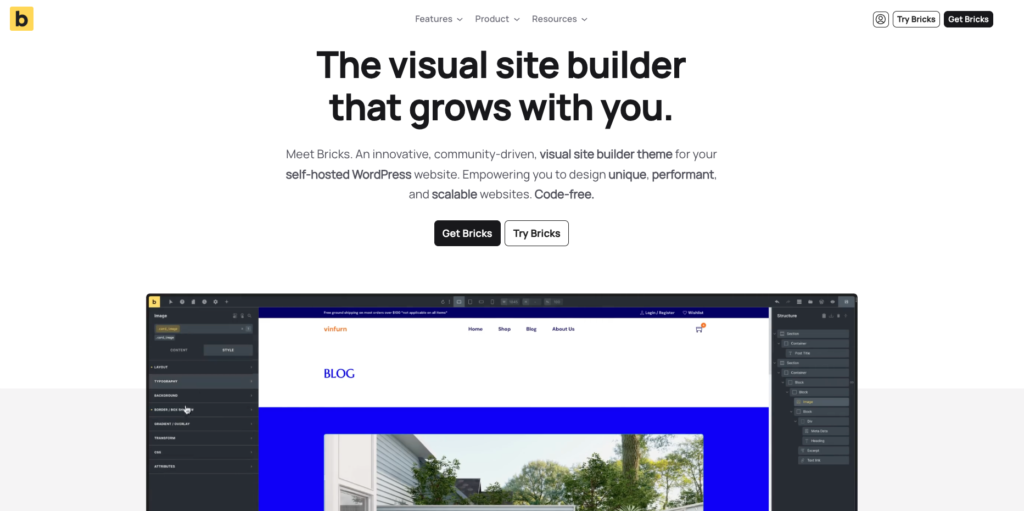
Commandify Pro now includes a native integration with Bricks Builder. The features allow you to jump into Bricks editing, manage Bricks-enabled post types, and streamline your workflow without leaving the command palette.
If you work with Bricks as your primary visual builder, this integration removes the repetitive navigation steps and gives you a faster, keyboard-driven way to access and manage your Bricks content.
Bricks users (especially those managing large sites, client projects, or multiple CPTs) will instantly notice how much easier it becomes to open layouts, debug templates, and maintain content from any screen.
Edit With Bricks (Context-Aware Action) #
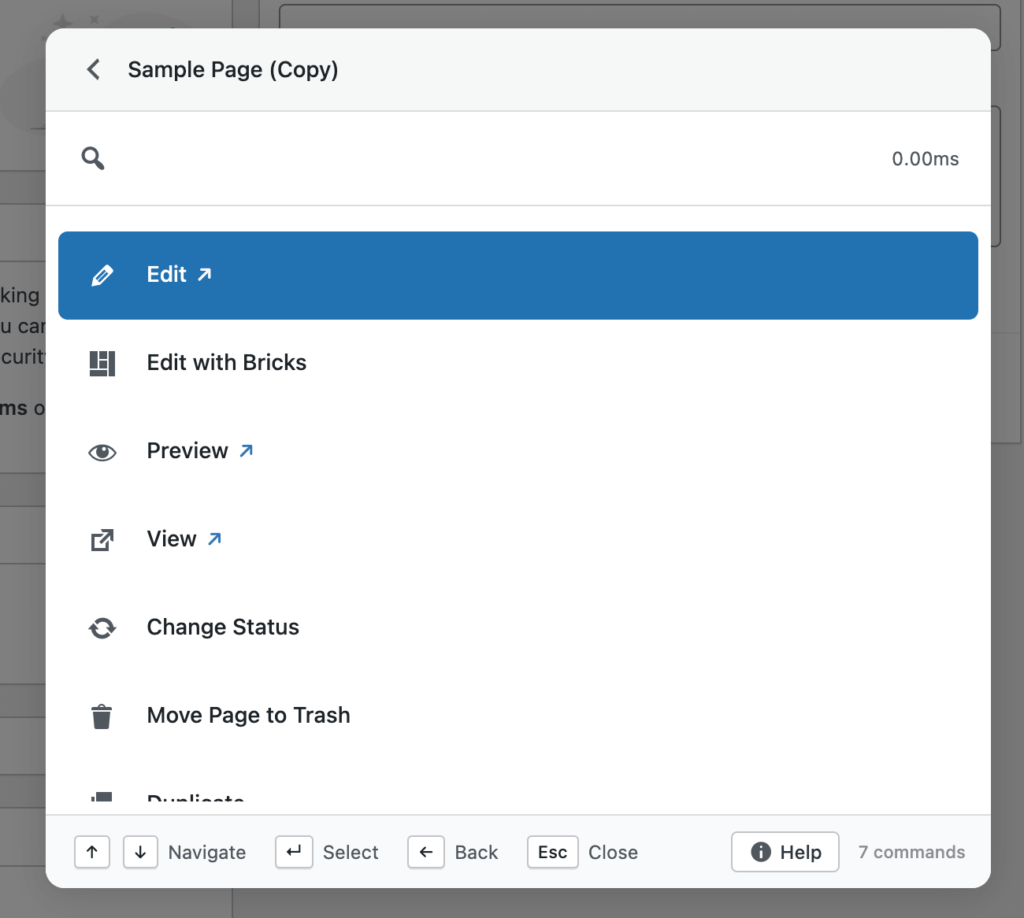
The core of this integration is the “Edit with Bricks” action, which appears automatically whenever you search for posts, pages, or Bricks-enabled custom post types.
Commandify detects whether Bricks is active on a post and shows this action only when it’s relevant, ensuring a clean and intuitive interface. This lets you skip the WordPress editor entirely and open the Bricks canvas in a single click.
Why this is helpful
Editing with Bricks normally requires navigating to a post → clicking “Edit with Bricks” → waiting for the canvas to load. Commandify reduces this entire process to one step.
How to use
- Press Cmd/Ctrl + K to open the command palette
- Use Search Posts / Pages or search any CPT
- Select an item built with Bricks
- Choose “Edit with Bricks” and you’re done
This is ideal for:
- Designers jumping between multiple pages
- Developers debugging template logic
- Agencies managing client landing pages
- Freelancers who edit a high volume of content daily
Support for Bricks-Enabled Post Types (Dynamic Detection) #
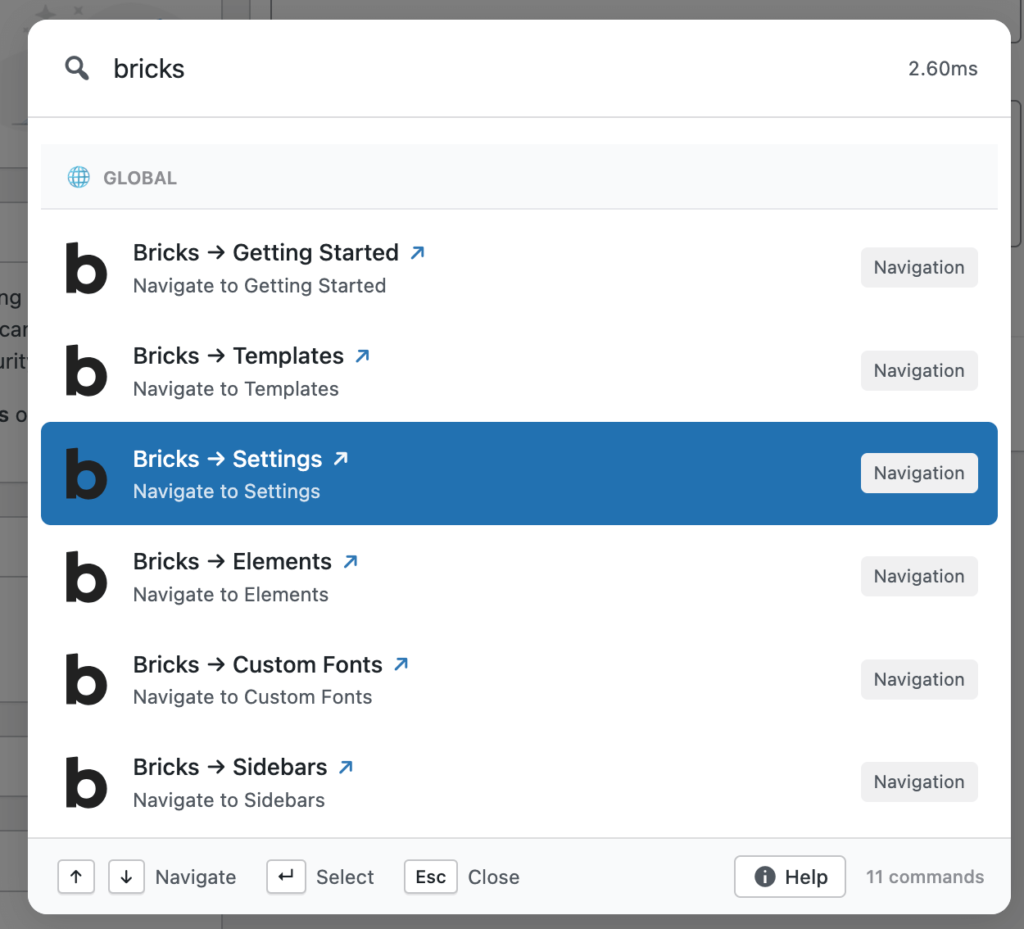
Bricks allows users to enable or disable builder support for specific post types via: Bricks → Settings → Post Types
Commandify respects these settings and only shows the Edit with Bricks action for the post types you have enabled. This prevents clutter, avoids confusion, and ensures consistency with your Bricks environment.
Why this matters
Many websites use CPTs for portfolios, FAQs, products, services, events, and more. Bricks users often enable the builder for specific CPTs only.
Commandify automatically adapts to:
- Standard post types (Posts, Pages)
- Plugin CPTs (like Products or Courses, if enabled)
- Custom CPTs registered by themes or agencies
This gives you a seamless experience whether you’re editing a blog page or a dynamic CPT template.
Bricks Integration Reliability Improvements #
Along with the initial integration, Commandify v1.0.3 introduced key fixes that make the “Edit with Bricks” action more stable and predictable.
What’s improved
- The action now appears only on post types explicitly enabled in Bricks settings
- Fixed “Command not found” errors on search results
- Improved action registration timing so Bricks commands load consistently
- Smarter detection of Bricks-built content
These improvements ensure you always see the correct actions at the right time—no missing commands, no unexpected errors.
Workflow Examples for Bricks Users #
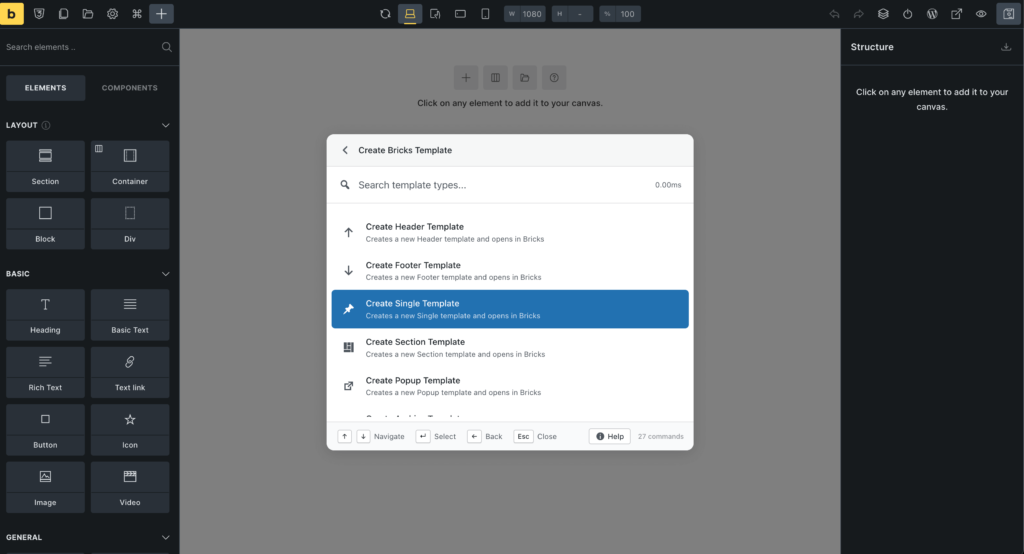
Here are practical ways Bricks users can benefit from Commandify:
Rapid Page Editing
Search any page → press Enter → Bricks editor opens instantly.
Perfect for designers updating multiple sections or templates.
Landing Page Audit Sessions
Jump quickly through a list of pages to review styling or components without navigation fatigue.
Client Project Delivery
When you maintain 20–100+ Bricks pages for clients, Commandify becomes a huge time saver.
Debugging Theme Styles
Open the affected templates instantly while troubleshooting CSS conflicts or dynamic data.
Template-Based Workflows
If your Bricks setup relies heavily on CPT templates, you can open them faster than ever.
Troubleshooting Bricks Builder in Commandify #
If Bricks commands don’t appear, here are common checks:
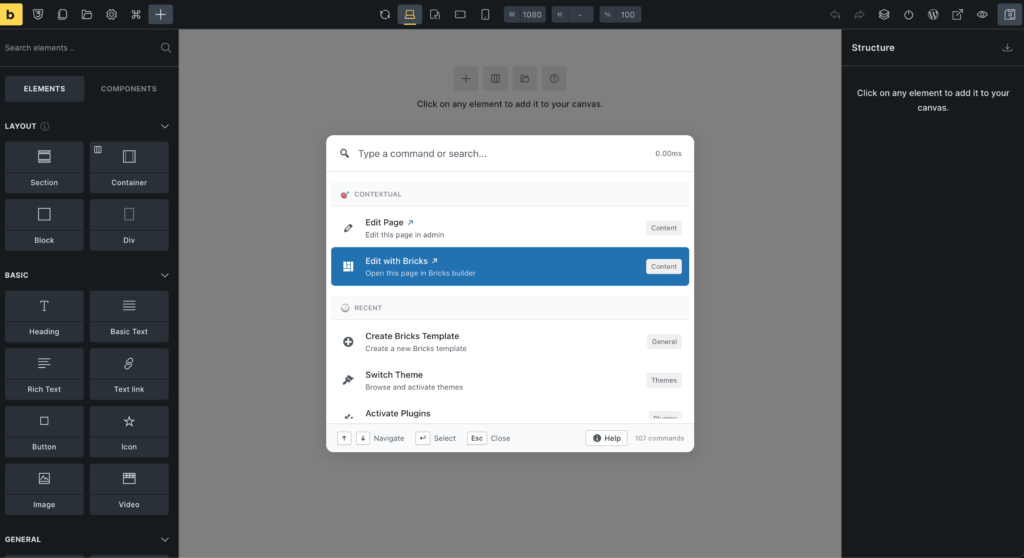
Edit with Bricks action missing
- Ensure Bricks Builder is installed and activated
- Verify Bricks is enabled for the specific post type
→ Go to Bricks → Settings → Post Types - Confirm the post was created with Bricks
- Refresh your page after plugin updates
“Command not found” issue
- Update to Commandify v1.0.3 or higher (fix included)
Builder opens in default editor instead
- The post may not be saved as a Bricks layout
- Try opening it once manually → Bricks will update its meta settings
If issues persist, contact support.
Bricks Builder Enhancements in Commandify v1.0.6 #
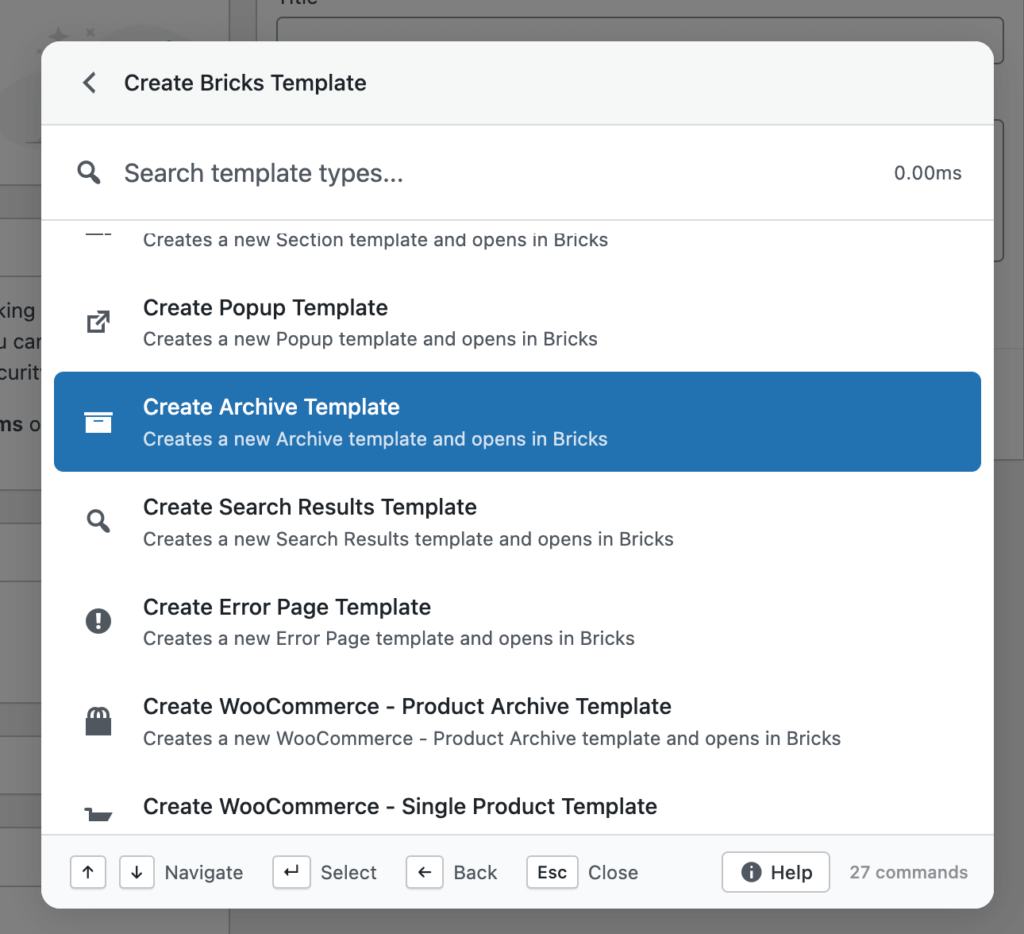
Commandify v1.0.6 introduces important improvements to the Bricks Builder integration, focusing on accuracy, safety, and consistency when working with Bricks-powered sites.
These updates make Bricks-related commands more reliable across different site setups, especially for agencies and developers managing multiple post types.
Smarter “Edit with Bricks” Availability
In v1.0.6, Commandify now respects Bricks’ own post type settings when displaying the Edit with Bricks action.
This means:
- The Edit with Bricks command only appears for post types that are explicitly enabled in
Bricks → Settings → Post Types - Unsupported post types no longer show Bricks-related actions
- Reduces confusion and prevents accidental editor launches on unsupported content
This behavior matches how Bricks itself controls editor availability, ensuring Commandify never bypasses Bricks configuration rules.
Centralized Post Action Handling for Bricks
Bricks integration in v1.0.6 now uses Commandify’s centralized post action system, bringing Bricks in line with other integrations like Elementor and core post actions.
Key benefits include:
- Consistent post actions across search results, contextual commands, and dynamic lookups
- Improved stability when multiple integrations are active
- Easier maintenance and faster rollout of future Bricks-related features
For users, this results in a smoother and more predictable command experience when switching between builders.
Improved Reliability in Large or Custom Setups
For sites with:
- Custom post types
- Conditional Bricks usage
- Agency-style multi-builder environments
These updates ensure that Bricks commands:
- Appear only where relevant
- Follow WordPress capability checks
- Behave consistently across admin screens and supported frontend contexts
This makes Commandify safer to use on production sites without risking editor conflicts.
Why this update matters
Earlier versions focused on feature depth (template management, editing, exporting).
v1.0.6 focuses on correctness and trust.
By aligning Bricks actions with Bricks’ own configuration and Commandify’s unified action system, this release ensures that:
- Commands appear only when they should
- Actions never bypass builder or WordPress rules
- Teams can confidently use Commandify across complex Bricks projects
Best Practices for Using Bricks Builder with Commandify #
To get the most value from Commandify’s Bricks integration, align it with how you already design, review, and maintain Bricks-powered sites.
Enable only the post types you actively design in Bricks
Commandify now fully respects Bricks’ post type settings. Keeping this list clean ensures Bricks-related commands appear only where they’re relevant, reducing noise and speeding up search results.
Use Commandify for navigation and actions, Bricks for visual design
Commandify excels at finding, opening, and managing Bricks templates and pages instantly, while Bricks remains your visual design workspace. This separation keeps your workflow fast and focused.
Open Bricks directly from anywhere — including the frontend
With recent frontend support and improved keyboard handling, you can view a page on the frontend, trigger the command palette, and jump straight into Edit with Bricks without returning to wp-admin.
Speed up QA and review sessions with keyboard-driven access
During QA or client review, use Commandify to quickly:
- Open multiple Bricks templates
- Jump between pages and layouts
- Verify template usage across post types
All without breaking your flow or loading extra admin screens.
Leverage template-focused workflows for large or multi-site projects
Commandify shines when working with:
- Multiple Bricks templates
- Reusable layouts
- CPT-based site structures
Search, duplicate, rename, export, or regenerate CSS for templates in seconds — ideal for agencies and advanced site builders.
Rely on consistent actions across all contexts
Thanks to centralized action handling, Bricks commands behave consistently whether triggered from search results, contextual actions, or pattern-based lookups. This predictability makes Commandify reliable for daily production work.
Final Thoughts on Brick Builder Integration #
The Bricks Builder integration turns Commandify into a powerful companion for designers, developers, and agencies working with Bricks. It works just like Elementor integration. Whether you manage dynamic CPT layouts, complex client sites, or rapid production workflows, having Bricks available from a keyboard shortcut reduces friction and saves countless clicks.
This integration is fast, intuitive, and built to support professional-grade Bricks workflows.
Need help or want to request more builder actions?


