



How to Manage Bricks Builder Templates Faster Without Slowing Down Your Workflow

If you use Bricks Builder regularly, you already know why you chose it.
Bricks Builder is fast. It’s clean. It respects performance. It avoids unnecessary abstractions. Compared to most page builders, Bricks feels closer to how WordPress should work.
But once a site grows beyond a few pages, a different problem appears. Template management starts eating time.
Headers, footers, single templates, archives, condition-based layouts- Bricks encourages modular design, which is a good thing. But managing all those templates from the WordPress admin still involves navigating lists, opening edit screens, and jumping between post types just to perform basic actions.
This is why developers and agencies search for things like how to manage Bricks templates, Bricks builder workflow optimization, and manage Bricks templates faster. The problem isn’t building layouts. It’s everything around managing them.
So, What Bricks Builder Is?
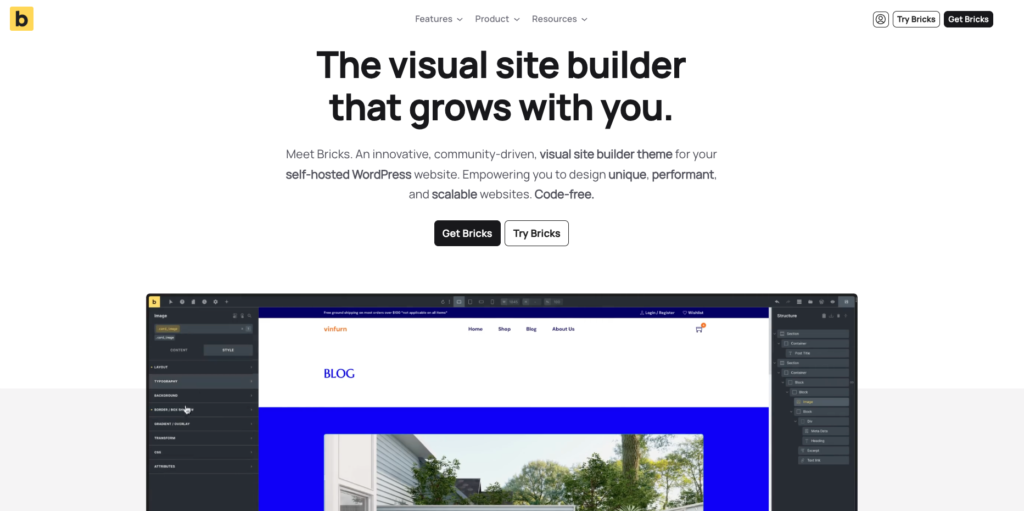
Bricks Builder is a performance-focused WordPress site builder designed for developers, agencies, and power users. It emphasizes clean output, native WordPress concepts, and speed- both on the frontend and inside the editor.
Bricks excels at building layouts. Where friction still exists is admin-side template management, especially on complex or long-running projects.
This article focuses on that exact gap and how Commandify removes admin friction without changing how Bricks works.
Why Managing Bricks Templates Becomes Slower as Projects Grow
Bricks projects rarely stay small.
A typical Bricks-based site quickly accumulates:
- Multiple headers and footers
- Conditional templates for posts, pages, and CPTs
- Reusable sections
- Design variants for different layouts
Bricks handles this architecture well, but WordPress admin still treats templates as entries in post lists. Finding the right template means navigating to the correct post type, filtering, scrolling, and opening edit screens just to confirm what you’re looking at.
This is where Bricks builder workflow optimization becomes a real concern. The more structured your site becomes, the more time you spend managing that structure instead of improving it.
Finding the Right Bricks Template Takes Too Many Steps
Most Bricks users don’t forget how they built a template — they forget where it lives.
You might remember:
- What the template does
- Which conditions it applies to
- Roughly what it’s called
But you still need to:
- Open the correct admin screen
- Search or filter manually
- Open the template to confirm it’s the right one
This repeated navigation breaks focus and wastes time, especially when you’re jumping between templates during development or QA.
That’s why developers ask how to manage Bricks templates faster. The delay happens before editing even begins.
Simple Bricks Template Actions Still Require Full Admin Navigation
Many Bricks template tasks are administrative, not creative.
Renaming a template, duplicating it, exporting it, or creating a new template does not require deep layout work. Yet these actions still live behind admin screens that force you to navigate away from what you were doing.
On busy projects, this discourages proper template management. Developers delay cleanup. Agencies tolerate messy template lists. Over time, technical debt builds up- not because Bricks is limited, but because admin workflows are slow.
This is one of the biggest productivity gaps Bricks Builder users experience once projects scale.
Context Switching Hurts Bricks Workflows More Than It Seems
Bricks users tend to work deeply and methodically. Interruptions hurt more here than in visual-first builders.
A typical workflow looks like:
- Editing a page
- Realizing the change belongs in a template
- Navigating to the template list
- Opening the template
- Making the change
- Returning to the original context
Each switch resets mental focus. Over time, this slows development more than the actual editing time.
This is why Bricks builder productivity tips often focus on workflow rather than design tricks. Bricks users value control and speed — admin friction goes directly against that philosophy.
Why “Just Use Better Naming” Doesn’t Solve the Problem
Template naming matters, but it’s not enough.
Even with perfect naming conventions, you still need to navigate WordPress admin screens, wait for lists to load, and open edit views just to perform simple tasks. The friction remains.
The real issue is not organization.
The real issue is how much effort it takes to act on templates.
If you want to genuinely manage Bricks templates faster, the solution must reduce interaction cost — not just improve structure.
Where This Becomes a Serious Problem for Agencies
Agencies feel Bricks admin friction more than solo developers.
They manage:
- Multiple Bricks sites
- Long-lived projects
- Evolving template structures
- Ongoing maintenance and QA
Small inefficiencies compound quickly when repeated across clients. Over time, admin friction becomes a hidden cost.
That’s why agencies actively look for Bricks builder workflow optimization instead of new design features. They already trust Bricks for building. They want faster ways to manage what they’ve built.
How Commandify Removes Admin Friction From Bricks Builder Workflows
Bricks Builder already solves the hardest part of WordPress site building: performance, structure, and clean output. Most developers who choose Bricks do so because they want fewer abstractions and more control.
Where friction still exists is admin-side template management.
As projects grow, managing headers, footers, single templates, archive layouts, and conditional logic becomes an operational task. You spend less time building layouts and more time navigating WordPress admin screens just to find, open, or manage templates.
This is exactly where Commandify fits into Bricks workflows.
Commandify doesn’t modify how Bricks works. It doesn’t replace Bricks’ logic, conditions, or editor. Instead, it removes the unnecessary steps between you and the template you want to work on.
Managing Bricks Templates Faster Through Direct Search and Actions
The most immediate improvement Commandify brings to Bricks Builder is direct access.
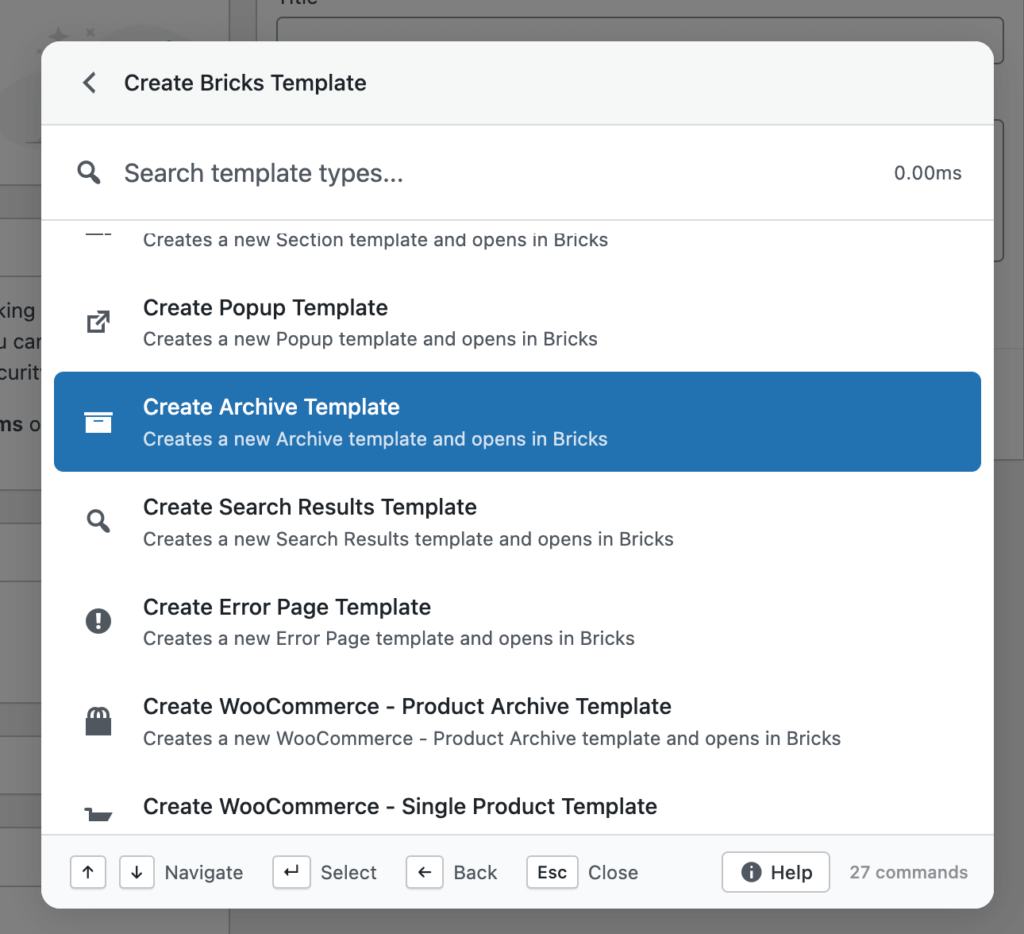
Instead of navigating to the Bricks templates post type, filtering lists, and opening templates to confirm context, you can search Bricks templates directly and act on them immediately. This changes how template management feels in day-to-day work.
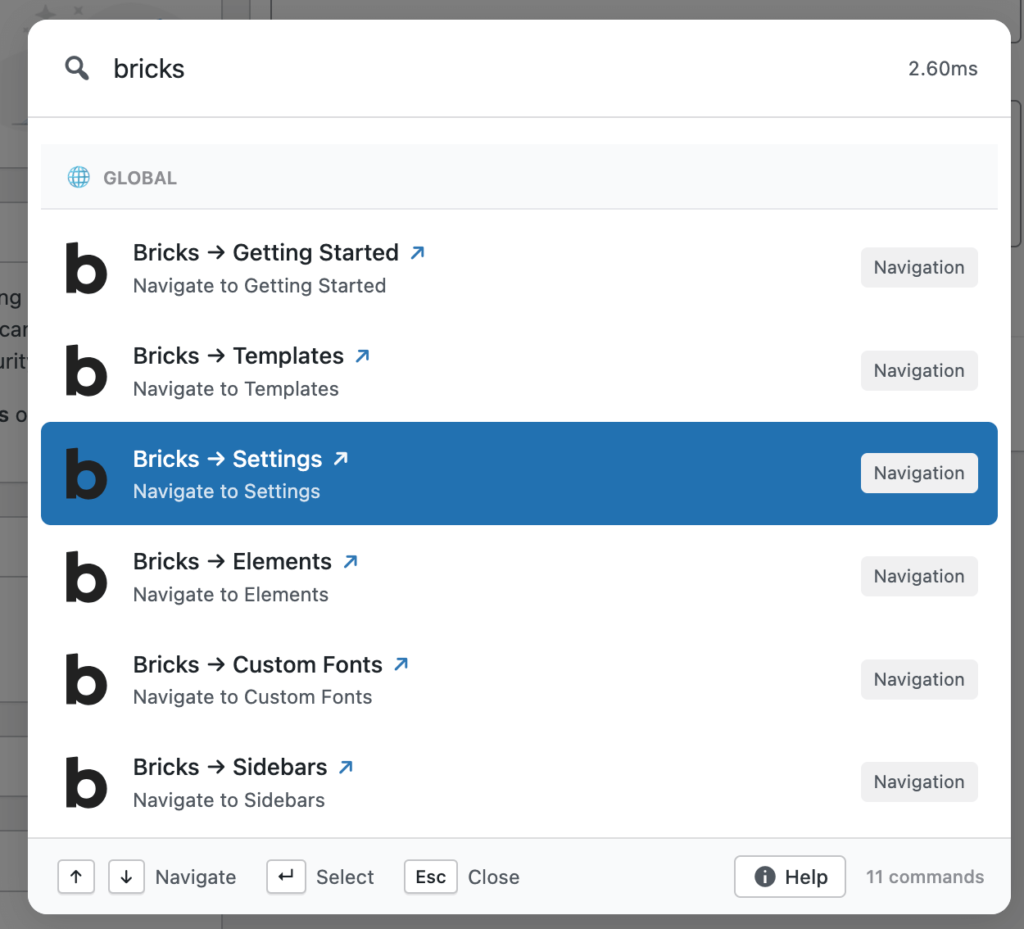
For developers asking how to manage Bricks templates, this matters because access speed determines workflow speed. When templates are easy to reach, small changes no longer feel disruptive. You stay focused on solving problems instead of navigating menus.
This is one of the fastest ways to manage Bricks templates faster without changing your existing site structure.
Handling Bricks Template Actions Without Leaving Your Flow
Many Bricks-related tasks are administrative, not creative.
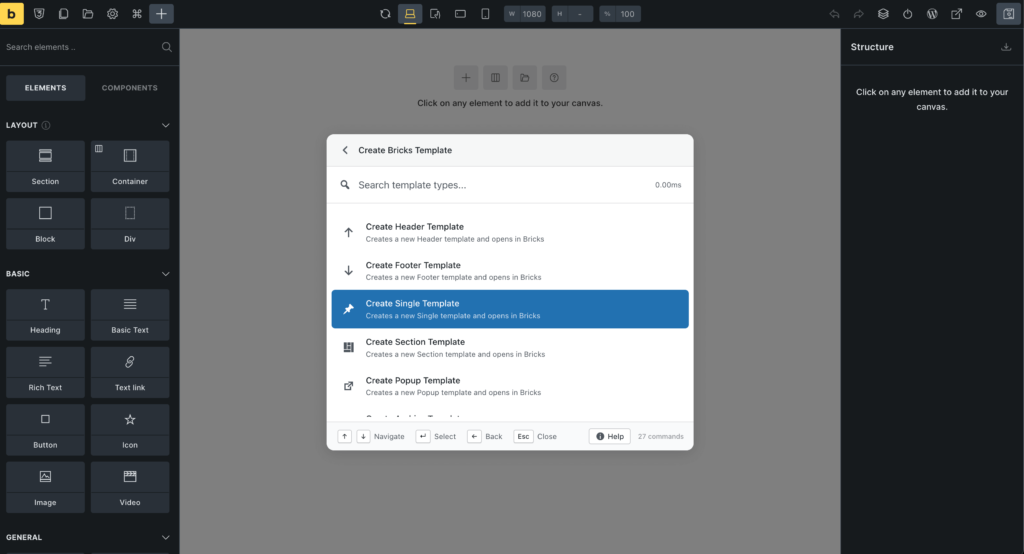
Renaming templates, duplicating them, exporting layouts, creating new templates, or managing existing ones does not require the visual editor. Yet default workflows still push these actions behind admin screens and edit views.
Commandify surfaces these actions directly. You can manage templates without breaking your flow or loading interfaces you don’t need. This is especially important for developers who value efficiency and minimal context switching.
For agencies, this also means non-design tasks can be handled quickly without interfering with active development work.
Respecting Bricks’ Native Structure and Post Types
One reason Bricks appeals to advanced users is its respect for WordPress-native concepts. Templates are structured logically. Conditions are explicit. Post types are meaningful.
Commandify respects this structure completely.
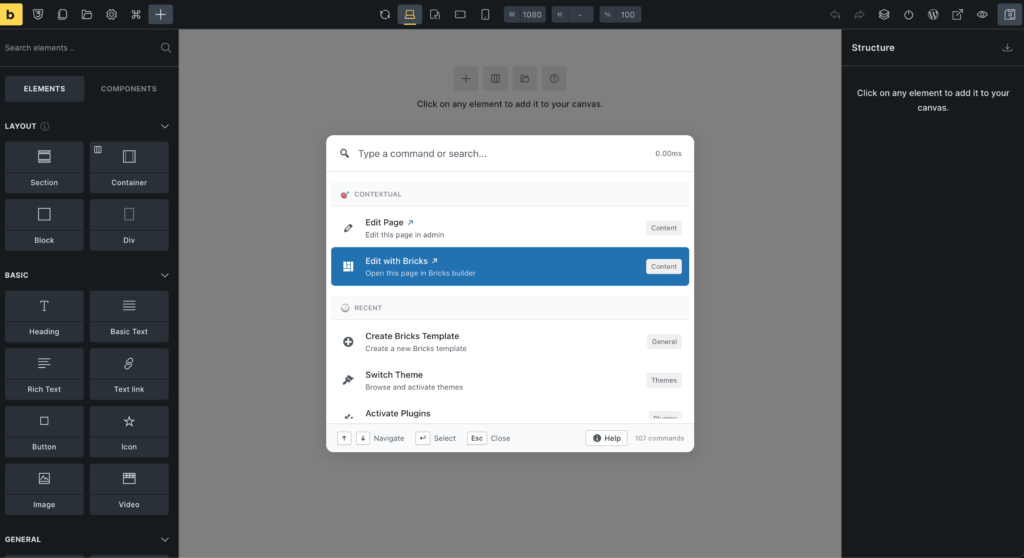
It does not flatten or abstract Bricks’ logic. Instead, it works with Bricks’ post types and template architecture, allowing you to access and manage templates without sacrificing clarity or control.
This makes it a natural fit for Bricks builder workflow optimization, rather than a layer that complicates existing systems.
Faster Cache and CSS Management for Bricks Projects
As Bricks projects grow, cache and CSS regeneration become routine tasks. Developers frequently need to clear caches or regenerate styles after making template-level changes, especially on complex or condition-heavy sites.
Navigating to the correct settings screen for these tasks interrupts workflow and adds unnecessary steps.
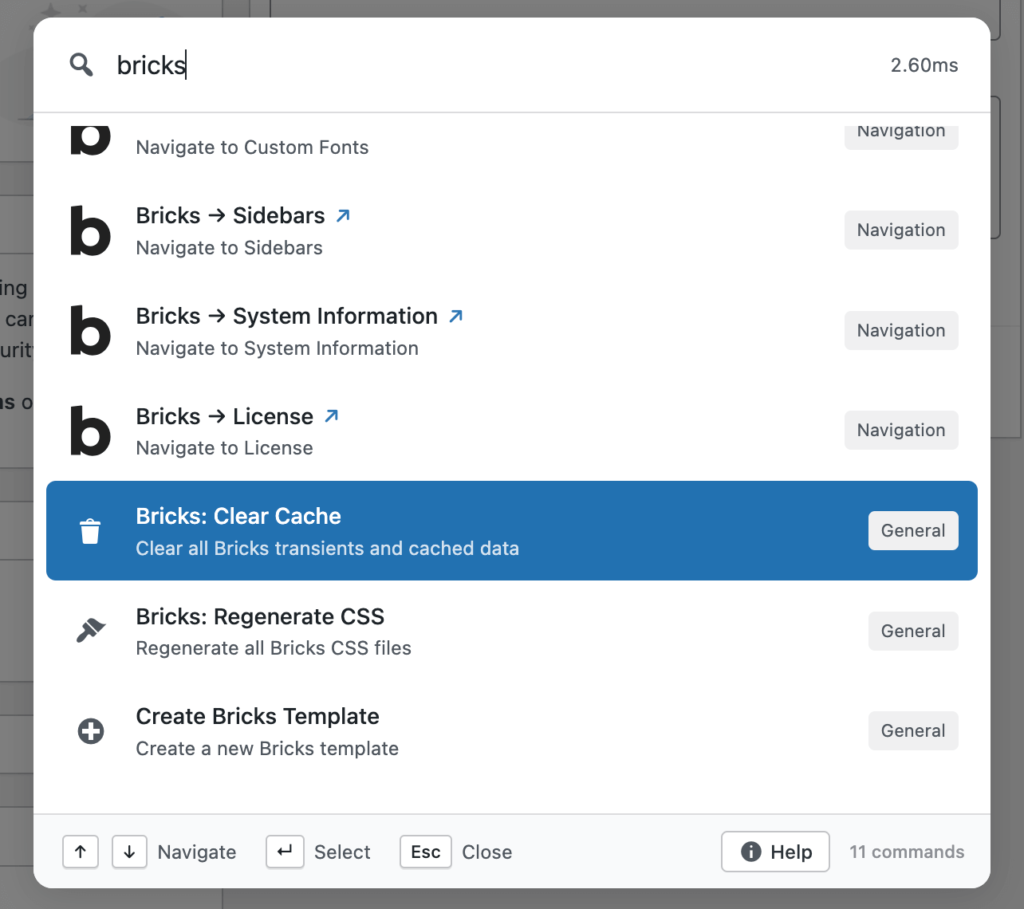
Commandify brings these maintenance actions closer to where you work. Instead of leaving your current context, you trigger them directly when needed. This keeps development smooth and reduces the mental overhead of remembering where each maintenance action lives.
For long-running projects, this alone saves noticeable time.
Why This Improves Long-Term Maintainability for Bricks Sites
Faster admin workflows don’t just save time — they change behavior.
When managing templates is easy:
- Developers refactor more often
- Template naming stays clean
- Duplicates are handled properly
- Technical debt is reduced instead of ignored
This is an overlooked benefit of learning how to manage Bricks templates faster. When friction is removed, teams maintain healthier projects over time.
Commandify supports this by making good maintenance habits easier to follow.
When Commandify Makes the Biggest Difference for Bricks Users
Commandify delivers the most value for Bricks users when:
- Projects rely heavily on conditional templates
- Multiple templates are updated regularly
- Agencies manage Bricks across client sites
- QA and revisions are frequent
- Admin-side work consumes more time than layout building
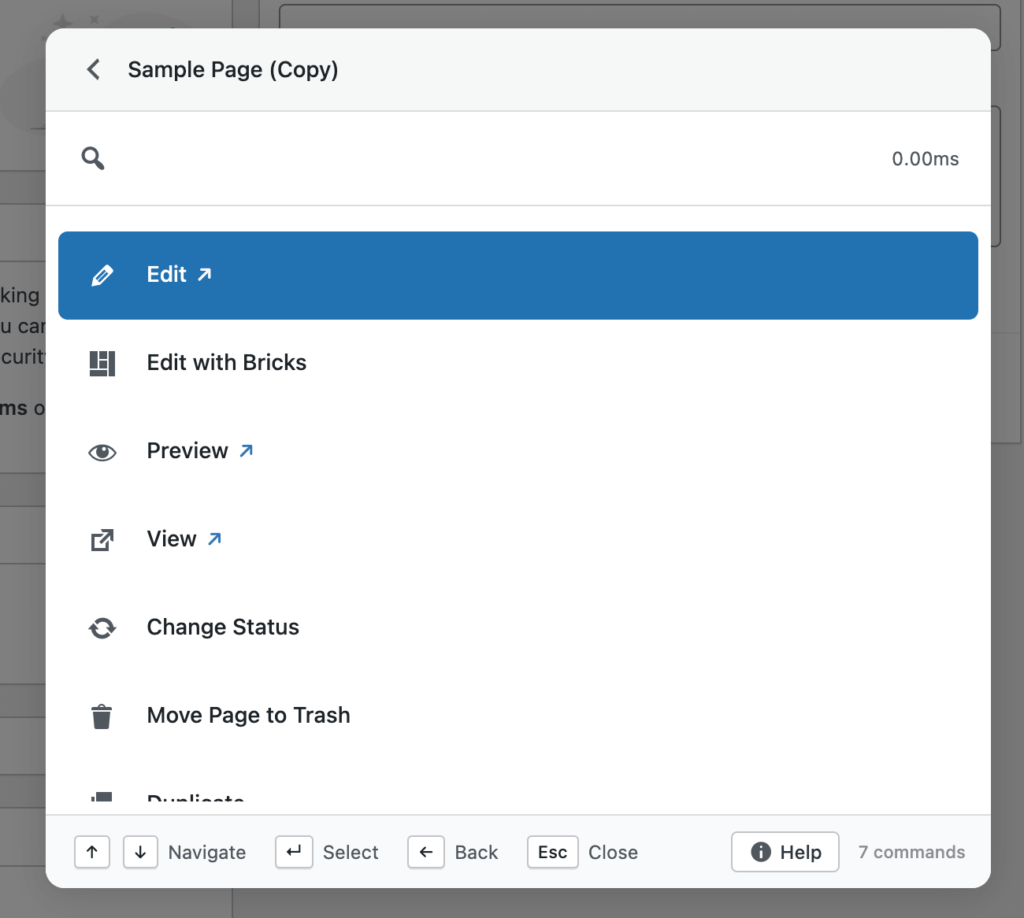
If Bricks feels fast while building but slow while managing, this is the exact gap Commandify is designed to close.
Managing Bricks Templates Faster Starts With How You Access Them
The biggest slowdown in Bricks projects rarely happens while building layouts. It happens before you even start editing. Finding the right template is often the first point of friction, especially on sites with layered template logic and multiple conditions.
In real Bricks projects, templates are spread across headers, footers, single layouts, archives, and reusable sections. Even when naming is consistent, you still have to navigate the correct post type, search manually, and open templates just to confirm you’re in the right place. This is why developers ask how to manage Bricks templates more efficiently — they are losing time before real work begins.
Commandify changes this access pattern by allowing templates to be searched and surfaced directly. Instead of navigating through admin menus, you move straight from intent to action. This dramatically reduces the friction involved in locating templates and is one of the fastest ways to manage Bricks templates faster on complex sites.
Reducing Context Switching Between Pages and Templates
Context switching is one of the most underestimated productivity drains in Bricks workflows. Bricks users tend to work deeply and methodically, which means interruptions are more costly than they appear on the surface.
A common scenario looks like this: you’re editing a page, notice a layout issue, and realize the fix belongs in a template. To apply the fix, you must leave the page, navigate to the templates screen, locate the correct template, open it, make the change, then return to the original context. Each step breaks focus and resets momentum.
This is why Bricks builder workflow optimization matters more than UI polish. Commandify reduces context switching by keeping template access closer to where you already are. You spend less time navigating and more time fixing problems, which is exactly what Bricks users value.
Handling Bricks Template Actions Without Manual Navigation
Many tasks involved in managing Bricks templates are administrative rather than creative. Renaming templates, duplicating them, exporting them, or creating new ones does not require visual editing, yet default workflows still force you through full admin screens.
Over time, this leads to friction that discourages good maintenance habits. Developers delay cleanup. Agencies accept cluttered template lists. Technical debt builds up quietly, not because Bricks lacks features, but because managing templates takes more effort than it should.
Commandify addresses this by making template actions directly accessible. Instead of navigating to the template list and opening edit screens, you can perform common actions immediately. This is a core reason why teams looking for Bricks builder productivity tips gravitate toward workflow-level improvements rather than design tricks.
Respecting Bricks Template Post Types and Conditions
One of Bricks’ strengths is its respect for WordPress-native concepts like post types and conditional logic. Templates are structured and predictable, which developers appreciate. However, this structure also means templates are spread across different contexts in the admin.
Manually navigating these contexts slows things down, especially when switching between template types frequently. Commandify respects Bricks’ post type structure and conditions while reducing the effort required to work with them. You don’t lose control or flexibility — you simply reach what you need faster.
This balance is important for advanced users who want Bricks builder workflow optimization without sacrificing the principles that make Bricks appealing in the first place.
Keeping Bricks Projects Clean as They Scale
Template sprawl is inevitable on long-running Bricks projects. Over time, layouts evolve, conditions change, and older templates need to be duplicated or adjusted rather than rebuilt.
When admin workflows are slow, teams avoid refactoring. Messy structures persist because cleanup feels disruptive. Faster access changes this behavior. When templates are easy to find and manage, developers are more willing to keep projects clean and maintainable.
This is an overlooked benefit of learning how to manage Bricks templates faster. It doesn’t just save time — it encourages better long-term project hygiene.
Why Faster Admin Work Matters More Than Faster Building
Bricks is already fast where it matters most: the builder and the frontend. What slows projects down is the cumulative cost of admin interactions repeated hundreds of times over a project’s lifespan.
When admin friction is reduced, development feels smoother even if the builder itself hasn’t changed. This is why improving admin workflows often has a bigger impact than adding new builder features.
Commandify fits naturally into this philosophy. It doesn’t compete with Bricks. It complements it by removing the friction Bricks intentionally doesn’t try to solve.
FAQs on Bricks Builder and Commandify Command Palette
Does Commandify replace Bricks Builder?
No. Bricks Builder remains your site builder. Commandify only improves how you access and manage Bricks templates and actions in the WordPress admin.
Can Commandify really help manage Bricks templates faster?
Yes. By reducing admin navigation and surfacing template actions directly, Commandify significantly improves how quickly developers can manage Bricks templates.
Does Commandify change how Bricks templates work?
No. Bricks templates, conditions, and post types remain unchanged. Commandify works on top of existing structures.
Is this useful for solo developers?
Yes, but the biggest gains appear on larger projects and agency environments where template management happens daily.
Is this safe for client and production sites?
Yes. Commandify respects permissions and does not modify Bricks data structures or rendering logic.
Final Thoughts on How to Manage Bricks Builder Templates with Ease
Bricks Builder already delivers speed where it matters most: clean output, fast editing, and performance-focused design.
What slows teams down is everything around template management as projects scale.
If your goal is to manage Bricks templates faster, reduce admin friction, and keep development workflows efficient over time, improving how you work with Bricks inside WordPress admin is the most effective step you can take.
Commandify doesn’t compete with Bricks. It completes the workflow Bricks users expect.