



Talking About WooCommerce Admin Slow Issue: 7 Fixes That Actually Work in 2026

A slow WooCommerce admin kills more than your patience. It kills your workflow.
Every extra second loading an order, every extra click navigating to a product, every page load waiting for a filtered list compounds across a full workday. For a store processing 30 orders daily, even a modest reduction in admin friction recovers meaningful hours every week.
But here is the thing most guides get completely wrong: there are two separate types of WooCommerce admin slowness, and they have different causes, different fixes, and different levels of urgency. Applying server-side fixes to a workflow problem will not help you. Applying workflow fixes to a database problem will not help either.
This guide separates them clearly, gives you actionable fixes for each, and tells you which to prioritise first.
The Two Types of WooCommerce Admin Slowness

Type 1: Technical slowness. Admin pages take a long time to fully load. You click Orders and wait three seconds. You open a product and watch the spinner. This is a hosting, database, or plugin configuration problem. The page eventually arrives but the delay itself is the friction.
Type 2: Workflow slowness. Pages load fine but reaching what you need still forces you through too many steps. Even on fast hosting, finding a specific order means: WooCommerce menu, click Orders, page loads, search bar, type customer name, click result, order opens.
That is five to seven actions for a lookup you repeat many times a day. The pages are not slow. The process is.
Most guides online only address Type 1. That is why people apply every recommended server fix, feel a marginal improvement, and still find WooCommerce admin genuinely exhausting to work in.
The fixes below address both. We start with the one that delivers the fastest visible change.
Fix 1: Install a Command Palette to Eliminate Workflow Slowness Immediately
This fix goes first because it takes two minutes to implement and works before any server configuration change.
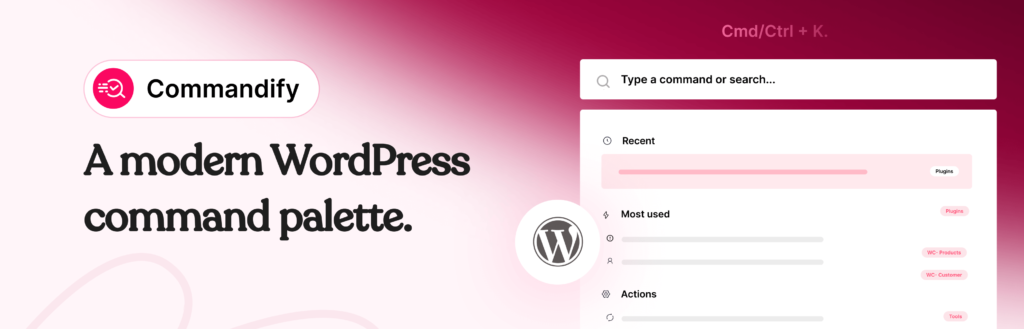
Commandify Pro adds a command palette to your WordPress admin. Press Cmd/Ctrl + K from anywhere in wp-admin and a search bar opens. Type an order number, a customer email, or a product SKU and the result appears with direct actions. No navigation, no page loads, no menu hunting.
The WooCommerce command suite is what makes this genuinely transformative for store management. Type #4152 and it jumps directly to order 4152. Paste a customer email and it identifies it as a customer lookup automatically. Type a product SKU and it opens that product. Change order status, add a note, apply a coupon, and recalculate totals all from within the palette itself, without ever visiting a WooCommerce screen.
For a store manager who was previously navigating the WooCommerce interface manually for every lookup, the time difference is immediately obvious. What was a six-step process becomes two keystrokes. Repeated thirty times a day, this is a material recovery of working time.
You can read a full walkthrough of the WooCommerce command suite in the dedicated guide on managing WooCommerce orders, products and customers faster with Commandify.
The free version of Commandify handles admin navigation, content search, plugin management, and maintenance commands. Install it from WordPress.org and you will see the difference within the first hour. WooCommerce command actions require Commandify Pro, which starts at $47/year.
Fix 2: Enable High-Performance Order Storage (HPOS)
This is the single most impactful server-side fix for WooCommerce admin speed and one of the most commonly skipped.
By default on older WooCommerce installs, order data is stored in the WordPress wp_posts and wp_postmeta tables. These tables were designed for blog content, not transactional e-commerce data. As your order volume grows, querying these tables gets progressively slower because they were never optimised for the data structure WooCommerce needs.
High-Performance Order Storage solves this by moving orders into dedicated custom database tables built specifically for WooCommerce data. WooCommerce has documented speed improvements of up to 5x for order queries on high-volume stores after enabling HPOS.
How to enable it: WooCommerce → Settings → Advanced → Features → Enable High-Performance Order Storage. WooCommerce provides a built-in migration tool that syncs your existing orders to the new tables before you switch. The migration runs in the background and you can verify data integrity before committing. Always take a full site backup before running the migration.
If you are on WooCommerce 8.2 or later, HPOS may already be active. Check WooCommerce → Status → System Status to confirm. On WooCommerce 9.x, HPOS is the default for new installs.
Fix 3: Upgrade Your PHP Version
PHP is the programming language WordPress and WooCommerce run on. Each major version is meaningfully faster than the last. PHP 8.2 is approximately 30% faster than PHP 7.4 in benchmark tests. PHP 8.3 improves further on 8.2.
Check your current PHP version at WooCommerce → Status → Server Information. If you are running anything below PHP 8.1, upgrading is the free performance improvement with the highest return on effort. WooCommerce 9.x recommends PHP 8.1 as the minimum. Running 8.2 or 8.3 is best practice for 2026.
Most quality managed hosts, including Kinsta, WP Engine, Cloudways, and SiteGround, let you switch PHP versions from a dropdown in your hosting dashboard. No code editing required, no server access needed. Switch, check your site for errors in the next 24 hours, and confirm no plugin compatibility issues arise. The performance improvement takes effect immediately.
One important note: upgrading PHP does not require switching hosts. If your current host does not offer PHP 8.x through their dashboard, contact their support. If they cannot provide it, that is a signal to reconsider your hosting, not to avoid upgrading PHP.
Fix 4: Identify and Remove Slow Plugins with Query Monitor
A single poorly written plugin can add one to three seconds to every WooCommerce admin page load. This is one of the most common causes of persistent admin slowness, and most store owners never identify it because they assume slowness is a hosting problem.
Query Monitor is a free diagnostic plugin that exposes every database query, HTTP request, PHP error, and hook execution on any admin page. Crucially, it attributes each query to the specific plugin or theme that generated it.
Install Query Monitor, visit a slow admin page, and click the Query Monitor toolbar item.
Open “Queries by Component.” If one plugin is generating 50, 80, or 150 database queries on a single admin page load, that is your problem. Common culprits are heavy security plugins running scans on every page load, analytics plugins running complex queries in the background, backup plugins triggering during business hours, and abandoned plugins no longer actively maintained.
Remove Query Monitor after your diagnostic session. It is a tool, not a permanent install. The data it gives you in 30 minutes of investigation is often worth more than any hosting upgrade.
Fix 5: Enable Object Caching Through Your Hosting Dashboard
Object caching stores the results of repeated database queries in memory, typically via Redis or Memcached. When WordPress needs the same data a second time, it retrieves it from RAM instead of querying the database again. For WooCommerce admin pages that make many repeated queries, this has a significant cumulative effect on page load times.
Page caching, which is what most people think of when they hear “caching,” deliberately excludes wp-admin. Object caching applies everywhere, including admin. If you have only ever enabled page caching, you have not addressed the admin speed problem from a caching perspective.
Most quality managed hosts offer Redis as a one-click enable: Kinsta through their Tools panel, WP Engine as a server add-on, Cloudways through the application settings toggle, Rocket.net as a default inclusion, SiteGround via Site Tools.
Follow your host’s specific instructions. Do not attempt to configure Redis manually on shared hosting without confirmed support from your host, as a misconfigured object cache can cause more problems than it solves.
Fix 6: Clean and Optimise Your WooCommerce Database
WooCommerce databases accumulate overhead that slows down queries over time. Post revisions piling up from years of product edits. Orphaned order metadata from orders that were deleted. Expired transients building up in the wp_options table. Customer session data that was never cleared. Table overhead from deleted plugins whose tables still exist in the database.
None of this causes dramatic slowness on its own. Combined over months and years on an active store, it adds measurable query time to every admin page load.
WP-Optimize handles database cleanup through a clean interface without requiring database access. It shows exactly what it will remove before you confirm. Start with expired transients, orphaned metadata, and post revisions.
Also run the native WooCommerce cleanup tools: WooCommerce → Tools → Clear transients, and WooCommerce → System Status → Tools → Clear customer sessions.
WP-Optimize also identifies and removes tables left behind by plugins you have already deleted. These orphaned tables do not affect performance significantly but they do indicate your database has accumulated years of installationfootprint worth cleaning. After a cleanup on a store that has been running for two or more years, the difference in query speed is often noticeable.
Fix 7: Remove WooCommerce Admin Bloat
WooCommerce loads several default features that run on every admin page, including pages where they provide no value. Dashboard analytics widgets that make external API calls. Remote inbox notifications that fetch marketing messages from WooCommerce’s servers. Status meta boxes, marketplace suggestion panels, and extension recommendations loaded on every screen visit.
Each of these is individually minor. Together, they add HTTP requests and processing overhead to every WooCommerce admin page load for every admin user on the site.
The Disable WooCommerce Bloat plugin (free on WordPress.org, 5-star rated) exposes all of these as checkboxes. You select which features to disable and save. No code, no file editing, reversible at any time. Disabling remote inbox notifications alone removes an outbound HTTP request from every admin page load, which on shared hosting can recover a noticeable amount of page load time.
You can also disable specific WooCommerce admin widgets through Screen Options on the Dashboard screen without any plugin. Click Screen Options at the top right of any admin screen and uncheck dashboard items from WooCommerce and other plugins that you never look at.
Priority Order: Which Fix to Do First
Not all fixes have equal impact or equal effort. Here is how to sequence them for the fastest visible improvement.
| Fix | Addresses | Effort | Expected Impact |
|---|---|---|---|
| Install Commandify Pro | Workflow slowness | 2 minutes | Immediate, significant for daily WooCommerce use |
| Enable HPOS | Technical slowness | 15 minutes | High on stores with 500+ orders |
| Run Query Monitor diagnostic | Technical slowness | 30 minutes | High if a problem plugin is found |
| Upgrade PHP version | Technical slowness | 5 minutes | High if currently below PHP 8.1 |
| Enable Redis object caching | Technical slowness | 10 minutes | High on busy stores, requires host support |
| Database cleanup (WP-Optimize) | Technical slowness | 20 minutes | Medium, best on stores 12+ months old |
| Disable WooCommerce bloat | Technical slowness | 10 minutes | Low to medium, reduces unnecessary requests |
Start with Commandify because workflow improvements are immediate and require no server knowledge. Then work through the technical fixes in order of impact for your specific situation. If you are on PHP 7.4, that upgrade alone may be the most impactful technical change you make. If your store is new, HPOS and a clean database are the right focus.
If admin pages feel slow for everyone on the team, Query Monitor will tell you exactly why within the first 30 minutes of use.
What Does Not Help (Despite What You May Have Read)
A few common recommendations appear frequently in WooCommerce speed guides but have no meaningful impact on admin speed specifically.
Increasing the WordPress memory limit does not speed up the admin unless you are seeing memory-related errors. If your admin pages are slow but not crashing, increasing memory does not help. If they are crashing, fixing the memory limit addresses the crash, not the speed.
Page caching plugins explicitly bypass wp-admin. WP Rocket, W3 Total Cache, and LiteSpeed Cache are all designed not to cache admin pages. Installing or optimising a page caching plugin has zero effect on your WooCommerce admin speed.
A CDN speeds up the delivery of static assets to frontend visitors. It does not affect admin page load times in any meaningful way because the admin is dynamic, authenticated content that bypasses CDN layers.
Knowing what does not help saves you from spending time on changes that will not move the needle. Focus on the seven fixes above, in the sequence recommended, and you will see genuine improvement.
FAQs on WooCommerce Admin Slow Issues
Why is my WooCommerce admin slow even with good hosting?
Good hosting eliminates server-side bottlenecks but does not fix application-level problems. A poorly coded plugin generating 200 database queries on every admin page load will be slow on any hosting. Object caching being disabled, PHP running at 7.4, HPOS not enabled on a high-order-volume store, and years of accumulated database overhead are all application-level issues that persist regardless of hosting quality.
Use Query Monitor to identify the specific cause before assuming a host upgrade is the answer.
How much faster is WooCommerce admin with HPOS enabled?
WooCommerce’s own testing documented up to 5x faster order query performance in production environments after HPOS migration. The real-world improvement varies significantly based on order volume and server configuration. Stores with fewer than 500 orders may see modest improvements.
Stores with tens of thousands of orders typically see very noticeable differences in how quickly order lists load, filters apply, and order searches complete.
Is HPOS safe to enable on a live WooCommerce store?
Yes. HPOS has been production-ready since WooCommerce 8.2. The built-in migration tool syncs your data between old and new tables simultaneously and lets you run both in parallel while verifying data integrity before committing to the switch. Take a full backup before migrating.
The migration runs in the background and typically completes without requiring downtime. After migration, you can revert to legacy storage if any issues arise, though this is rarely needed.
Does adding Commandify affect frontend site speed?
No. Commandify loads its scripts only in wp-admin for logged-in administrators. It adds nothing to the public-facing site for regular visitors. Most commands use client-side filtering with no additional server requests per keystroke.
For longer operations like maintenance cleanup, a progress bar appears while the task runs. There is no measurable performance impact on frontend performance from installing Commandify.
My WooCommerce orders list takes forever to load. What’s causing it?
A slow orders list specifically is usually one of three things.
- First, legacy order storage on a high-volume store, which HPOS fixes.
- Second, a plugin adding custom columns to the orders list that run additional queries for each row.
- Third, a very large number of orders combined with no object caching, meaning every column calculation hits the database fresh each time.
Run Query Monitor with the orders list open and check Queries by Component. The culprit will usually be visible within the first review.
Can I speed up WooCommerce admin without any technical knowledge?
Yes. Several of the most impactful fixes require no technical knowledge at all. Installing Commandify takes two minutes. Enabling HPOS is a settings toggle with a built-in migration tool. Upgrading PHP is a dropdown selection in your hosting dashboard on most quality hosts. Disabling WooCommerce bloat is a checklist of items to uncheck.
Running WP-Optimize is a plugin with a clean interface that previews changes before executing them. None of these require server access, file editing, or coding.