


15 WordPress Keyboard Shortcuts That Save Hours Every Week

Most WordPress users spend more time clicking than they should. You reach for the mouse to bold a word, click through three menus to add a block, drag to rearrange sections that keep slipping. It’s not a skill problem. It’s a habit problem.
WordPress keyboard shortcuts fix the habit. The ones in this guide are not a complete list of every shortcut that exists; that list is 85+ entries long and most of it you’ll never use. These are the 15 that actually change how fast you work, whether you’re a blogger, a store owner, or a developer managing client sites.
Each one includes the correct key combination for both Mac and Windows, because they’re different in WordPress and most guides get this wrong.
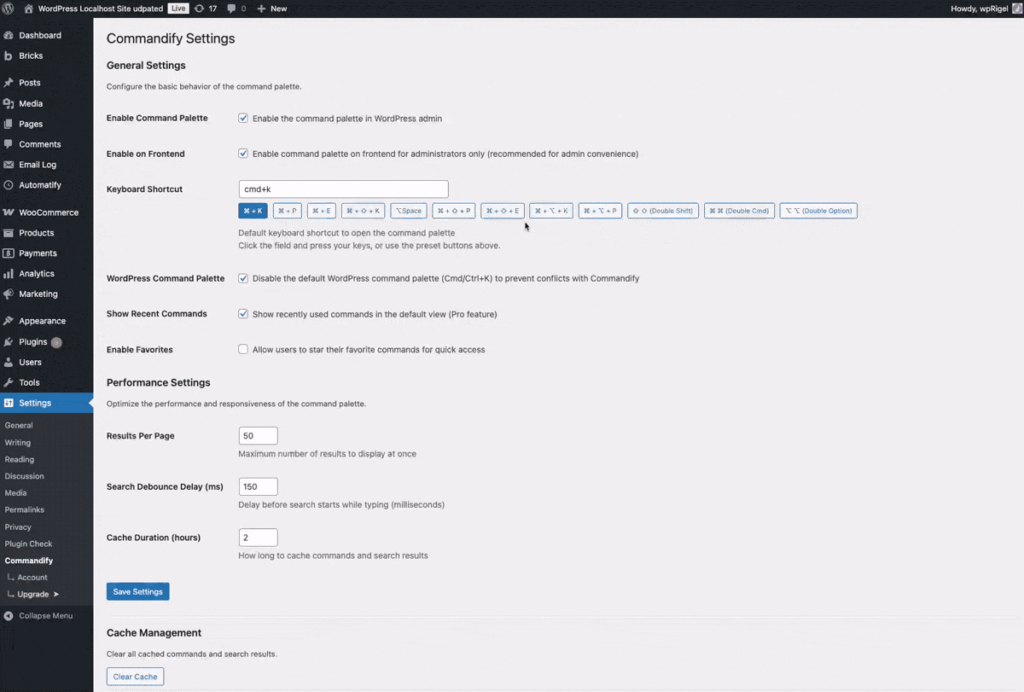
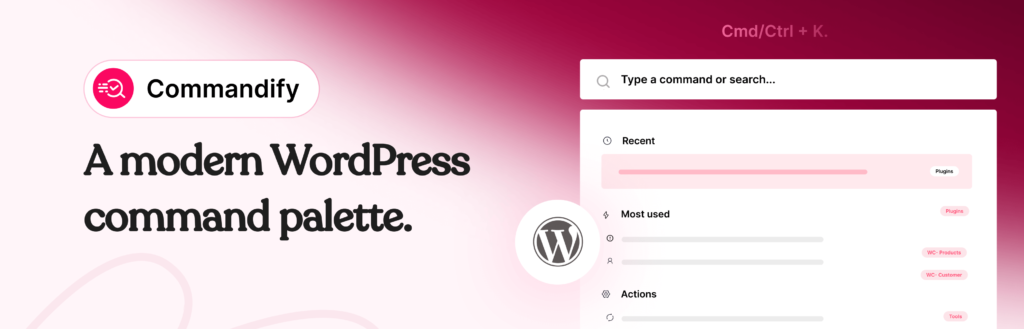
Keyboard shortcuts speed up editing. But they don’t touch plugin management, WooCommerce orders, user lookups, or template access. Commandify adds a command palette to WordPress (Cmd/Ctrl + K) that handles all of that. Free on WordPress.org.
Before You Start: Mac vs Windows in WordPress
WordPress uses two different shortcut systems and most guides only show one. Here’s the rule:
- For formatting shortcuts (bold, italic, undo, save): Windows uses Ctrl, Mac uses Cmd (⌘)
- For WordPress-specific shortcuts (publish, preview, add media): Windows uses Alt + Shift, Mac uses Ctrl + Option
This is important. If you’re on a Mac and you try Alt + Shift + P to publish, it won’t work. The correct Mac shortcut is Ctrl + Option + P. Every shortcut below shows both.
The 15 WordPress Keyboard Shortcuts Worth Learning
1. Open the Keyboard Shortcut Reference Anytime
Windows: Alt + Shift + H Mac: Ctrl + Option + H
Start here. This shortcut opens a popup showing every available keyboard shortcut for whichever editor you’re currently in, block editor or Classic. You don’t need to memorize this entire article. Learn this one shortcut and use it as your reference whenever you need a reminder.
In Gutenberg, you can also access it from the three-dot menu in the top toolbar → Keyboard Shortcuts.
2. Save Your Draft Without Clicking
Windows: Ctrl + S Mac: Cmd + S
Works in both the block editor and the Classic Editor. Saves the current state as a draft without publishing. Make this automatic- press it every few minutes while writing and you’ll never lose content to an accidental tab close or browser crash again.
3. Undo and Redo
Undo — Windows: Ctrl + Z Mac: Cmd + Z
Redo — Windows: Ctrl + Y Mac: Cmd + Shift + Z
Gutenberg maintains a deep undo history, far deeper than the Classic Editor ever did. You can step back through dozens of block changes. This makes experimentation safe- try a layout, don’t like it, undo your way back. Note that redo uses different keys on Mac vs Windows, which catches people out.
4. Publish or Update a Post
Windows: Alt + Shift + P Mac: Ctrl + Option + P
Triggers the publish or update action depending on the post status. On an unpublished draft, it opens the publish panel. On an already-published post, it updates it immediately. Useful when you’re doing a round of quick content updates across multiple posts.
5. Insert a New Block Instantly
Shortcut: Type / on any empty block (Mac and Windows)
This is the highest-value Gutenberg shortcut for anyone who builds pages or writes long-form content. Type a forward slash on an empty line and the inline block inserter opens. Start typing the block name (“image”, “table”, “quote”, “heading”) and it appears. No toolbar clicking, no drag from the sidebar.
Once you build muscle memory for this, reaching for the + button will feel slow.
6. Duplicate Any Block
Windows: Ctrl + Shift + D Mac: Cmd + Shift + D
Copies the selected block and places the duplicate directly below it. Useful when building repeating content structures- a set of feature cards, a series of FAQ blocks, or multiple variations of a CTA section. Much faster than copy-paste when you need the exact block type and settings preserved.
7. Move Blocks Up and Down
Move up — Windows: Ctrl + Shift + Alt + T Mac: Cmd + Shift + Option + T
Move down — Windows: Ctrl + Shift + Alt + Y Mac: Cmd + Shift + Option + Y
Drag-and-drop in Gutenberg works fine on short pages. On long pages with 20+ blocks, it’s imprecise and frustrating. These shortcuts move the selected block one position up or down with precision. Select the block, press the shortcut, repeat as needed.
8. Remove a Block
Windows: Ctrl + Shift + Alt + Z Mac: Cmd + Shift + Option + Z
Deletes the currently selected block. Faster than right-clicking and choosing Remove Block from the context menu, especially when you’re cleaning up a page with blocks you no longer need. If you delete by mistake, Ctrl/Cmd + Z brings it back.
9. Open the Block List View
Windows: Ctrl + Alt + O Mac: Ctrl + Option + O
Opens the List View panel, which shows every block on the page in a hierarchical tree. Invaluable on complex pages with nested blocks- columns inside groups, buttons inside columns, and so on. You can click any block in the list view to select it instantly rather than hunting for it on the canvas.
10. Toggle Distraction-Free Writing Mode
Windows: Ctrl + Shift + Alt + F Mac: Cmd + Shift + Option + F
Hides the sidebar, the top toolbar, and all admin chrome. Only your content remains on screen. If you write long-form posts inside WordPress, this is the shortcut that transforms the block editor into something resembling a proper writing environment. Press the same combination to exit.
11. Switch Between Visual and Code Editor
Windows: Ctrl + Shift + Alt + M Mac: Cmd + Shift + Option + M
Toggles between the visual block editor and the raw block markup (code editor). Useful when you need to inspect or manually fix block HTML- a common need when pasting content from external sources that imports with broken markup. Switch back with the same shortcut.
12. Bold, Italic, and Underline Selected Text
Bold — Windows: Ctrl + B Mac: Cmd + B
Italic — Windows: Ctrl + I Mac: Cmd + I
Underline — Windows: Ctrl + U Mac: Cmd + U
Works in both editors. Select the text first, then apply the shortcut. These are the same combinations used in Word, Google Docs, and most text editors; so if you already use them elsewhere, they’re zero learning curve in WordPress.
13. Insert or Edit a Link
Windows: Ctrl + K Mac: Cmd + K
Select any text in the block editor, press Ctrl/Cmd + K, and the inline link popover opens. Start typing a URL or a post title, WordPress searches your existing content in real time. Press Enter to apply. To remove a link, select the linked text and press Ctrl/Cmd + K, then choose Remove Link.
Note: in the Classic Editor, this same shortcut opens the Insert Link dialog, which works slightly differently.
14. Enable Comment Moderation Shortcuts
Setup: Users → Profile → check “Enable keyboard shortcuts for comment moderation”
Once enabled, you can moderate your entire comments queue without touching the mouse. J/K moves between comments. A approves, S marks as spam, D deletes, U sends back to pending, R opens the reply field. For high-volume sites, this turns comment moderation from a tedious clicking exercise into something you can process in under a minute.
These shortcuts must be enabled per user, they’re off by default.
15. Use Markdown-Style Formatting Shortcuts
Works in: Gutenberg block editor (type and press Space or Enter to apply)
Most people don’t know Gutenberg supports Markdown-style shortcuts directly in the editor. Type these at the start of an empty block and press Space or Enter:
- ## → H2 heading ### → H3 #### → H4
- * or – → unordered list
- 1. → ordered list
- > → blockquote
- — → horizontal divider
- `code` → inline code
These are faster than clicking toolbar buttons for common formatting tasks and work entirely within your natural typing flow.
Quick Reference: All 15 Shortcuts
| Shortcut | Windows | Mac | Works In |
|---|---|---|---|
| Open shortcut reference | Alt + Shift + H | Ctrl + Option + H | Both editors |
| Save draft | Ctrl + S | Cmd + S | Both editors |
| Undo | Ctrl + Z | Cmd + Z | Both editors |
| Redo | Ctrl + Y | Cmd + Shift + Z | Both editors |
| Publish / Update | Alt + Shift + P | Ctrl + Option + P | Both editors |
| Insert new block | / | / | Block editor |
| Duplicate block | Ctrl + Shift + D | Cmd + Shift + D | Block editor |
| Move block up | Ctrl + Shift + Alt + T | Cmd + Shift + Option + T | Block editor |
| Move block down | Ctrl + Shift + Alt + Y | Cmd + Shift + Option + Y | Block editor |
| Remove block | Ctrl + Shift + Alt + Z | Cmd + Shift + Option + Z | Block editor |
| Open List View | Ctrl + Alt + O | Ctrl + Option + O | Block editor |
| Distraction-free mode | Ctrl + Shift + Alt + F | Cmd + Shift + Option + F | Block editor |
| Toggle code editor | Ctrl + Shift + Alt + M | Cmd + Shift + Option + M | Block editor |
| Bold / Italic / Underline | Ctrl + B / I / U | Cmd + B / I / U | Both editors |
| Insert or edit link | Ctrl + K | Cmd + K | Both editors |
One Thing These Shortcuts Can’t Do and You Choose Commandify Plugin
Everything above makes editing faster. But editing is only part of what you do in WordPress.
Finding a WooCommerce order. Deactivating a plugin. Looking up a user by email. Clearing cache. Switching between staging and live. Opening an Elementor template without loading the full builder first. These are the tasks that actually eat admin time and no keyboard shortcut covers them.
That’s the problem Commandify solves. It adds a true command palette to WordPress- press Cmd/Ctrl + K from anywhere in wp-admin and type what you want to do.
- Type order 4152 → jumps directly to that WooCommerce order
- Type deactivate jetpack → deactivates Jetpack without visiting the Plugins screen
- Type @sarah → opens Sarah’s user profile with actions ready
- Type clear cache → clears cache with one confirmation
- Type maintenance → toggles maintenance mode on or off
The fuzzy search handles typos and partial input, so you don’t need to type exact command names. Commandify Pro extends this to the full WooCommerce command suite (orders, products, variations, customers, coupons) and adds Elementor, Bricks Builder, and Contact Form 7 integrations.
If you’ve found yourself switching between WordPress users repeatedly for testing or client support, there’s a command for that too.
Install Commandify free from WordPress.org– no setup required. Press Cmd/Ctrl + K and start using it immediately. See Pro pricing for WooCommerce and page builder integrations.
Two Common Issues to Know About
Browser shortcuts can conflict with WordPress shortcuts
Some browser extensions (particularly tab managers, password managers, and accessibility tools) use the same key combinations as WordPress. If a shortcut doesn’t work, check whether an extension is intercepting it.
In Chrome, you can audit extension keyboard shortcuts at chrome://extensions/shortcuts. Firefox extensions like Keyconfig can create similar conflicts.
Cmd + K opens the command palette, not a link dialog, in Gutenberg
Since WordPress 6.3, pressing Cmd/Ctrl + K without text selected opens the WordPress command palette. With text selected, it opens the inline link popover. This is intentional but confuses users who muscle-memory the old “press Cmd+K anywhere to insert a link” behavior from the Classic Editor. Select your text first, then press Cmd/Ctrl + K.
FAQs on WordPress Keyboard Shortcuts
Why are my WordPress keyboard shortcuts not working?
The most common reasons: you’re using the wrong key combination for your OS (Alt + Shift on Windows, Ctrl + Option on Mac for WordPress-specific shortcuts), a browser extension is intercepting the shortcut, or you’re on the wrong editor- some shortcuts are Gutenberg-only and won’t work in the Classic Editor.
Try pressing Alt + Shift + H (Windows) or Ctrl + Option + H (Mac) first to confirm shortcuts are working at all.
What is the shortcut to publish a post in WordPress?
Alt + Shift + P on Windows, Ctrl + Option + P on Mac. On a draft post, this opens the publish confirmation panel. On an already-published post, it updates the post immediately. There’s no single-key “publish without confirmation” shortcut- WordPress always shows the publish panel on first publish to prevent accidental publishing.
Do WordPress keyboard shortcuts work in WooCommerce?
Standard WordPress keyboard shortcuts work in the post and page editor, which includes WooCommerce product pages. They don’t work in the WooCommerce Orders, Customers, or Reports screens- those are custom admin pages with their own interface.
For keyboard-driven navigation across WooCommerce, Commandify Pro’s WooCommerce command suite is the practical solution.
What is the difference between Gutenberg and Classic Editor shortcuts?
Formatting shortcuts (bold, italic, undo, save, links) work in both. Block-specific shortcuts (inserting blocks with /, duplicating, moving, List View, distraction-free mode, code editor toggle) only work in Gutenberg.
The Classic Editor has its own set of Alt + Shift shortcuts for formatting and navigation that Gutenberg replaced with the block-centric shortcuts. If you’re still on the Classic Editor, pressing Alt + Shift + H shows you the full Classic shortcut list.
Can I add custom keyboard shortcuts to WordPress?
WordPress doesn’t have a native interface for creating custom shortcuts. You can use browser-level tools like AutoHotkey (Windows) or Keyboard Maestro (Mac) to create system-wide shortcuts that trigger wp-admin actions.
For admin-level actions like running commands, clearing cache, or managing plugins, Commandify Pro lets you configure the trigger key and customize command visibility per user- which is the closest native WordPress gets to custom shortcut management.