


Elementor Integration in Commandify
- What You Can Do With Elementor and Commandify Pro
- Why This Integration Matters
- 1. Search Elementor Templates
- 2. Edit With Elementor (Smart Action)
- 3. Export Elementor Templates
- 4. Copy Template Shortcode
- 5. Duplicate Elementor Templates
- 6. Rename Elementor Templates
- 7. Create Elementor Templates (Pro Only)
- 8. Regenerate CSS (Pro)
- 9. Sync Template Library (Pro)
- 10. Clear Elementor Cache (Pro)
- 11. Navigate to Elementor Settings & Tools
- Troubleshooting with Elementor Integration
- Practical Workflows
The Elementor integration in Commandify makes it incredibly easy to search, manage, and create Elementor templates using a single keyboard shortcut.
Create, manage, and control your Elementor templates directly from the Commandify command palette.
Commandify brings a full Elementor workflow into a single shortcut (Cmd/Ctrl + K) so you can search templates, open the editor, create new layouts, duplicate designs, clear cache, regenerate CSS, and access Elementor tools without clicking through multiple menus.
This guide covers everything included in the Elementor integration for both Commandify Lite and Commandify Pro, with a focus on helping users work faster, stay organized, and reduce the friction inside the WordPress dashboard.
What You Can Do With Elementor and Commandify Pro #

Let’s quickly take a look at what you can do with Commandify
Available in BOTH Lite & Pro
- Search all Elementor templates
- Edit any page/post directly with Elementor
- Export templates as JSON
- Copy template shortcodes
- Duplicate templates
- Rename templates
- Navigate to all Elementor settings & tools
Pro-Only Enhancements
- Create ANY new template type (including Pro templates)
- Regenerate CSS & minify assets
- Sync the Elementor template library
- Clear Elementor cache
- Direct Theme Builder navigation & advanced controls
Why This Integration Matters #
Elementor’s interface is powerful but its menus, screens, and tools are spread across several admin pages. When you’re designing multiple sites or working inside a busy dashboard, navigating between:
Templates → Saved Templates → Theme Builder → Tools → System Info
…quickly becomes time-consuming.
With Commandify:
- You stop hunting for menu items
- You avoid switching context between editing and admin
- You get a full template workflow from one search bar
- Your hands stay on the keyboard, making your work faster
Designers, developers, agencies, and WooCommerce store builders save a tremendous amount of time using these commands.
1. Search Elementor Templates #
The fastest way to find any template on your site.
What it does
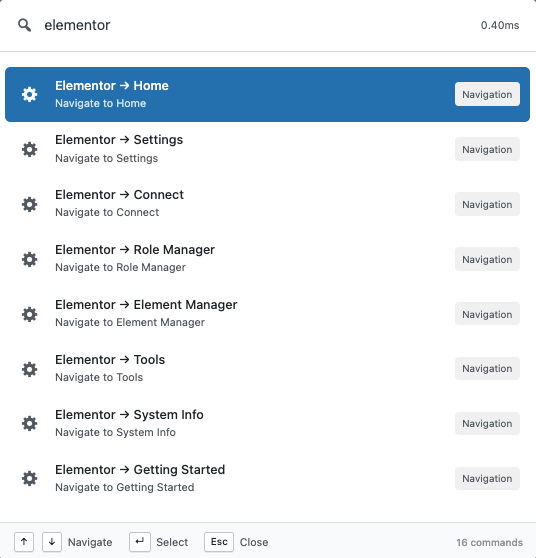
Search all Elementor templates instantly- including Pages, Sections, Headers, Footers, Singles, Archives, Popups, Landing Pages, and more.
Why it’s useful
- No need to open the Templates menu
- Great for sites with dozens or hundreds of templates
- See template type (Page/Section/Popup/etc.) at a glance
- Directly take action without opening Elementor first
How to use
- Press Cmd/Ctrl + K
- Type “Templates” or “Search my templates”
- Start typing the name of your template
- Choose an action (edit, duplicate, export, rename, etc.)
2. Edit With Elementor (Smart Action) #
This action appears automatically when you search posts/pages built with Elementor.
What it does
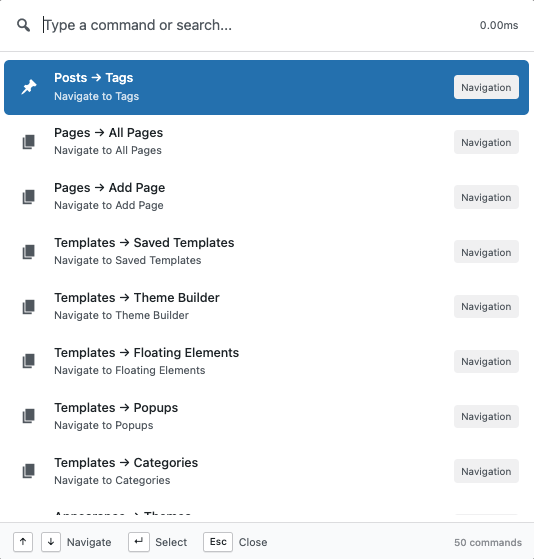
Allows you to open a page directly in Elementor without going through the WordPress editor screen.
Why it’s useful
- Saves 2–3 clicks every time
- Perfect for rapid design edits
- Keeps your flow inside Commandify
How to use
- Search any page/post
- If it was built with Elementor → “Edit with Elementor” appears as the first action
- Press Enter and start designing
3. Export Elementor Templates #
Download any template as a JSON file right from the palette.
Why you’ll love it
- Easily back up your design
- Move templates between staging → production
- Share templates with clients or teammates
How to use
- Search your template
- Choose Export Template
- JSON file downloads instantly
4. Copy Template Shortcode #
Grab a shortcode instantly to reuse templates anywhere.
Where it helps
- Insert Elementor templates in widgets
- Use templates inside theme builders
- Embed layouts without recreating them
How to use
- Search your template
- Choose Copy Shortcode
- Paste anywhere (e.g.,
[elementor-template id="123"])
5. Duplicate Elementor Templates #
Create variations of your pages/sections in one step.
Best for
- Agencies creating multiple versions for clients
- Designers testing style variations
- Safe experimentation (without touching the original)
How to use
- Search your template
- Choose Duplicate Template
- A copy opens instantly in Elementor
6. Rename Elementor Templates #
Rename templates instantly without visiting the editor.
Why it helps
- Fix naming mistakes
- Keep your library organized
- Faster workflow for large projects
How to use
- Search your template
- Choose Rename Template
- Enter a new name and save
7. Create Elementor Templates (Pro Only) #
Create ANY template type right from the command palette.
Supported Types
- Page
- Section
- Landing Page
- Header / Footer (Pro)
- Single / Archive (Pro)
- 404 Page
- Search Result Page
- Popup (Pro)
- Loop Item (Pro)
- Kit Templates
Why it’s powerful
- No need to open Templates → Add New
- Select type → start designing in seconds
- Keyboard-first creation
How to use
- Press Cmd/Ctrl + K
- Type Create Elementor Template
- Select the template type
- Elementor opens instantly with a new blank layout
8. Regenerate CSS (Pro) #
Fix broken layout, styling issues, or caching conflicts in one click.
Common use cases
- After Elementor updates
- After changing themes
- When styles appear incorrect on the frontend
How to use
- Type Regenerate CSS
- Select the command
- Wait for success confirmation
9. Sync Template Library (Pro) #
Refresh Elementor’s cloud library instantly.
Best for
- Getting newly released Elementor templates
- Fixing missing/blank template library screens
- Updating thumbnails or template kits
How to use
- Type Sync Template Library
- Run the command
- Elementor updates your cloud library
10. Clear Elementor Cache (Pro) #
A must-use troubleshooting tool.
Use it when
- Changes don’t show on the frontend
- Template previews break
- Widgets behave inconsistently
How to use
- Type Clear Elementor Cache
- Run the command
- Refresh your page
11. Navigate to Elementor Settings & Tools #
Jump to any Elementor admin page instantly:
- Saved Templates
- Theme Builder
- Popups
- System Info
- Tools
- Custom Fonts (Pro)
- Custom Icons (Pro)
Why it’s helpful
- No need to dig through menus
- Perfect for developers & troubleshooters
- Saves time on every project
How to use
- Type Elementor in the palette
- Select the desired admin section
Troubleshooting with Elementor Integration #
Don’t see templates?
- Make sure Elementor is active
- Clear Elementor cache
- Update to the latest version
“Edit with Elementor” missing?
- The content may not be created with Elementor
Pro actions not visible?
- Make sure your Commandify Pro license is active
Practical Workflows #
Designers & Developers
- Duplicate templates for A/B testing
- Create header/footer variations
- Export templates for client projects
- Regenerate CSS during theme development
Agencies
- Build a new site skeleton in minutes
- Clone full page templates
- Quickly fix client styling issues
- Sync global widgets/library across environments
Everyday WordPress Users
- Jump to the page you want to edit instantly
- Open Elementor editor without searching
- Clean Elementor cache when layouts break
These workflows eliminate unnecessary navigation and keep you focused.
Frequently Asked Questions
Does this work with both Elementor Free and Elementor Pro?
Yes. All core actions work with Elementor Free. Template creation and management also support Elementor Pro templates.
Can editors use these commands?
Only if their role has permission to edit templates and posts.
Does it work with Elementor-based themes?
Absolutely, it works with Hello, Astra, Kadence, and any other supported theme.
Do I need any extra plugins?
No. Elementor integration is native inside Commandify.


