


Require Login to Vote in WordPress Polls with Pollify
- Why and When Require User Login to Vote?
- How Login Restriction Works in Pollify
- Enable Login Restriction on Any Poll Block
- Configure the Login Required Message
- Set a Custom Login URL
- Choose What Non-Logged-In Visitors See
- Additional Response Settings
- How It Looks on the Frontend
- Use Cases for Login-Restricted Polls in WordPress
- Security Improvements in This Release
Collecting votes from anonymous visitors works well for casual feedback. But when your polls drive real decisions; product roadmaps, membership input, internal team surveys.
You need to know that every vote comes from a real, authenticated user.
Starting with Pollify v1.0.12, you can now require users to log in before they vote.
This feature works across all poll types– standard polls, Kudos, Up/Down voting, NPS surveys, and Engagement blocks.
When login restriction is enabled, duplicate prevention switches from IP/browser-based tracking to user account-based tracking‘ giving you cleaner, more reliable data tied to actual identities.
Why and When Require User Login to Vote? #
Open polls are great for broad engagement. But there are situations where authentication matters:
- Membership sites: Only paying members should vote on community decisions or content direction.
- WooCommerce stores: Collect product feedback only from actual customers who have accounts.
- Internal teams: Run employee polls where each response is tied to a real user account.
- Course platforms: Get student feedback from enrolled learners, not random visitors.
- Prevent manipulation: Logged-in voting eliminates the need to rely on cookies or IP addresses, each user gets exactly one identity.
Login-restricted polls don’t just protect data integrity. They also let you segment results by user role later; seeing how administrators voted versus subscribers, for example.
How Login Restriction Works in Pollify #
The login restriction feature is built directly into the Response Settings panel of every Pollify block in the Gutenberg editor. There’s nothing extra to install or configure globally- you enable it per block, giving you full control over which polls require login and which don’t.
When enabled:
- Non-logged-in visitors see a configurable message with a login link instead of the voting interface.
- Logged-in users see the poll normally and can vote.
- Duplicate prevention automatically switches to user account tracking instead of IP or browser storage.
- You can choose whether non-logged-in visitors see the poll content (with the login prompt) or just the login message.
Enable Login Restriction on Any Poll Block #
Here’s how to set it up:
Step 1: Open any post or page in the Gutenberg editor that contains a Pollify block (Poll, Kudos, Up/Down, NPS, or Engagement).
Step 2: Click on the Pollify block to select it. In the right-hand sidebar, find the Response Settings panel and expand it.
Step 3: Check the “Require login to vote” checkbox.
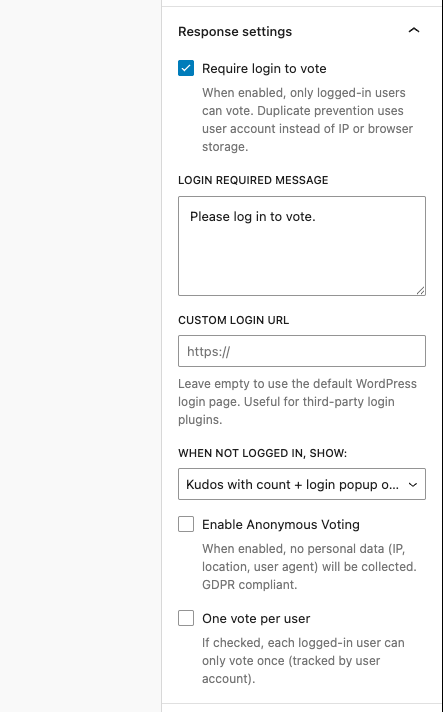
Once enabled, you’ll see additional options appear below the checkbox:
- Login Required Message: the text shown to visitors who aren’t logged in.
- Custom Login URL: an optional field for sites using third-party login pages.
- When Not Logged In, Show: controls what non-logged-in visitors see on the frontend.
Configure the Login Required Message #
The Login Required Message field lets you customize exactly what non-logged-in visitors see when they try to interact with the poll.
The default message is:
Please log in to vote.
You can change this to anything that fits your context. Some examples:
- “Members only, please log in to cast your vote.”
- “Sign in with your account to participate in this survey.”
- “You must be logged in to give feedback.”
The message appears alongside a clickable Login link that redirects visitors to your WordPress login page (or your custom login URL if configured).
Set a Custom Login URL #
By default, the login link points to your standard WordPress login page (/wp-login.php).
If your site uses a third-party login plugin, such as WooCommerce My Account login, a custom login page builder, or a membership plugin like MemberPress or Paid Memberships Pro- you can enter that URL in the Custom Login URL field.
Leave this field empty to use the default WordPress login page. The helper text below the field confirms this: “Leave empty to use the default WordPress login page. Useful for third-party login plugins.”
Choose What Non-Logged-In Visitors See #
The “When Not Logged In, Show” dropdown gives you control over the frontend experience for visitors who haven’t logged in. This setting determines how much of the poll interface is visible before authentication.
The available options (using the Kudos block as an example) include:
- Kudos with count + login popup on click: The Kudos button and current clap count are fully visible. When a non-logged-in visitor clicks the button, a popup appears with the login required message and a login link. This is the least intrusive option — visitors can still see engagement data, and the login prompt only appears when they try to interact.
- Kudos with count + inline login message: The Kudos button and count are visible, but a persistent inline message (e.g., “Please log in to vote. Login”) appears directly below or near the block. No popup — the message is always visible on the page.
- Login message only (hide the block): The poll block is completely hidden from non-logged-in visitors. Only the login required message and login link are shown. Use this when you don’t want visitors to see any poll content until they authenticate.
Each poll type offers equivalent display options tailored to its block format.
Additional Response Settings #
The Response Settings panel also includes other controls that work alongside login restriction:
- Enable Anonymous Voting: When enabled, no personal data (IP, location, user agent) is collected. This is GDPR-compliant and can be used even with login restriction enabled; the vote is tied to a user account, but no additional tracking data is stored.
- One vote per user: When checked, each logged-in user can vote only once. The vote is tracked by user account (not IP), making it far more reliable than cookie or IP-based deduplication.
Tip: Combining “Require login to vote” with “One vote per user” gives you the strongest data integrity, each authenticated user gets exactly one vote, tracked by their WordPress account.
How It Looks on the Frontend #
Popup Login Prompt (Kudos with count + login popup on click)
When a non-logged-in visitor clicks the Kudos button, a clean popup appears over the page:
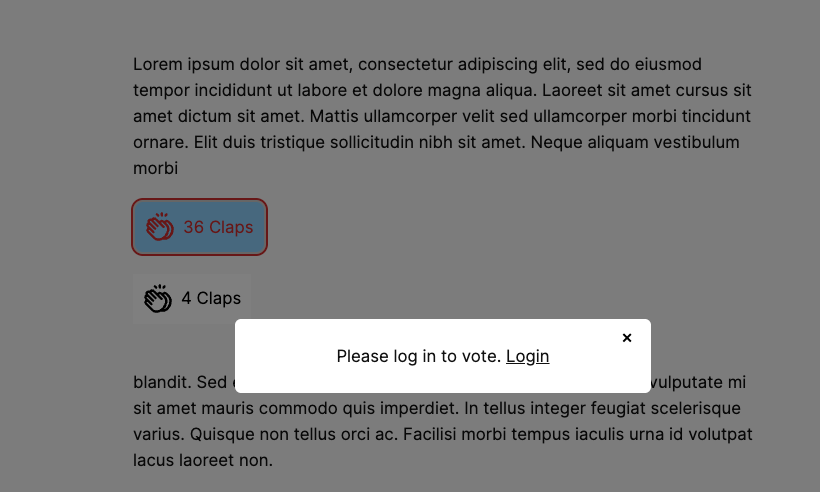
The visitor sees the current engagement count (36 Claps), can understand that others have interacted, and gets a clear prompt to log in. The popup includes:
- The custom login required message you configured
- A clickable Login link (pointing to your default or custom login URL)
- A close button (×) to dismiss the popup
This option works well for blogs, product pages, and community posts where you want to show social proof while gently gating participation.
Inline Login Message (Kudos with count + inline message)
For a less intrusive but always-visible approach, the inline option shows the login message directly on the page, above or near the poll block:
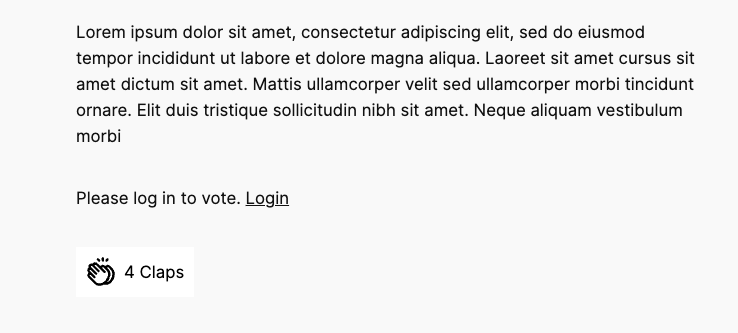
The message sits naturally within the content flow. The Kudos button is visible but non-interactive for logged-out visitors. This approach is useful for documentation pages, course content, and any layout where a popup might feel disruptive.
Use Cases for Login-Restricted Polls in WordPress #
| Use Case | Poll Type | Why Login Matters |
|---|---|---|
| Membership community voting on site decisions | Standard Poll | Each member gets one verified vote |
| WooCommerce product feedback | NPS Survey | Only real customers provide satisfaction scores |
| Course feedback after a lesson | Kudos / Engagement | Only enrolled students give feedback |
| Employee pulse surveys | Up/Down Voting | Responses tied to team member accounts |
| Feature prioritization for a SaaS product | Standard Poll | Votes from actual users, not anonymous visitors |
| Blog post appreciation with tracked engagement | Kudos | Know which logged-in readers found content valuable |
Security Improvements in This Release #
Pollify v1.0.12 also includes important security fixes:
- Improved vote submission validation: Additional server-side checks ensure that vote submissions cannot be manipulated or spoofed through direct API requests.
- Coding standard improvements: Internal code has been refactored to follow stricter WordPress coding standards, reducing potential vulnerabilities.
These fixes apply to all poll types and all users (both free and Pro) automatically when you update to v1.0.12.
Related Documentation
- Control Voting Rules, Timing, and Confirmation Messages in Pollify
- Block Unwanted Votes with IP Blocking in WordPress Polls
- Collect Applause with the Kudos Voting Feature
- NPS Voting to Measure User Loyalty
- Getting Started with Pollify
Want to Learn More or Upgrade?
Explore All Pollify Features– Discover everything Pollify (Free + Pro) can do.
Check Pollify Pro Pricing Plans– Compare tiers and get started with premium features.
Need Help or Have Questions? Contact Us– Our team is happy to support you.


