


CommandUI Review: The Most Powerful WordPress Command Palette Plugin Right Now?

A practical look at how CommandUI changes daily WordPress workflows.
If you’ve ever wished WordPress worked more like Spotlight on macOS or Raycast on desktop, CommandUI is basically that idea dropped straight inside your admin panel. No hunting through menus. No waiting for page loads just to tweak something small. You hit a shortcut, a clean command bar appears, and you jump wherever you need to go.
While WP Spotlight sits in the same “admin productivity” category, CommandUI goes deeper. It’s not just a search bar. It’s more like a workflow engine hidden behind a keyboard shortcut.
Before diving into features, here’s a quick snapshot.
CommandUI At A Glance
Type: Premium WordPress command palette plugin
Best for: Agencies, developers, content teams, a11y-focused workflows
Pricing: Annual + lifetime options with site limits
Standout abilities:
- Full admin navigation
- Post/page/CPT search with instant actions
- Plugin install/activate from the palette
- Global shortcuts
- Solid integrations with Elementor, Bricks, Beaver Builder, WS Form, wpDataTables, Yoast SEO, LS Cache
- Keyboard-first and screen-reader friendly
Looking for a better alternative to CommandUI?… Try Commandify! Especially if you are running WooCommerce store or complex WordPress sites.
What Is CommandUI?
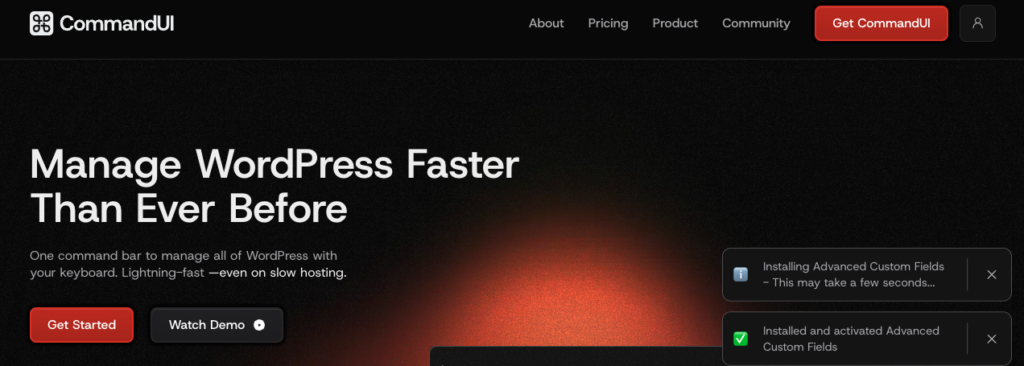
CommandUI brings a real command palette to WordPress. The idea is simple: instead of clicking around the admin, you press Cmd/Ctrl + K or Shift + Shift, type what you need, and jump straight there. It feels modern. Fast. Clean. And honestly, quite addictive once you get used to it.
The plugin works almost everywhere:
- WordPress admin
- Gutenberg editor
- Frontend (handy for editing or jumping to templates)
- Builders like Elementor, Bricks, Beaver Builder
- Plugin settings from dozens of third-party tools
CommandUI started as a personal tool built by Calvin Alkan because he was “tired of click-hell in WP admin.” The early prototype took just a couple of hours, but the idea was too good to leave as a personal script. Today, it runs a full engine that understands posts, pages, CPTs, media, users, plugins, templates, forms, and more.
Looking for a better alternative to CommandUI?… Try Commandify! Especially if you are running WooCommerce store or complex WordPress sites.
CommandUI Review: Main Features That Actually Matter
Global Navigation Without Touching Menus
This is the feature you feel instantly.
In WordPress, even simple things take too many clicks. Need to tweak LS Cache? Different submenu. Want Pollify settings? Depends on your site’s layout, but again — more clicks.
With CommandUI, you type “Woo status,” “LS Cache,” or “Pollify settings,” hit Enter, and you’re in.
A few real examples:
- Opening Elementor → Tools, which is normally buried under several screens.
- Accessing custom CPT settings added by plugins (events, quizzes, polls).
- Moving from WordPress Dashboard → Reading Settings → Permalinks in seconds.
On large client sites with long admin menus, this difference is huge. No scrolling. No remembering where something lives. You tell the palette what you want, and it takes you there.
Fast Content Search With Instant Actions
CommandUI doesn’t just find content — it lets you act on it immediately. Every search result includes contextual actions that pop right beside it.
Some actions include:
- Edit
- View
- Open in builder
- Copy permalink
- Copy post ID
- Quick duplicate (for some CPTs)
- Open related templates (Bricks)
This matters more than it sounds.
Say you’re editing a blog post and need to update a related page, category, or Pollify poll. Instead of navigating away:
- Hit Cmd/Ctrl+K
- Type the title
- Press Enter
- You’re already editing it
No loading screens. No switching menus. And because CommandUI supports drafts, private posts, scheduled posts, and custom post types, you can pull up almost anything without shifting context.
Create Anything From a Shortcut
Press C and CommandUI switches to “create mode.”
From there, you can create:
- Posts
- Pages
- Custom post types
- Forms (WS Form)
- Tables (wpDataTables)
- Any registered CPT on your site
This is a huge quality-of-life improvement.
You don’t have to open “Products → Add New” or “Pages → Add New.”
You tell the palette “create product” or “create page,” and you’re already in the editor.
It’s not flashy, but when you write and manage content every day, this feels like the workflow WordPress should’ve had all along.
Looking for a better alternative to CommandUI?… Try Commandify! Especially if you are running WooCommerce store or complex WordPress sites.
Plugin Management Straight From the Palette
This is the moment most users realize CommandUI is more than “search.”
You can:
- Search WordPress.org for plugins
- Install plugins
- Activate or deactivate
- Jump to plugin settings pages
- Jump to plugin modules (like LS Cache → Cache → Object)
- Disable a plugin using a shortcut (P → D)
Instead of:
Plugins → Add New → Search → Install → Activate → Wait…
…it becomes:
Cmd/Ctrl+K → “contact form” → Enter → Install/Activate.
If you manage a lot of client sites, this feature alone feels priceless.
User Search + Troubleshooting Tools
Support teams love this.
You can type the name or email of a user and immediately:
- View their account
- See their roles
- Open their profile
- Switch into their account (with User Switching)
Cmd/Ctrl+K → name → Enter → Switch User → test → switch back
It removes half the friction in support workflows.
Global Shortcuts That Save Seconds All Day
CommandUI includes a small set of global shortcuts that feel similar to editor shortcuts in VS Code or Raycast.
Some useful ones:
- E — Edit the current page
- P then D — Deactivate a plugin
- P then T — Open list of post types
- U then U —Search users
- C — Create new content
If they conflict with something you use, you can disable them. But in practice, most users keep them on because the time savings add up.
Editing the current page with one key press is a good example, feels tiny until you do it 30 times a day.
CommandUI Review: Integrations With Popular Plugins
CommandUI becomes really valuable when you work inside page builders and plugin-heavy sites.
Elementor
You can jump straight into Elementor for any supported post type.
And because it respects Elementor’s Role Manager, you won’t accidentally give a client too much access.
Examples:
- “Edit with Elementor” on any page
- Opening Elementor tools/settings
- Jumping to templates or theme builder parts
Bricks Builder
This integration goes deeper than Elementor’s.
If you’re on the frontend of a page built with Bricks, CommandUI can:
- Detect all templates rendering that page
- Let you open the correct template immediately
- Reduce the guesswork in template-heavy setups
Bricks users especially appreciate this because Bricks sites often use layered template structures. CommandUI basically becomes the router.
Beaver Builder
You can:
- Open the current page in Beaver
- Jump directly to Beaver settings
- Quickly find Beaver-enabled CPTs
This keeps Beaver editing much smoother, especially on large sites.
On plugin-heavy sites, this saves a surprising amount of time.
Accessibility Built Into The Core
Unlike many admin tools, CommandUI is built with accessibility in mind.
- ARIA-compliant combobox
- Proper focus handling
- Clean keyboard navigation
- Screen-reader friendly action logs
- Works entirely without a mouse
For a tool that sits inside wp-admin, this is rare. Teams with accessibility needs won’t hit roadblocks here.
ZeroLatency Navigation (Upcoming)
This feature aims to reduce waiting time between admin pages by cutting unnecessary reloads. You get a smoother experience that feels closer to a modern single-page app.
So instead of:
Dashboard → Posts → Edit → Template → Render
…you’ll move through these transitions almost instantly.
Even if your hosting is slow, the experience should stay snappy.
If it launches as promised, this becomes one of the plugin’s biggest selling points.
Looking for a better alternative to CommandUI?… Try Commandify! Especially if you are running WooCommerce store or complex WordPress sites.
How CommandUI Actually Improves Daily Workflow
Massively Fewer Page Loads
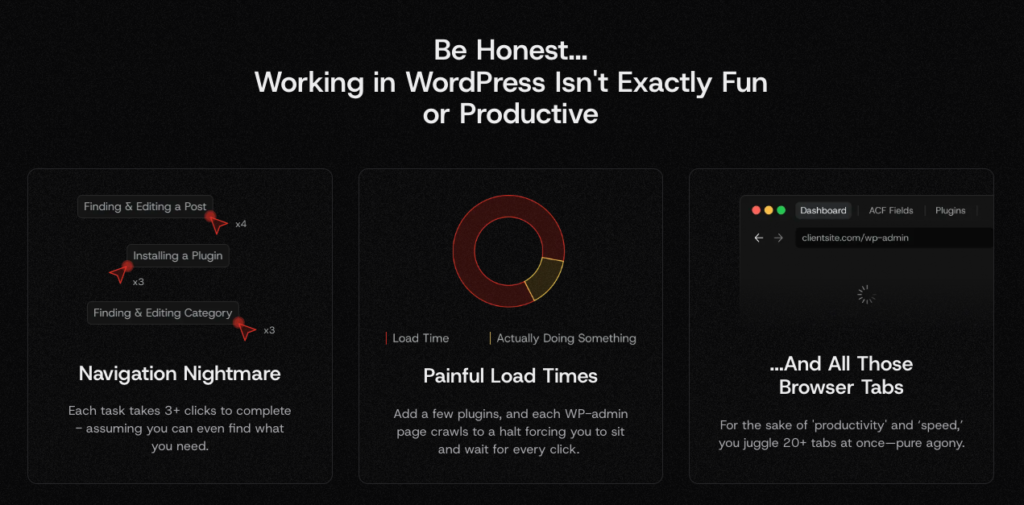
WordPress is still very page-load heavy.
CommandUI removes most of those transitions.
Instead of:
Menu → Submenu → Wait → Click → Wait → Edit
You just:
Cmd/Ctrl+K → type → Enter.
On slower hosting (shared, cheap VPS, client sites), this feels like a different CMS.
Better Flow in Page Builders
If you build sites with Bricks, Elementor, or Beaver, the palette helps you:
- Jump between templates
- Switch between editing modes
- Find components or settings
- Move from frontend → builder → template with zero friction
This reduces mental load and speeds up creative work.
More Predictable Support Workflows
Support teams move between:
- Users
- Orders
- Products
- Settings
- Cache tools
- SEO panels
CommandUI puts all of this behind a single shortcut.
It makes switching tasks less painful and reduces the number of steps to reproduce customer issues.
Content Teams Stay Focused
Opening drafts, editing pages, attaching media, or finding related content becomes simple.
You don’t lose your flow because you aren’t digging through menus anymore.
Real-World Use Cases
Agencies Managing Many Sites
When you manage 20, 50, or even 200 client sites, shaving off 30–60 seconds per task adds up quickly.
CommandUI makes admin navigation, plugin updates, form editing, and builder template switching far more manageable.
Developers Working With Bricks, Elementor, Beaver
Switching templates is painless.
Diagnosing where a page’s layout comes from is faster.
Finding buried settings becomes instant.
Large Content Sites
If you publish often — news, blogs, communities — searching, editing, and creating content becomes a smoother loop.
Accessibility-Focused Workflows
CommandUI is one of the few admin tools where screen-reader and keyboard-only users don’t feel left out
Pricing & Licensing Explained Clearly
CommandUI is a premium plugin only. There’s no free version, and honestly, it doesn’t feel like a plugin that would fit the free model anyway. It’s geared toward people who live inside WordPress every day — devs, support teams, agencies, content teams — folks who are willing to pay for saved time.
Pricing Tiers (Annual + Lifetime Options)
CommandUI offers three tiers:
- Site Owner – for personal or small business sites
- Freelancer – for people handling multiple client builds
- Agency – for teams running many production sites
Each tier comes in both annual and lifetime versions.
Lifetime licenses are more expensive upfront but pay off quickly if you plan to keep CommandUI in your toolset long-term. For agencies or power users, the LTD option makes the most sense.
Here’s the pricing table for CommandUI (both yearly and lifetime) to include in Part 2:
| Plan | Yearly Price | Sites Included | Lifetime Price | Sites Included |
|---|---|---|---|---|
| Site Owner | US $5.99/month (billed annually) → approx US $71.88/year | 5 sites | US $299 one-time | 5 sites |
| Freelancer | US $11.99/month (billed annually) → approx US $143.88/year | 50 sites | US $499 one-time | 50 sites |
| Agency | US $19.99/month (billed annually) → approx US $239.88/year | 150 sites | US $899 one-time | 150 sites |
CommandUI doesn’t limit users or devices, only registered sites. So if you have multiple team members, everyone gets full access on the same site.
Looking for a better alternative to CommandUI?… Try Commandify! Especially if you are running WooCommerce store or complex WordPress sites.
How Site Limits Actually Work
This is something people often misunderstand.
Each license allows activation on a certain number of sites. But “site” means any environment where the plugin runs, including:
- Production
- Staging
- Development
- Local environments (depending on setup)
The dev has mentioned that staging/local environments usually count in some form. So if you’re an agency juggling 50+ sites with staging mirrors, the Agency tier is the safest pick.
A good habit is to only activate CommandUI on sites where it actually improves your workflow. For example, for internal testing or quick edits on experimental sites, you can skip activation entirely.
Refund Policy & Trial Comfort
CommandUI offers a 14-day refund window. Their own description is relaxed- essentially a “try it and see if it sticks” approach.
Given the nature of CommandUI, two weeks is enough to know if it fits your muscle memory. You’ll either find yourself opening it constantly, or you’ll know it isn’t for you.
Criticisms & Common Complaints
Not everything is perfect and that’s okay. The critiques tend to be consistent and fair.
Slight learning curve
If someone isn’t comfortable with keyboard shortcuts, CommandUI takes a bit of getting used to.
Most folks adapt quickly, but it’s worth mentioning.
Shortcuts can clash
If you use other keyboard-driven tools, some shortcuts may overlap.
Thankfully, CommandUI lets you disable or adjust shortcuts, but it still causes friction for a few users.
Not a “search everything” engine
Some reviewers expected CommandUI to index everything — options tables, plugin-specific data structures.
It doesn’t.
It focuses on navigation, actions, CPTs, users, templates, and plugin settings.
WooCommerce order table limitation
CommandUI doesn’t fully search Woo’s new “custom orders table” yet. If you rely heavily on Woo order management, this is something to know.
Not customizable enough (yet)
A few users wish they could:
- Add their own custom commands
- Add macros or workflows
- Reorder or rename commands
Some of this is on the roadmap, but at the moment, customization is limited.
Looking for a better alternative to CommandUI?… Try Commandify! Especially if you are running WooCommerce store or complex WordPress sites.
Common Questions About CommandUI
A good review should answer questions users actually ask.
Here are the big ones — answered in simple language.
Is there a free version of CommandUI?
No. CommandUI is premium-only.
It’s positioned as a professional workflow tool, not a consumer plugin.
Will CommandUI slow down my WordPress site?
No — it helps you avoid page loads.
In most cases, it makes slow hosting feel faster because you spend less time waiting for screens to reload.
And once ZeroLatency Navigation ships, the speed gap should grow even more.
Does CommandUI work with Elementor, Bricks, Beaver Builder?
Yes, those are some of its strongest integrations.
You can:
- Jump into templates
- Edit pages directly in the builder
- Switch builder contexts without navigating menus
Is CommandUI safe?
Yes.
It had one false-positive scan result with Wordfence, which was quickly clarified and resolved. The codebase is clean, and updates are frequent.
Can I customize keyboard shortcuts?
You can:
- Disable global shortcuts
- Use only Cmd/Ctrl+K
- Adjust behavior in settings
You can’t yet build custom macro commands, but that’s something users have asked for.
Does CommandUI support non-Latin languages and IME input?
Yes.
The command palette supports IME languages like Japanese, which many tools struggle with.
How often is CommandUI updated?
Very often.
Its release changelog shows frequent improvements, bug fixes, and new integrations.
CommandUI is clearly an active project — not a “set it and forget it” plugin.
Is CommandUI better than the native WordPress command palette?
Yes — in every way except price.
The native WordPress palette:
- Only works inside the Site Editor
- Handles a small set of commands
- Doesn’t integrate with plugins
- Doesn’t have deep actions
- Doesn’t improve general wp-admin navigation
CommandUI works across the entire admin and inside builders.
It’s not even a fair comparison.
Will CommandUI help non-technical users?
Yes — if they’re willing to learn the command bar habit.
Writers, editors, and store managers pick it up quickly because the palette removes the biggest frustration: navigating complex wp-admin menus.
Can teams control who sees what commands?
CommandUI respects WordPress roles and plugin-level role managers (like Elementor’s).
So users only see commands they’re allowed to use.
For example:
- Editors won’t see plugin settings
- Subscribers won’t see admin screens
This is important for agency sites, membership sites, or LMS platforms where different people share backend access.
CommandUI vs WP Spotlight: Which WordPress Command Palette Plugin Fits Better?
Only two plugins sit in this space right now: CommandUI and WP Spotlight.
Both aim to fix WordPress navigation.
But the way they approach the problem is very different.
CommandUI behaves more like a workflow engine — deep actions, shortcuts, plugin integrations, builder awareness.
WP Spotlight leans toward being a universal admin search tool, with a stronger focus on updates and multisite utilities.
Here’s a clearer breakdown.
CommandUI
Best for users who want:
- Fast movement across wp-admin
- Deep plugin integrations
- Builder-friendly workflows
- Command-based actions
- Keyboard-first navigation
- Accessibility-focused design
- Plugin install/activation from the palette
- Power shortcuts (E, P→D, C, U→U)
It’s built for people who work inside WordPress all day, developers, agencies, content teams.
WP Spotlight
Best for users who want:
- A simple global search bar
- Multisite-focused tools
- Quick updates (plugins, themes, translations)
- Light, predictable search
- Lower learning curve
WP Spotlight doesn’t dig as deep into builders or plugin structures, but it’s solid for multisite owners and admins who want a central search box.
Feature Comparison Table
Here’s a simplified table readers can scan quickly:
| Feature | CommandUI | WP Spotlight |
|---|---|---|
| Global admin search | Yes | Yes |
| Instant actions (edit/view/copy ID/etc.) | Yes | (basic) |
| Plugin install/activate/deactivate | (deep) | (limited) |
| Multisite site switching | (not main focus) | strong |
| Page builder integrations | strong (Elementor, Bricks, Beaver) | minimal |
| Settings search for third-party plugins | deep | limited |
| Global shortcuts (E, C, P→D, etc.) | Yes | customizable |
| Accessibility-first design | Yes | Yes |
| “Command palette” feel | fully | more like search engine |
The biggest difference is that CommandUI feels like Raycast for WordPress, while WP Spotlight feels closer to a central search bar with update utilities.
Looking for a better alternative to CommandUI and WP Spotlight?… Try Commandify! Especially if you are running WooCommerce store or complex WordPress sites.
When CommandUI Is The Better Choice
Choose CommandUI if you:
- Work in Elementor, Bricks, or Beaver Builder
- Run agency workflows with 20–200 client sites
- Prefer a keyboard-driven admin
- Want plugin and settings navigation without effort
- Jump between post types constantly
- Want a tool that cuts page loads dramatically
- Need accessibility-first admin tools
If you want a true WordPress command palette, CommandUI is the clear pick.
When WP Spotlight Makes More Sense
Choose WP Spotlight if:
- You mainly run multisite networks
- You prioritize quick updates (plugins/themes/translations)
- You prefer simple search without deep integrations
- You don’t work inside builders or complex setups
- You want something lightweight with minimal learning curve
WP Spotlight is capable — just not built with the same “workflow depth” as CommandUI.
Getting Started with CommandUI- Quick Setup Guide
Here’s a simple onboarding flow for new users.
1. Install the Plugin
- Download from your CommandUI account
- Go to Plugins → Add New → Upload
- Activate normally
Since this is a premium ZIP, it installs like any paid tool.
2. Activate Your License
Once activated, you’ll see a license field.
Enter your key, connect your site, and you’re done.
If you’re an agency, assigning the right sites to the right license tier is the only thing to watch here.
3. Open the Command Palette
Use one of the two default shortcuts:
- Cmd/Ctrl + K
- Shift + Shift (like Spotlight)
Pick whichever fits your muscle memory.
4. Test Common Searches
Try searching for:
- Posts
- Pages
- Custom post types
- Plugin settings (“Yoast”, “LS Cache”, “Pollify”)
- Users
You’ll see how CommandUI groups results intelligently.
5. Try Actions on Results
Open a page in:
- Gutenberg
- Elementor
- Beaver
- Bricks
Test actions like “copy permalink” and “open template”—it helps build confidence.
6. Learn 2–3 Shortcuts
You don’t need them all.
Start with:
- E → Edit current page
- C → Create new content
- P then D → Deactivate plugin
Once these become automatic, CommandUI feels natural.
7. Train Your Flow for a Week
Most users say it becomes part of their workflow within 3–5 days.
By the end of the week, navigating wp-admin without it feels slow.
Final Verdict on CommandUI Review: Is It Worth Buying?
CommandUI isn’t a “nice-to-have” plugin. It’s a productivity shift, the kind that changes how you move inside WordPress.
If your day involves:
- Editing posts
- Jumping inside builders
- Troubleshooting user accounts
- Tweaking plugin settings
- Repeating admin tasks across many sites
- Supporting clients
- Working on content-heavy pages
…CommandUI saves hours every month.
It’s not magic. It’s not over-engineered. It’s simply the workflow WordPress should’ve had from the start.
Who Gets the Most Value?
- Agencies (big time saver across 20–200 sites)
- Developers (Bricks/Beaver/Elementor workflows)
- Content teams (fast movement across drafts, pages, media)
- Accessibility-focused teams
- Power users who prefer keyboard-first navigation
And because it works everywhere (admin, Gutenberg, frontend, builder screens) CommandUI becomes the central command hub you use constantly.
For anyone serious about workflow, this is one of the best productivity plugins in the entire WordPress ecosystem.
Looking for a better alternative to CommandUI?… Try Commandify! Especially if you are running WooCommerce store or complex WordPress sites.