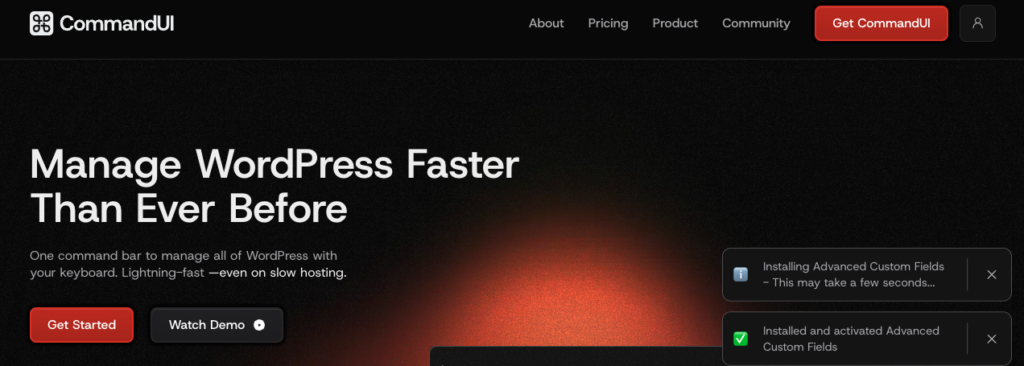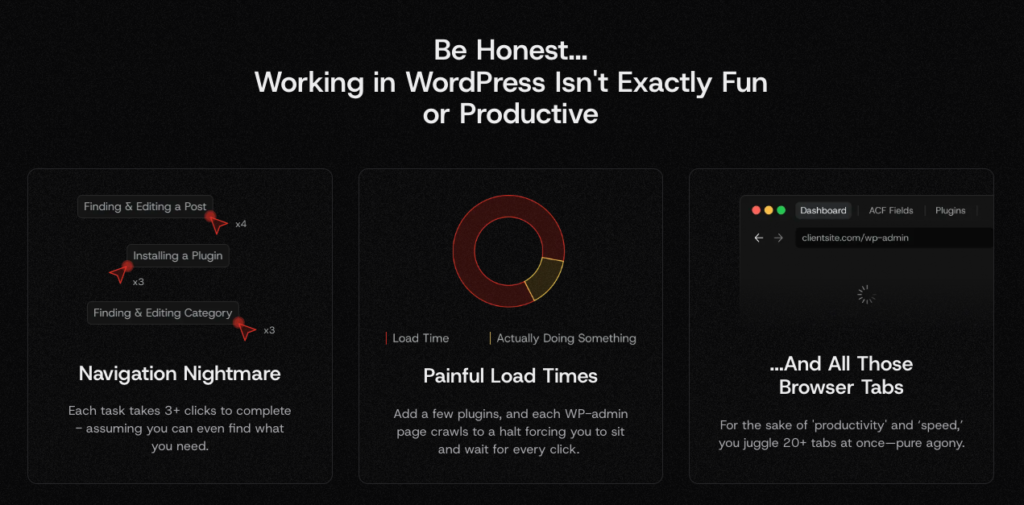



Let’s take a look at the problem Turbo Admin is trying to solve on WordPress sites.
WordPress admin has grown steadily over the years. Core features, plugins, page builders, eCommerce extensions- everything adds more screens, more menus, and more clicks.
For a single site, this is manageable.
For people working across multiple WordPress installs every day, it becomes slow.
Most of that time isn’t spent doing complex tasks. It’s spent navigating: opening the post list, switching screens, hunting for orders, jumping between sites in a multisite network.
Turbo Admin exists to reduce that friction. It doesn’t change how WordPress works. It changes how you move through it.
What Is Turbo Admin?
Turbo Admin is a WordPress command palette delivered as a browser extension.
Instead of installing a plugin on each site, you install Turbo Admin in your browser. When you log in to a WordPress dashboard, the extension detects it and activates automatically.
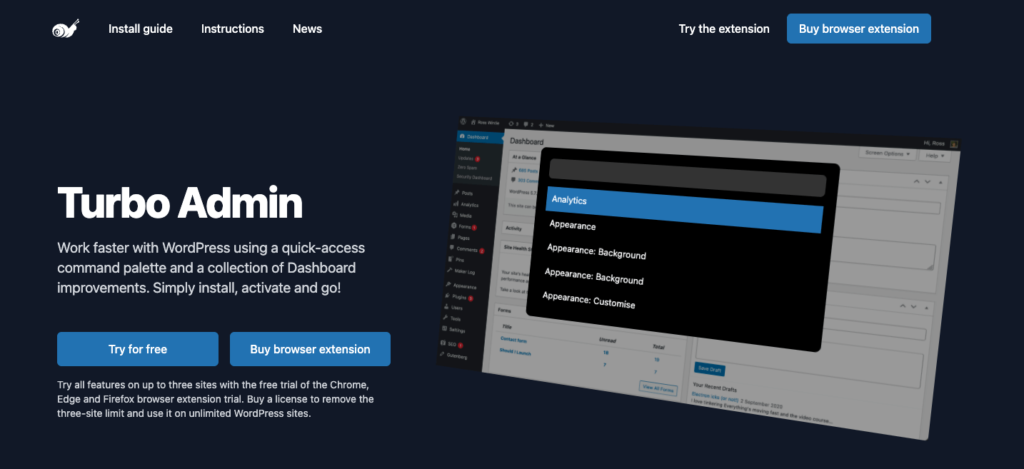
From there, you get:
- A global command palette inside wp-admin
- Keyboard shortcuts for fast navigation
- Search-driven access to content, admin pages, and supported integrations
This model is intentional. Turbo Admin is designed to follow the user, not the website.
How Turbo Admin Works in Practice
Once installed, Turbo Admin adds a command launcher you can open with a keyboard shortcut.
When the palette is open, you type what you’re looking for: a post title, an admin page, an order number, a site name.
Results appear instantly. Selecting one takes you directly to that screen.
There’s no separate interface to learn. It sits quietly until you need it, then disappears again.
Because it runs at the browser level:
- The same shortcuts work across all WordPress sites you access
- Your preferences are saved per browser
- You don’t have to modify client sites or staging environments
For people managing many logins, this consistency is the core appeal.
Content Search Without Loading Admin Screens
One of Turbo Admin’s most practical features is its content search.
Instead of: Dashboard → Posts → Search → Filter → Edit
You can:
- Open the command palette
- Type part of a post or page title
- Jump straight into editing or viewing it
On content-heavy sites, this reduces both page loads and mental overhead. You stop thinking about where things live and focus on what you want.
WooCommerce Search for Orders and Customers
Turbo Admin includes built-in WooCommerce search support.
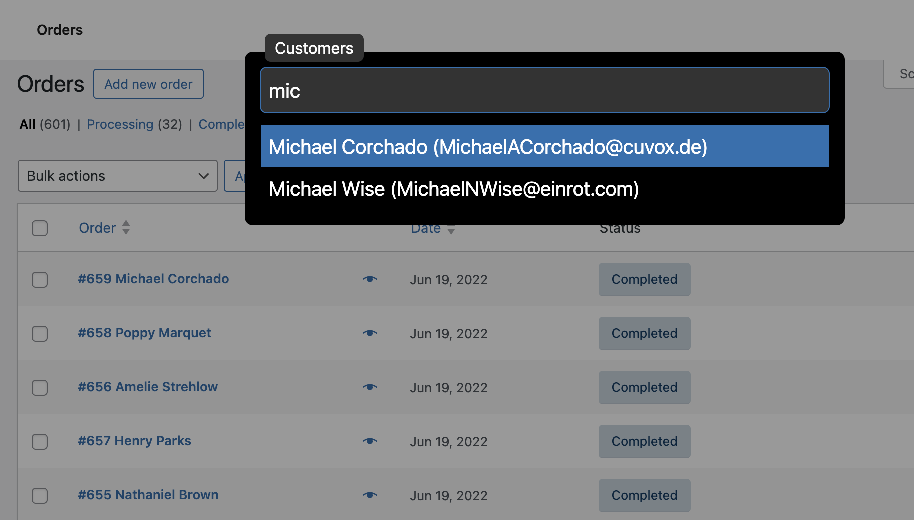
From the command palette, you can search:
- Orders by number or customer reference
- Customers directly, without opening WooCommerce tables first
This is especially useful for store owners and support workflows where speed matters more than browsing.
It doesn’t replace WooCommerce management screens, but it shortens the path to them.
Faster Navigation in Multisite Networks
WordPress multisite introduces another layer of complexity: switching between sites.
Turbo Admin detects multisite setups and allows:
- Quick searching of network sites
- Direct navigation to individual dashboards
Instead of using network menus or bookmarks, you type the site name and move on.
For agencies managing large networks, this removes one of the most repetitive admin tasks.
Cleaning Up the WordPress Editor Experience
Turbo Admin also includes small but deliberate admin refinements.
These focus on reducing interruptions rather than adding new UI:
- Disable the block editor’s full-screen mode by default
- Remove the welcome guide overlay
- Keep the editing environment predictable across sites
These changes don’t alter content or themes. They simply make the editor behave the same way every time you open it.
Managing Admin Notices (Experimental)
Admin notices are one of WordPress’s long-standing pain points.
Turbo Admin offers an experimental notice management feature that:
- Collects notices into a dedicated panel
- Keeps dashboards usable even on plugin-heavy sites
It’s not meant to hide problems permanently, but to stop notices from overwhelming the interface.
For developers working on client sites, this alone can make wp-admin feel manageable again.
Keyboard Navigation in List Tables (Experimental)
Turbo Admin is clearly built with keyboard users in mind.
An experimental feature allows keyboard navigation inside WordPress list tables, including:
- Moving between rows
- Opening items without using the mouse
This isn’t essential for every user, but it shows Turbo Admin’s long-term direction: deeper keyboard control over WordPress admin.
What Makes Turbo Admin Different From Plugins
The defining trait of Turbo Admin is not a feature. It’s the extension-first architecture.

Because it’s not tied to a specific site:
- You don’t need client approval to install it
- There’s no risk of breaking themes or plugins
- It works equally on production, staging, and local sites
This makes Turbo Admin a personal productivity tool rather than a site-level solution.
That distinction matters when choosing it.
Who Turbo Admin Is Best Suited For
Turbo Admin works best when:
- One person manages many WordPress sites
- Speed of navigation matters more than automation
- Installing plugins everywhere isn’t practical
- Keyboard workflows are preferred over menus
It’s a focused tool. It doesn’t try to replace wp-admin. It tries to get you through it faster.
Where Turbo Admin Stops And What a True Command-Driven Tool Looks Like
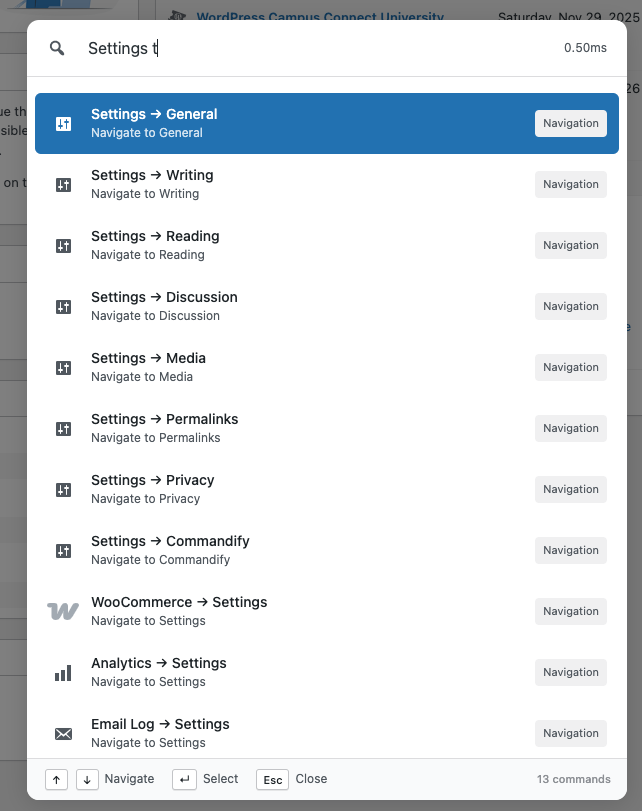
Navigation Is Helpful But It’s Only One Layer of Productivity
Turbo Admin does one thing very well: it helps you get to places faster.
You type, you jump, you land on the right screen.
For many workflows, that already feels like a big improvement over clicking through menus.
But once the navigation problem is solved, another question naturally appears:
Why do I still have to open a screen just to do something simple?
This is where the difference between a search/navigation palette and a command-driven system becomes obvious.
Introducing Commandify The Best Command Palette for WordPress
Commandify approaches WordPress productivity from a different direction.
Instead of asking: “Where do you want to go?”
It asks: “What do you want to do?”
Commandify lives inside WordPress as a plugin and provides a command palette that is action-first, not navigation-first. The palette is designed to execute tasks directly, often without loading the related admin screen at all.
This difference sounds subtle at first. In practice, it changes how you interact with WordPress entirely.
Search vs Commands: Why the Distinction Matters

Turbo Admin’s core interaction model is search-based:
- Search posts
- Search orders
- Search admin pages
- Navigate to results
Commandify uses commands, which can include search—but are not limited to it.
A command can:
- Navigate
- Trigger an action
- Modify state
- Execute multi-step logic
- Respond dynamically based on context
That’s why Commandify doesn’t describe itself as “admin search”. It’s closer to how command palettes work in development tools.
The 7 Command Types That Define Commandify
Commandify organizes everything around command types, not screens.
This structure is what allows it to go beyond navigation.
Here’s how those command types work in real WordPress usage.
1. Navigation Commands
These are the most familiar and closest to what Turbo Admin does.
Navigation commands take you to:
- Dashboard
- Posts
- Pages
- WooCommerce sections
- Plugin settings
- Any registered admin page
The difference is that navigation is treated as one command type, not the entire system.
It’s there when you need it—but it’s not the ceiling.
2. Action Commands (Do Something, Instantly)
Action commands execute tasks immediately.
Examples include:
- Clear cache
- Regenerate files
- Sync data
- Trigger background processes
Instead of:
Dashboard → Plugin → Settings → Button → Confirm
You type one command and it’s done.
This is where users often start to feel the limitation of navigation-only tools. With Turbo Admin, you still have to go somewhere to act. With action commands, the destination disappears.
3. Sub-Menu Commands (Contextual Actions)
Sub-menu commands represent actions that belong to something else.
For example:
- Empty trash
- Bulk cleanup tasks
- Reset specific settings
These commands don’t make sense as standalone navigation items. They make sense as secondary actions, exposed only when relevant.
This mirrors how experienced users think: not “open trash screen”, but “empty trash”.
4. Search Commands (But Smarter)
Commandify still includes search—but it treats it as a command, not the core mechanic.
Search commands can:
- Search posts
- Search pages
- Search any custom post type
- Respect context (current site, user role, installed plugins)
The key difference is extensibility. Search is structured so it can be combined with actions or follow-up commands, rather than being a dead end that only navigates.
5. Dynamic Pattern Commands (Where It Gets Interesting)
This is where Commandify clearly moves beyond tools like Turbo Admin.
Dynamic pattern commands adapt based on what you type.
For example:
- Typing
#1could immediately reference the latest form entry - Patterns can represent objects, states, or recent activity
- Commands respond differently depending on matched patterns
Instead of static search results, the system becomes context-aware.
This is the foundation for workflows that feel “smart” rather than fast.
6. Toggle Commands (State-Based Actions)
Toggle commands let you switch things on or off directly from the palette.
Examples:
- Enable / disable features
- Toggle modes
- Flip plugin states
- Switch environments or behaviors
These commands don’t navigate anywhere. They simply change state and confirm it.
In traditional WordPress admin, toggles are buried inside settings screens. Commandify brings them forward.
7. Workflow-Oriented Commands
While not always labeled as a separate category, Commandify supports commands that:
- Chain multiple actions
- Adapt based on context
- Reduce repeated admin routines into single entries
This is where users who manage stores, memberships, or form-heavy sites start to notice the difference.
Why This Matters for Everyday WordPress Work
At first glance, Turbo Admin and Commandify can look similar: both have a command palette, both are keyboard-first, both aim to save time.
The difference becomes clear after extended use.
Turbo Admin helps you move faster inside WordPress.
Commandify helps you do more without moving at all.
Neither approach is inherently wrong. They simply solve different layers of the same problem.
The Gap Users Often Feel Over Time
Many users start with navigation tools and feel productive quickly.
Then the friction returns in a different form:
- Still opening screens just to click one button
- Still repeating the same admin actions daily
- Still relying on plugin-specific UIs for simple tasks
That’s usually the point where command-driven tools start to make sense.
Not because navigation is bad—but because it’s incomplete.
Turbo Admin vs Alternatives (And When Commandify Makes More Sense)

Evaluating WordPress Command Tools the Right Way
By now, it’s clear that Turbo Admin and Commandify are not trying to solve the exact same problem.
To compare them fairly, the question shouldn’t be: “Which one is faster?”
It should be: “What kind of productivity do you actually need from WordPress admin?”
To answer that, we’ll look at a few practical criteria that matter once you move beyond basic navigation.
Turbo Admin vs Commandify: A Practical Comparison
| Criteria | Turbo Admin | Commandify |
|---|---|---|
| Primary focus | Fast navigation & search | Action-driven workflows |
| Delivery model | Browser extension | WordPress plugin |
| Setup on client sites | Not required | Required (site-level) |
| Navigation via command palette | Yes | Yes |
| Execute actions directly | Limited | Core feature |
| Command structure | Search-based | Multiple command types |
| Custom post type support | Search | Search + actions |
| WooCommerce workflows | Navigation/search | Actions + workflows |
| Context-aware commands | No | Yes |
| Dynamic pattern handling | No | Yes |
| Toggle & state commands | No | Yes |
| Team-wide consistency | Per browser | Per site |
This table highlights a key distinction.
Turbo Admin is excellent when your main bottleneck is getting to the right screen.
Commandify becomes more useful when the bottleneck is what you have to do after you arrive.
Why Commandify Often Becomes the “Next Step”
For many users, Turbo Admin is a first productivity upgrade. It removes friction quickly and feels immediately helpful.
Over time, though, the workflow evolves:
- Navigation becomes fast
- But repetitive actions remain repetitive
- Admin screens still need to load
- Small tasks still require multiple steps
That’s where command-driven systems start to show their value.
Commandify doesn’t replace WordPress admin screens entirely.
It reduces how often you need them.
By supporting navigation commands, action commands, sub-menu commands, search commands, dynamic patterns, and toggle commands, it allows WordPress to be operated, not just browsed.
That difference becomes more noticeable on:
- WooCommerce sites
- Form-heavy setups
- Membership or LMS platforms
- Admin teams doing daily maintenance work
Other Alternatives to Turbo Admin (Briefly)
Turbo Admin and Commandify aren’t the only tools in this space, but most alternatives lean in one of two directions:
- Admin search plugins
These improve finding posts or settings but stop at navigation. - Dashboard cleanup tools
Useful for decluttering, but not interactive or command-based.
What makes Commandify stand out among alternatives is not that it replaces everything but that it introduces a command system WordPress never had.
WordPress Command Palette Tools: Choosing the Right Tool Based on How You Work
There isn’t a universal winner. There is a better fit.
Turbo Admin is a strong choice if:
- You manage many unrelated WordPress sites
- You don’t want to install plugins everywhere
- Your main goal is faster navigation
- You prefer browser-level tooling
Commandify makes more sense if:
- You want to execute actions directly from a palette
- You manage WooCommerce or dynamic content
- You work inside the same sites regularly
- You want workflows, not just shortcuts
In practice, many users start with navigation tools and later realize they want something deeper.
Frequently Asked Questions
Is Turbo Admin a WordPress plugin?
Turbo Admin is primarily a browser extension, not a traditional WordPress plugin. It activates automatically when you log into a WordPress admin area.
Does Turbo Admin work on all browsers?
Turbo Admin supports Chromium-based browsers and Firefox. Safari is not supported.
Can Turbo Admin perform actions like clearing cache?
No. Turbo Admin focuses on navigation and search. You still need to open the relevant plugin or admin screen to perform actions.
What makes Commandify different from admin search plugins?
Commandify is built around commands, not just search. It supports actions, toggles, dynamic patterns, and workflows that don’t require loading admin screens.
Can Commandify search custom post types?
Yes. Search is a command type in Commandify and can work with posts, pages, and custom post types.
Do I need Commandify if Turbo Admin already works for me?
Not necessarily. Turbo Admin may be enough if navigation is your only pain point. Commandify becomes relevant when you want to do more directly from a command palette.