



User Switching Integration: Manage Users from Any Screen
[Powered by the User Switching plugin]
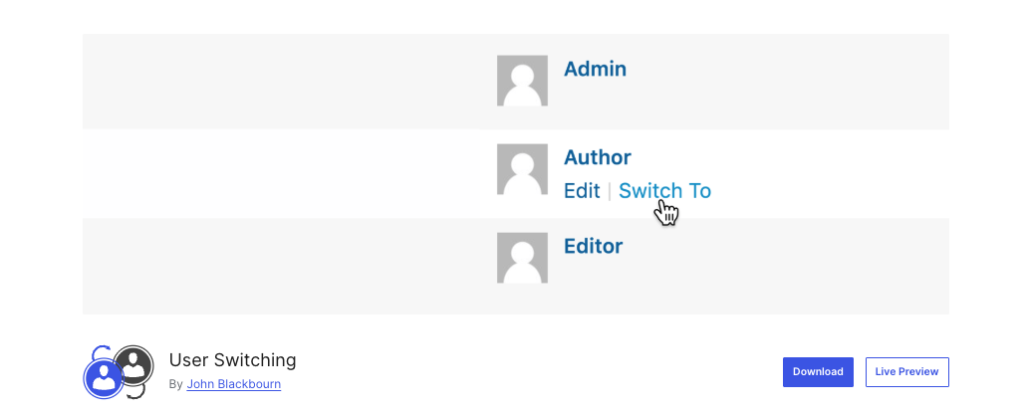
The User Role Switcher feature in Commandify Pro builds on the popular User Switching plugin and brings its core actions directly into the Commandify command palette.
Instead of going through the Users screen or relying on the admin bar alone, you can:
- Switch into another user account
- Use a dedicated “Switch to User” search
- See your current switch status
- Instantly switch back to your own account
All of this happens from a single shortcut: Cmd/Ctrl + K.
Requirements
To use User Role Switcher in Commandify Pro, you’ll need:
- WordPress 6.2 or higher
- Commandify Pro 1.0.2 or higher
- The free User Switching plugin by John Blackbourn (installed and active)
- A user role with
edit_userscapability (typically Administrator)
Commandify does not replace the User Switching plugin. It extends it with a faster, keyboard-first interface.
What User Role Switcher Does for You in WordPress #
The User Role Switcher integration is designed for:
- Admins & developers testing different roles and permissions
- Support teams who need to see what customers see
- Store owners & LMS/membership managers who must verify user experiences
Commandify adds four main commands on top of User Switching:
- Switch To (action in user search results)
- Switch to User (dedicated switching command)
- Switch Back (return to your original account)
- User Switch Status (see who you really are vs who you’re acting as)
Switch To: Quick User Switching from Search #
What is “Switch To”?
The Switch To action appears when you search for users inside Commandify. It lets you switch into any permitted user account directly from the search result, without visiting the Users screen.
Why it’s useful
- Switch accounts in seconds during support or testing
- Check what a customer, student, or member sees
- Test permissions or role changes in real time
- Stay inside the command palette and avoid menu-hopping
How to use it
- Press Cmd/Ctrl + K to open Commandify.
- Type “Search Users” and run the command.
- Search by name, email, or username.
- Select a user from the results.
- Choose “Switch To” and press Enter.
- You’re now logged in as that user, and a success message confirms the switch.
You can later return to your original account using Switch Back or User Switch Status.
Switch to User: Dedicated Switching Command #
What is “Switch to User”?
The Switch to User command is a dedicated, focused interface for switching users. Instead of going through general user search, it opens a special view optimized for quick switching.
When opened, it immediately lists your 20 most recent users and lets you search any other account.
Why it’s useful
- Ideal for support teams who repeatedly switch between customer accounts
- Great for QA/testing across multiple roles
- Faster than going through the regular Users list
- Shows user roles so you know who you’re switching into
How to use it
- Open Commandify with Cmd/Ctrl + K.
- Type “Switch to User” and press Enter.
- Browse the recent users list or start typing to search.
- Select a user and press Enter to switch immediately.
- Commandify (and User Switching) update your session on the spot.
A “Switch Back” option will be available once you’re switched.
Switch Back: Return to Your Original Account #
What is “Switch Back”?
The Switch Back command appears when you’re currently acting as another user. It lets you instantly return to your original account and end the switching session.
You’ll also usually see a “Switch back” link in the WordPress admin bar (from User Switching). Commandify just makes that action keyboard-first.
Why it’s useful
- Avoid staying stuck under the wrong account
- Restore your admin session in one step
- Safely close support/testing sessions
How to use it
- While switched, open Commandify with Cmd/Ctrl + K.
- Type “Switch Back”.
- Select “Switch Back to [Your Name]” and press Enter.
- You’re returned to your original account, and the switching session ends.
Once you’re back, the Switch Back command will disappear from the palette.
User Switch Status: See Who You Really Are #
What is “User Switch Status”?
The User Switch Status command gives you a clear overview of your current session. It tells you whether you are:
- Logged in as yourself (no active switch), or
- Switched into another user account
If switched, it shows both:
- Your original account
- The current user you’re impersonating
Plus, it provides a Switch Back action.
Why it’s useful
- Avoid making changes under the wrong account
- Confirm you’re testing as the correct user
- Helpful in long debugging/support sessions
How to use it
- Open Commandify with Cmd/Ctrl + K.
- Type “User Switch Status” or just “Status”.
- Press Enter to view the current session information.
- If you’re switched, use the “Switch Back” action shown there.
Use this command often when you’re doing a lot of role-based testing.
Security & Best Practices #
Because Commandify integrates with the User Switching plugin, all security and permission checks follow its rules:
- Only users with appropriate capabilities (usually Admins) can switch.
- You can only switch into accounts the plugin permits.
- WordPress admin bar notices still appear when you are switched.
Best practices:
- Always check User Switch Status before making big changes.
- Switch back to your admin account when you’re done testing.
- Don’t grant
edit_userscapability to roles that shouldn’t switch users.
Troubleshooting #
Switch actions not appearing?
- Confirm User Switching plugin is installed and active.
- Make sure you’re logged in as an Admin or a role with
edit_users.
“Switch to User” command missing?
- Check that Commandify Pro is active with a valid license.
- Verify your Commandify version is 1.0.2 or higher.
Switch URL shows 404 or odd behavior?
- Update to the latest Commandify Pro and User Switching versions.
- Clear browser and caching plugin caches.


