



How to use Commandify Dark Mode Feature with WP Dark Mode Plugin Compatibility
Commandify includes a built-in dark mode so you can keep the command palette comfortable to use during long admin sessions- especially at night or when you’re working in darker environments.
This guide shows how to enable it, choose the right appearance mode, and avoid conflicts if you also use the WP Dark Mode plugin.
Before you start #
- Make sure Commandify is installed and activated
- If you’re using Commandify Pro, you’ll see the full set of appearance options (Always Dark / Always Light / Follow System)
Tip: If you don’t see dark mode controls yet, confirm you’re on a version that includes dark mode support in your plan.
Enable Commandify Dark Mode (Step-by-step) #
Let’s get started with the setup process
Step 1: Open Commandify Settings
- Use your default keyboard shortcut like cmd+k
- Type Comma/Command/Commandify and Navigate to Commandify → Command Palette Appearance
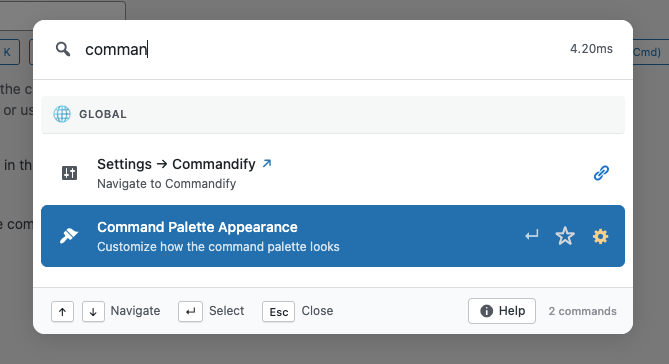
Step 2: Choose your Commandify Appearance Mode
Commandify dark mode usually provides three appearance options:
- Always Dark
- Commandify palette stays dark no matter what
- Best if you prefer consistent dark UI
- Always Light
- Commandify palette stays light no matter what
- Best if you want the palette to match a light admin UI
- Follow System
- Commandify automatically matches your OS/browser theme preference
- Best if you switch between light/dark depending on time of day
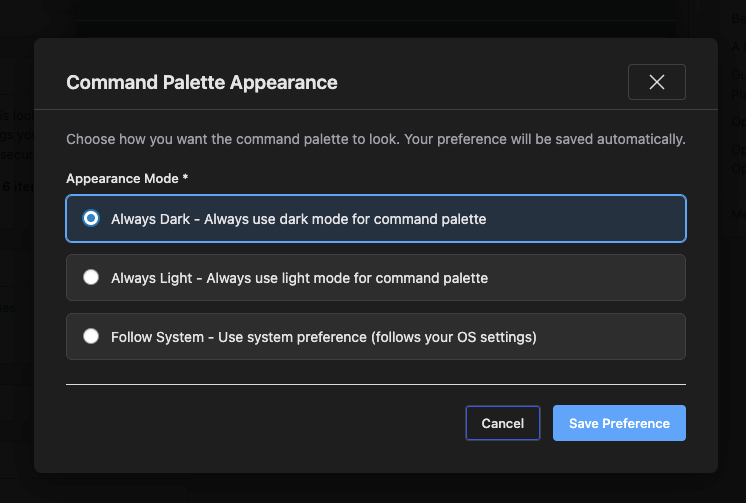
To apply:
- Select your preferred mode
- Click Save Changes
Step 3: Verify it’s working inside the palette
- Open the palette with Cmd/Ctrl + K
- Confirm:
- Background is dark (for Always Dark / Follow System when system is dark)
- Text and icons remain readable
- Contrast looks consistent across commands and modals
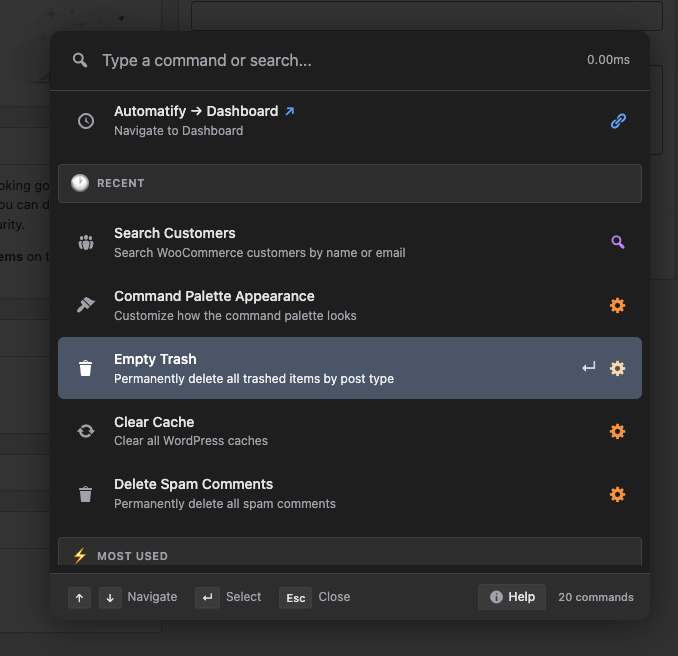
Use “Follow System” on Commandify Properly #
If you choose Follow System, you’ll want to confirm your device theme is set correctly.
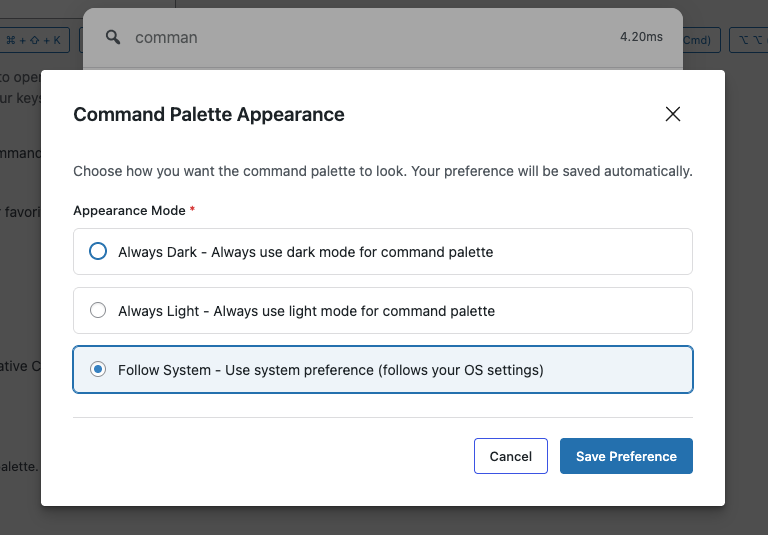
On macOS
- System Settings → Appearance
- Choose Dark or Auto
- Refresh your browser tab (or re-open WP Admin)
On Windows
- Settings → Personalization → Colors
- Choose Dark for “Choose your mode”
- Refresh your browser tab (or re-open WP Admin)
Then:
- Open Commandify again using Cmd/Ctrl + K
- It should match your system preference
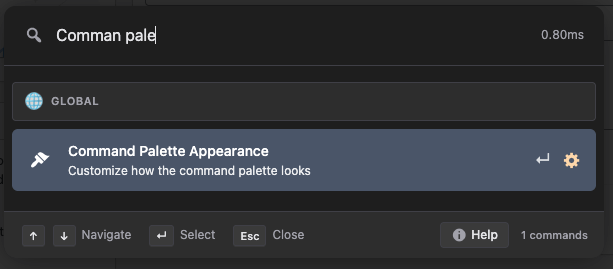
Using Dark Mode with Commandify Modals #
Some Commandify actions open modals (like edit forms, confirmations, or detailed views). In dark mode:
- Forms should remain readable
- Scrollable modals should feel comfortable for longer actions
- Buttons and alerts should remain clear
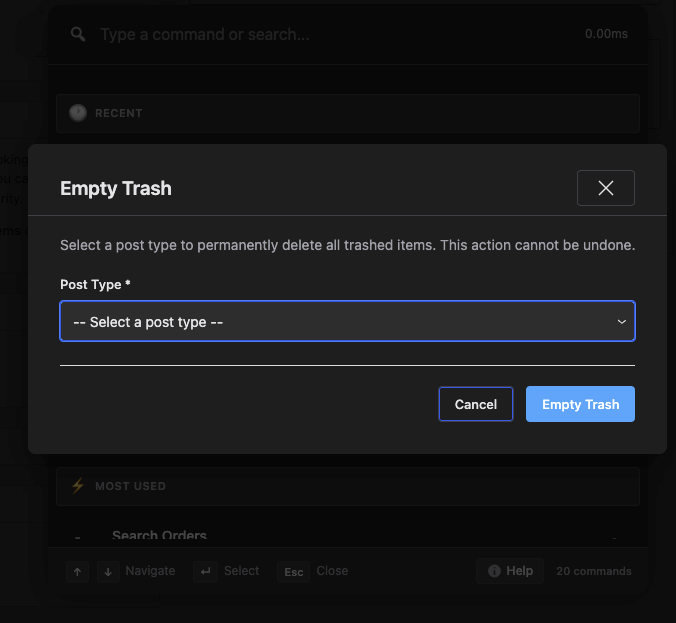
If anything looks off:
- Switch between Always Dark and Always Light to test contrast
- Confirm no other plugin is overriding admin colors
WP Dark Mode Plugin Compatibility in Commandify
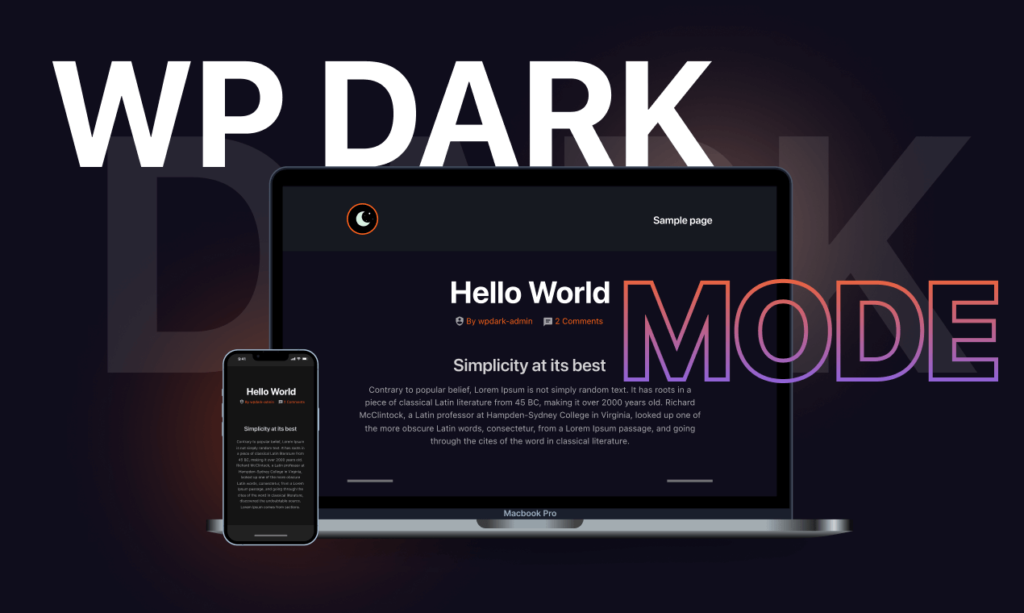
If you use the WP Dark Mode plugin, Commandify includes a special compatibility behavior to avoid UI conflicts.
Why conflicts can happen
Both tools can try to:
- Apply dark UI styling
- Override colors and backgrounds
- Force theme changes in admin screens
This can cause:
- Double-styling (too dark / unreadable contrast)
- Misaligned icons or weird background overlays
- Palette looking inconsistent across screens
How Commandify Handles WP Dark Mode Plugin Conflicts
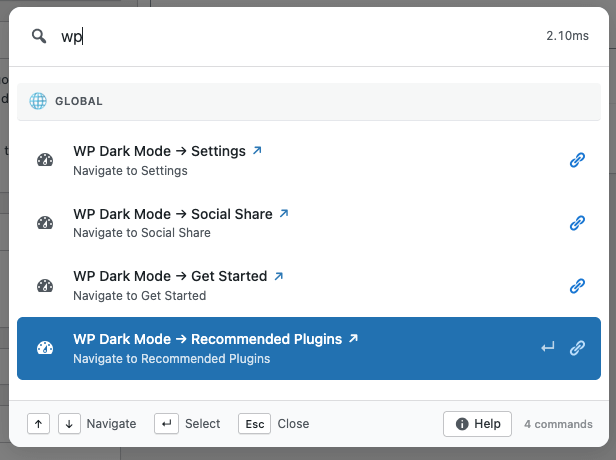
When Commandify detects the WP Dark Mode plugin is active, it can automatically adjust behavior to prevent “double dark mode” styling.
In simple terms:
- WP Dark Mode controls the admin theme
- Commandify avoids forcing a second dark mode layer that could conflict
This helps keep:
- Command palette readability stable
- Icon/label contrast correct
- Modals and forms consistent
Recommended Setups for WP Dark Mode Plugin Users #
Let’s quickly check 3 available options to use both Commandify and WP Dark Mode Plugin at once without any conflicts.
Option A: Let WP Dark Mode control your admin UI
Best when you already rely on WP Dark Mode for the whole dashboard.
- Enable WP Dark Mode as usual
- In Commandify Appearance:
- Set Commandify to Follow System or Always Light (depending on your admin theme behavior)
- Open palette and verify readability
Why this works well: WP Dark Mode owns the admin styling, Commandify stays stable without fighting it.
Option B: Use Commandify dark mode only (disable WP Dark Mode in admin)
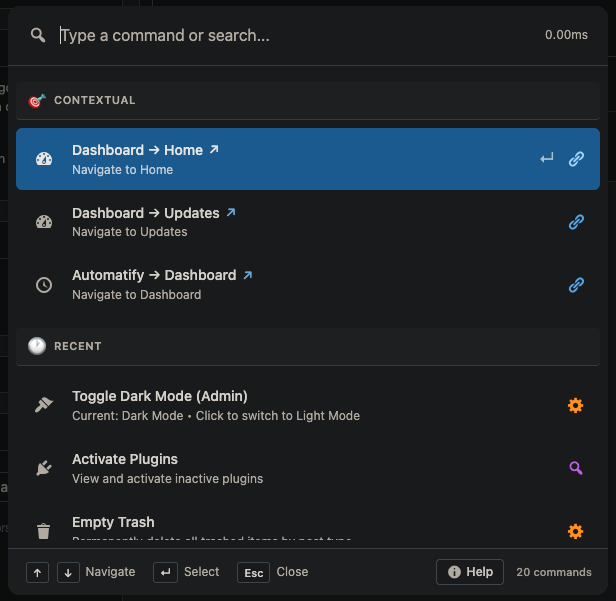
Best if you only want Commandify dark mode and prefer keeping WP Admin mostly default.
- Disable WP Dark Mode (or disable its admin dark mode feature)
- In Commandify Appearance:
- Choose Always Dark
- Save settings and test
Why this works well: Only one system controls dark mode styling.
Option C: Use both, but keep them aligned
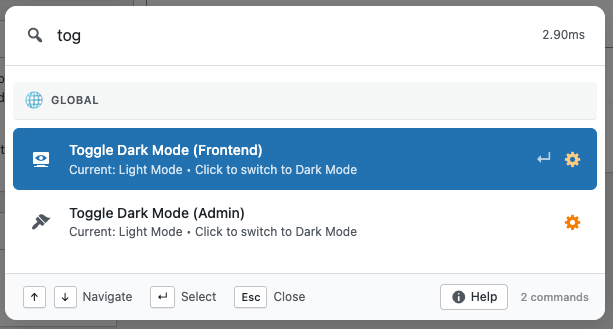
If you must use both:
- Keep WP Dark Mode consistent (don’t switch too frequently)
- Set Commandify to Follow System
- Make sure your OS theme matches your intended look
- Test:
- WP Admin pages
- Elementor/Bricks screens (if relevant)
- Commandify palette modals
Troubleshooting or Quick Fixes on Commandify Dark Mode #
Problem 1: Palette is dark but text is hard to read
- Switch Commandify appearance to Always Light
- Save → refresh admin screen
- If WP Dark Mode is active, try disabling WP Dark Mode just for admin and test again
Problem 2: Palette looks different across screens
- Make sure you don’t have multiple UI styling plugins active
- Clear cache (plugin cache + browser cache)
- Re-open the palette
Problem 3: Dark mode doesn’t change after updating settings
- Save settings
- Hard refresh your admin page (Ctrl+Shift+R / Cmd+Shift+R)
- Re-open Commandify
Commandify Dark Mode Best practices #
If you use WP Dark Mode plugin, keep one tool primarily responsible for admin styling.
If you’re using Follow System, keep your OS theme on Auto if you want day/night switching.
After changing appearance settings, do a quick check on:
- Palette command list readability
- Modals and confirmations
- Icons and shortcut hints


