



How to Require Login to Vote in WordPress Polls (Pollify User Guide)

Running a poll where anyone can vote 50 times by clearing their browser cookies is not feedback – it is noise.
If you are making content decisions, product decisions, or community decisions based on poll results, you need to know that every vote came from a real, authenticated person. Not the same person voting from three different browsers.
Pollify‘s login restriction feature solves this at the account level. When enabled, only logged-in WordPress users can vote – and each user gets exactly one vote, tracked by their user ID, not their IP address or browser cookie.
This guide walks through the complete setup, what visitors see on the frontend, and which use cases make login-restricted polls the right call.
New to Pollify? Install the free plan from WordPress.org first – no account required.
Login restriction requires Pollify Pro.
Why Voting Restriction Matters for Poll Data Quality
Most polls on the open web use one of two protection mechanisms: IP address tracking or browser cookies. Both are better than nothing. Neither is reliable enough for polls where the results actually matter.
IP tracking fails in any shared-network environment. An office of 40 people shares one outbound IP – meaning only one person from that office can vote, blocking 39 legitimate respondents. Conversely, anyone on mobile data can switch from WiFi to cellular to get a fresh IP and vote again. VPNs bypass IP restrictions entirely with one click.
Cookie tracking is even weaker. Clearing browser cookies takes ten seconds. Switching to incognito mode takes one. Using a different browser takes zero additional effort if it is already installed. Cookie-based “one vote per person” enforcement stops honest visitors from accidentally voting twice. It does not stop anyone motivated to vote more than once.
The result: unverified polls produce data you cannot confidently act on. Is that 70% preference result real, or did three enthusiastic people vote 15 times each? You cannot know.
User account-based restriction eliminates this uncertainty. A WordPress user account requires registration. Voting twice requires two accounts. Voting 15 times requires 15 accounts.
At that point, the effort required to manipulate the poll exceeds any reasonable motivation to do so. The data becomes trustworthy enough to make real decisions from.
Methods to Restrict Voting in WordPress Polls
Before jumping into the Pollify setup, it helps to understand the landscape of restriction options and where each fits.
- Cookie restriction (Pollify free): Sets a browser cookie after voting. Stops accidental double-voting and honest visitors. Easily bypassed by clearing cookies or using incognito. Right for casual content polls where the audience is trusted.
- IP restriction (Pollify Pro): Blocks repeat votes from the same IP address. More reliable than cookies – survives browser clearing and incognito mode. Still bypassed by VPN or mobile data switching. Has the shared-IP false positive problem. Good as a secondary layer, not as the primary mechanism.
- Login restriction (Pollify Pro): Requires a WordPress user account to vote. Duplicate prevention switches from IP/cookie tracking to user account tracking. Each authenticated user gets one vote tied to their identity. The strongest available mechanism for high-stakes polls.
- One vote per user (Pollify Pro): Works alongside login restriction to enforce account-level deduplication. When combined, login restriction controls who can vote; one-vote-per-user controls how many times.
For casual blog polls where you just want a rough sense of reader preference, cookie restriction is fine and completely free. For any poll feeding a real decision – product roadmaps, membership votes, course feedback, employee surveys – login restriction with one-vote-per-user is the setup you want.
How to Require Login to Vote in WordPress with Pollify
Login restriction is built directly into the Response Settings panel of every Pollify block. There is nothing to configure globally – you enable it per poll, giving you full control over which polls require authentication and which don’t. For a full technical reference, see the official login restriction documentation.
Step 1: Install and Activate Pollify
If you haven’t installed Pollify yet, go to Plugins > Add New in your WordPress dashboard, search for Pollify, and install the free plugin from WordPress.org. Activate it. Then activate your Pro license key under Pollify > License – login restriction is a Pro feature available in all paid plans from $79/yr.
Step 2: Open Your Poll in the Block Editor
Open the post or page containing your Pollify block – or create a new one. If you haven’t set up a poll before, see our guide on how to create a poll in WordPress.
Login restriction works across all Pollify block types: standard polls, Kudos, Up/Down voting, NPS surveys, and Engagement blocks.
Step 3: Enable “Require Login to Vote”
Click on the Pollify block to select it. In the right-hand settings panel, find the Response Settings section and expand it. Check the “Require login to vote” checkbox.
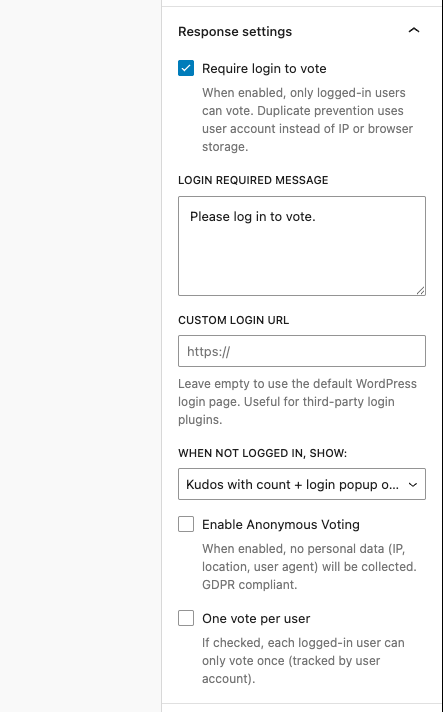
Once checked, three additional options appear below the checkbox. From this moment, non-logged-in visitors can no longer submit votes. Duplicate prevention automatically switches from IP/cookie tracking to user account tracking for all new votes on this poll.
Step 4: Customise the Login Required Message
The Login Required Message field controls what non-logged-in visitors see when they try to interact with the poll. The default is “Please log in to vote.” – clear and functional.
Adjust this to match your site’s context and tone. Some examples that work better than the generic default:
- For membership sites: “Members only – please log in to cast your vote.”
- For WooCommerce: “Sign in to your account to share your feedback.”
- For course platforms: “Enrolled students only – log in to participate.”
- For employee surveys: “Please log in with your team account to respond.”
The message appears alongside a clickable Login link that redirects visitors to your login page. Keep the message short and action-oriented – it should help the visitor understand what to do in one read.
Step 5: Set a Custom Login URL (When Needed)
By default, the Login link points to your standard WordPress login page at /wp-login.php. For most sites this is fine. Leave the Custom Login URL field empty unless you are using a third-party login page.
If your site uses WooCommerce’s My Account page as the login portal, a custom login page built with MemberPress, Paid Memberships Pro, or any other membership plugin – enter that page URL here. Visitors will be sent to your custom login flow instead of the default WordPress login screen, keeping the brand experience consistent.
Step 6: Choose What Non-Logged-In Visitors See
The “When Not Logged In, Show” dropdown gives you three options for how the poll appears to unauthenticated visitors. This is a meaningful UX decision – choose based on whether social proof and poll visibility matter for your context.
- Poll with login popup on click: The poll block is fully visible including current results or engagement counts. When the visitor clicks to interact, a popup appears with the login message and link. The least intrusive option – visitors see social proof before being prompted to log in.
- Poll with inline login message: The poll block is visible, but a persistent inline message (“Please log in to vote. Login”) sits directly in the content flow near the block. No popup – the message is always visible without requiring interaction first.
- Login message only (hide the block): The poll content is completely hidden. Only the login message and link are shown. Use this when the poll content itself is private – internal surveys, member-only questions, or anywhere seeing the options before logging in would undermine the purpose.
Click Update to save. Your poll now requires authentication to vote.
How to Limit One Vote Per User in WordPress Polls
Login restriction controls who can vote. The “One vote per user” checkbox in the same Response Settings panel controls how many times each authenticated user can vote.
Enable it and each logged-in user can submit one vote. Their second attempt shows the current results without a vote option – the same experience as someone who has already voted in a cookie-restricted poll, but backed by user account tracking instead of browser storage. There is no workaround available to the user short of registering a second account.
See one vote per user setting at the footer of the below attached screenshot-
Tip: Always enable both “Require login to vote” and “One vote per user” together. Login restriction without one-vote-per-user still allows the same authenticated user to vote multiple times. One-vote-per-user without login restriction falls back to cookie tracking, which is weaker. The combination gives you the strongest data integrity available in Pollify.
The combination also unlocks a future capability: because votes are tied to user accounts, you can filter and segment results by user role. Seeing how administrators responded versus subscribers, or how customers in one tier responded versus another, becomes possible when the data is account-linked.
How It Looks on the Frontend
Popup Login Prompt
When a non-logged-in visitor clicks on a poll block set to popup mode, a clean overlay appears on the page showing the login message and a Login link. The poll content and any engagement counts remain visible in the background. The popup includes a close button so visitors can dismiss it without leaving the page.
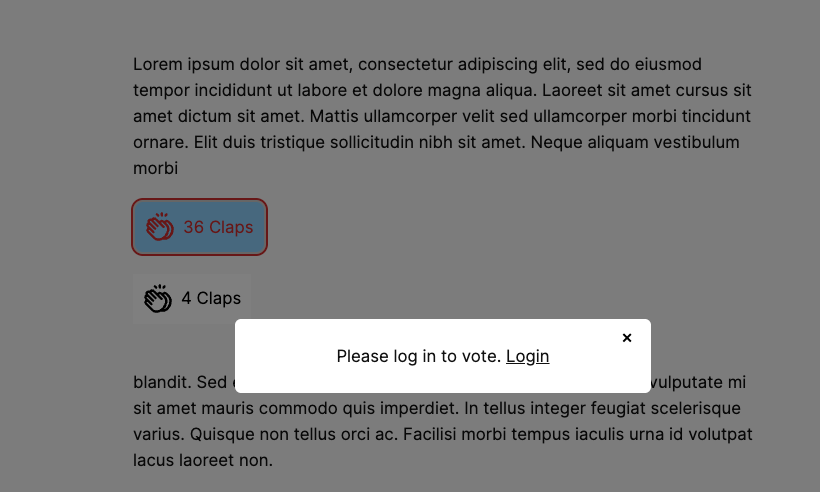
This mode works well for blogs, product pages, and community posts where showing the current vote count or engagement number is part of the value. Visitors see social proof, understand others have participated, and get a clear invitation to join by logging in.
Inline Login Message
In inline mode, the login message sits persistently within the page content near the poll block. The poll or voting interface is visible but non-interactive. The message does not require a click to trigger – it is always there for logged-out visitors.
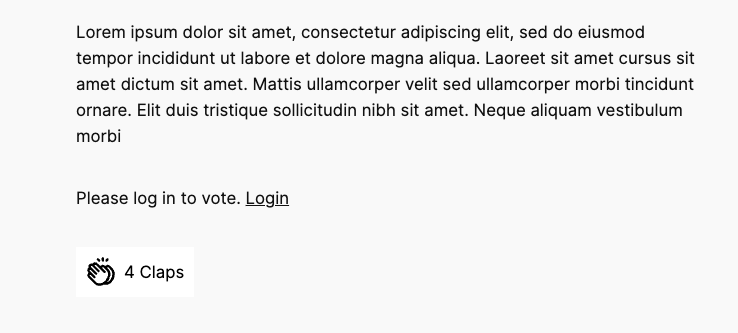
Inline mode suits documentation pages, course content, and any layout where a popup appearing mid-content would feel disruptive. The message integrates naturally into the reading flow.
Hidden Block (Login Message Only)
When set to hide the block, logged-out visitors see only the login message and link – nothing of the poll itself. This is the right choice when the poll question or options are sensitive, internal, or intended exclusively for authenticated users.
Employee surveys, member-only votes, and private beta feedback polls all benefit from this mode.
Restrict Poll Voting in WordPress with Pollify: Real-World Use Cases
Login restriction is not a one-size-fits-all requirement. Here are the specific scenarios where it changes data quality from unreliable to trustworthy.
| Use Case | Poll Type | Why Login Matters |
|---|---|---|
| Membership community voting on site decisions | Standard Poll | Each paying member gets exactly one verified vote |
| WooCommerce post-purchase NPS | NPS Survey | Only real customers with accounts provide satisfaction scores |
| Online course lesson feedback | Kudos / Engagement Block | Only enrolled students can respond – not random visitors |
| Internal employee pulse survey | Up/Down Voting | Responses tied to real team member accounts |
| SaaS feature prioritisation | Standard Poll | Votes from actual users, not anonymous visitors or competitors |
| Blog post appreciation tracking | Kudos | Know which logged-in readers found content valuable for segmentation |
Combining Login Restriction with Other Pollify Security Features
Login restriction is the strongest single mechanism, but it works even better as part of a layered approach.
- IP blocking (Pro): If a specific IP address is sending spam votes or suspicious activity on public-facing polls, you can block it directly from the Pollify dashboard. See IP blocking documentation for setup. For login-restricted polls, IP blocking adds a secondary layer against coordinated account-based manipulation attempts.
- Anonymous voting: You can enable login restriction and anonymous voting simultaneously. The vote is tied to the user account for deduplication purposes, but no additional personal data (IP address, location, user agent) is stored. This is the right configuration for GDPR-sensitive contexts where you need one-vote-per-person without creating a data trail. See anonymous poll setup guide.
- Poll scheduling: Set a close date alongside login restriction for time-bounded research windows. Scheduled login-restricted polls are particularly clean for quarterly NPS surveys and membership renewal votes – you get a defined collection window with account-verified responses. See poll scheduling guide.
Frequently Asked Questions
Can I require login for all poll types in Pollify – Kudos, NPS, Up/Down voting?
Yes. Login restriction works across every Pollify block type: standard polls, Kudos, Up/Down voting, NPS surveys, and Engagement blocks. The setting is in the Response Settings panel for each block and applies the same login gate regardless of block type.
Does login restriction work with WooCommerce or MemberPress login pages?
Yes. Enter your custom login page URL in the Custom Login URL field within Response Settings. Visitors who need to log in will be directed to your WooCommerce My Account page, your MemberPress login, or any other custom login URL you specify – instead of the default WordPress login screen. Leave the field empty to use the default /wp-login.php.
How is one-vote-per-user tracked – by IP or by user account?
When login restriction is enabled, duplicate prevention switches from IP/cookie tracking to user account tracking. Each WordPress user ID can submit one vote. This tracking is tied to the authenticated session – it cannot be bypassed by clearing cookies, switching browsers, or using incognito mode. A second vote would require a second WordPress user account.
Can I allow anonymous voting while still requiring login?
Yes – these are independent settings. “Require login to vote” ensures the voter is authenticated before their vote is accepted. “Enable anonymous voting” controls whether personal data (IP address, location, user agent) is stored alongside the vote. You can require login for deduplication while enabling anonymous voting to avoid storing any additional identifying data. This combination is useful for GDPR-sensitive polls.
What do visitors see if they are not logged in?
It depends on the display mode you choose in the “When Not Logged In, Show” dropdown. Popup mode shows the full poll block with a login prompt appearing when the visitor clicks to interact. Inline mode shows the poll block with a persistent login message always visible. Hide mode shows only the login message – the poll content is not visible at all until the visitor authenticates. Choose based on whether showing poll content to logged-out visitors serves your goals.
Conclusion on How to Require Login to Vote in WordPress
If your polls feed real decisions – product direction, community votes, customer feedback, employee sentiment – the data needs to be trustworthy. Cookie and IP restriction are useful for casual polls with a trusted audience. For anything more serious, login restriction with one-vote-per-user is the right standard.
Pollify makes this setup straightforward: one checkbox enables login restriction, a second enables one-vote-per-user, and three display modes give you control over the visitor experience. The whole configuration takes under two minutes per poll, works across all Pollify block types, and produces data you can actually act on.
Install Pollify free from WordPress.org for cookie-restricted polls. Upgrade to Pollify Pro (from $79/yr) for login restriction, IP blocking, one-vote-per-user, NPS surveys, image polls, and one-click export. Full feature documentation is at wprigel.com/pollify.
Related Guides
- How to Create a Poll in WordPress: No-Code Tutorial
- How to Prevent Duplicate Votes in WordPress Polls
- How to Create an Anonymous Poll in WordPress
- How to Schedule WordPress Polls to Auto-Open and Auto-Close
- Pollify vs Crowdsignal: Voting Restriction Compared
- Pollify Docs: Voting Rules, Timing, and Confirmation Messages
- Pollify Docs: IP Blocking for WordPress Polls