



How to Prevent Duplicate Votes in WordPress Polls (3 Free Methods)

To stop people voting twice in a WordPress poll, switch on a duplicate check in the poll’s settings. In Pollify there are three, and all three are in the free version: one vote per IP address, one vote per logged-in user, or a “voted” flag stored in the visitor’s browser for anonymous polls.
Each one stops a different kind of repeat voting, and each has a gap. Here is how they compare and how to set each one up.
How a Poll Recognises a Returning Voter
Every duplicate check relies on one of three signals:
- IP address: the network address the vote came from.
- User account: the WordPress login of the person voting.
- Browser storage: a small flag saved in the visitor’s browser after they vote.
No signal is perfect. The right choice depends on who your voters are and how much a few extra votes would matter.
Method 1: One Vote per IP Address
This is the general-purpose option for public polls. Pollify records the voter’s IP address and refuses a second vote from the same one.
How to turn it on
- Open the post or page with your poll and click the poll block.
- In the right-hand sidebar, open Response settings.
- Tick Allowed one response per computer.
- Click Update.
What it stops: clearing cookies, private windows and switching browsers on the same connection.
Where it falls short: a voter on a VPN or mobile data can still vote again. On shared networks, such as an office or a school, everyone may share one IP address, so the first vote can block their colleagues.
Privacy note: under EU data protection rules, IP addresses can count as personal data. If you have EU visitors, mention poll IP logging in your privacy policy.
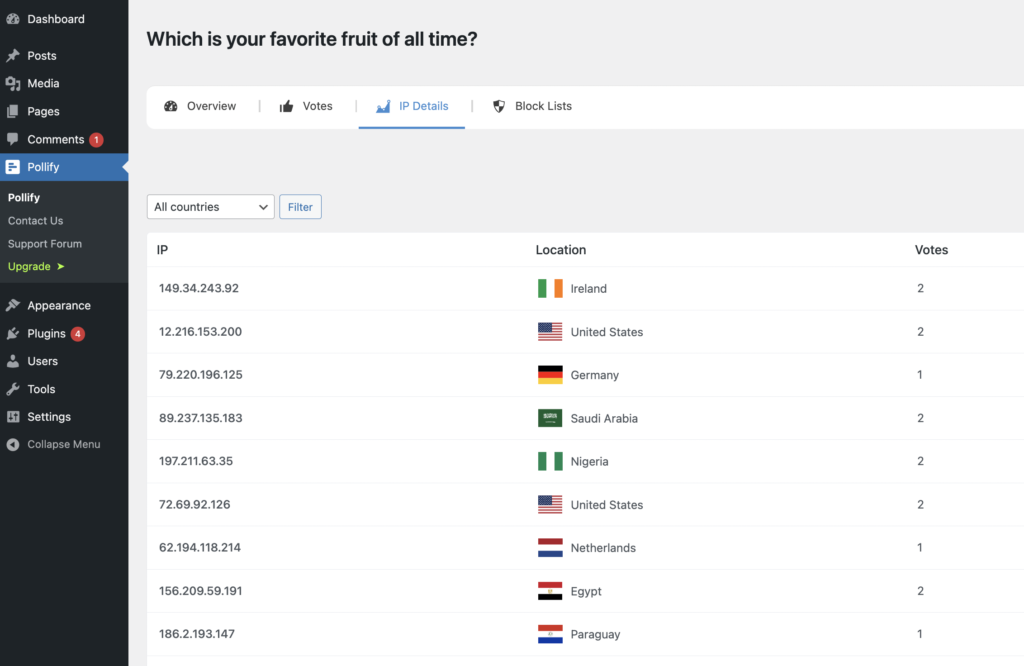
You can review where votes came from at any time. Open the poll from Pollify > All Polls to see vote counts by IP and location.
Method 2: One Vote per Logged-In User
If your voters have accounts, such as members, customers or students, this is the most reliable option. Each account gets exactly one vote, and nobody has to rely on IP addresses.
How to turn it on
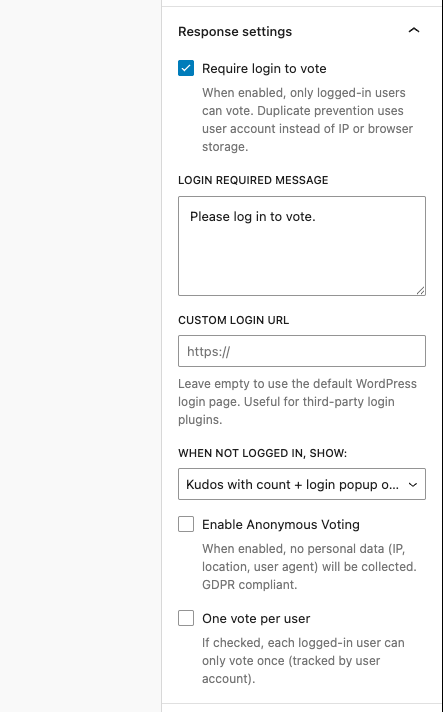
- Select the poll block and open Response settings.
- Tick Require login to vote.
- Tick One vote per user.
- Edit the Login required message if you like, and add a Custom login URL if your site uses its own login page.
- Under When not logged in, show, choose the login message on its own, or the poll with results plus a login popup when someone tries to vote.
- Click Update.
The tradeoff: visitors without an account cannot vote. That is ideal for a members-only decision and a poor fit for a public blog poll.
Method 3: Browser Storage for Anonymous Polls
When you tick Enable Anonymous Voting, Pollify stops collecting IP addresses, location and browser details. To still prevent repeat votes, it saves a small flag in the voter’s browser. You choose where under Storage method for duplicate prevention:
- Local Storage: the default. The flag stays even after the browser restarts.
- Session Storage: the flag is cleared when the browser closes, so people can vote again next session.
- Cookie: the flag lasts 30 days.
The tradeoff: anyone who clears their browser data or switches device can vote again. For honest feedback on sensitive topics, that is usually worth it. Our guide to anonymous polls in WordPress covers the full setup.
Which Method Should You Use?
| Your poll | Setting to use | Why |
|---|---|---|
| Public blog or content poll | Allowed one response per computer | Stops casual repeat votes without asking anyone to log in |
| Audience mostly at work or school | Require login, or anonymous voting | Shared networks make IP checks block real voters |
| Members, customers or students | Require login to vote + One vote per user | One account, one vote, with no guesswork |
| Sensitive or personal questions | Enable Anonymous Voting (Local Storage) | People answer honestly when nothing identifies them |
| Contest or vote with a prize | Require login to vote + One vote per user | The hardest method to game |
Clean Up Votes That Slipped Through
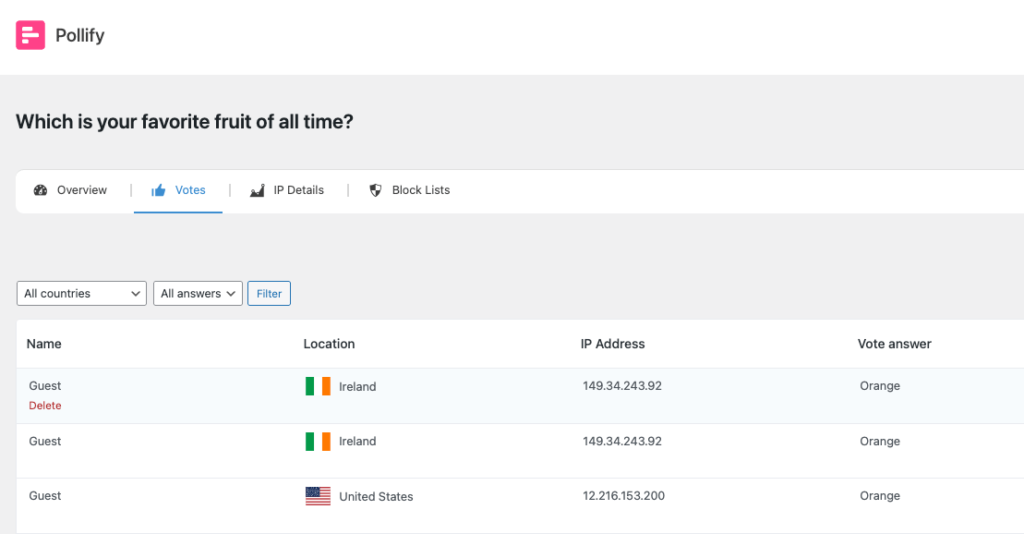
Spotted a burst of suspicious votes? Go to Pollify > All Polls, hover over the poll and click Vote/Responses. Each vote has a delete icon, so you can remove test votes or obvious spam one by one. Deleting is permanent.
If one address keeps causing trouble, IP blocking in Pollify Pro lets you block it from every poll on your site.
Frequently Asked Questions
Are these duplicate checks free?
Yes. One vote per IP, login-only voting with one vote per user, and anonymous voting with browser storage are all in the free version. Blocking specific IP addresses is a Pro feature.
Can I let people vote more than once on purpose?
Yes. Leave the duplicate checks off. That suits fun polls where repeat voting does no harm.
What happens to duplicate checks when login is required?
Pollify tracks the user account instead of the IP address, so people on a shared network can each vote once from their own account.
Can someone still cheat?
A determined person can get around any public poll, for example with a VPN and a new browser. Login-only voting makes it far harder, because every extra vote needs another account.
Next Steps
For most public polls, tick Allowed one response per computer and move on. For anything that drives a real decision, require login. If the poll should also stop on a set date, see how to schedule a WordPress poll to close automatically.