



How to Collect Open-Ended Feedback in WordPress

An open-ended poll asks a question that people answer in their own words instead of picking from options. In WordPress you can collect this with a feedback form or a dedicated block; Pollify Pro‘s Engagement block shows a short question as a popup or a floating Feedback button and stores every answer in your dashboard.
Multiple-choice polls tell you what people think. Open answers tell you why, and often surface problems you would never have thought to ask about.
When to Ask an Open Question
- After a number: “What is the main reason for your score?” turns a rating into something you can act on.
- When you do not know the options: “What almost stopped you from buying today?” finds objections you had not considered.
- On help content: “Did this article solve your problem? If not, what’s missing?”
- For ideas: “What should we write about next?” or “What feature would you add?”
How to Collect Open-Text Feedback With the Engagement Block
- With Pollify Pro active, open the page or post where you want feedback.
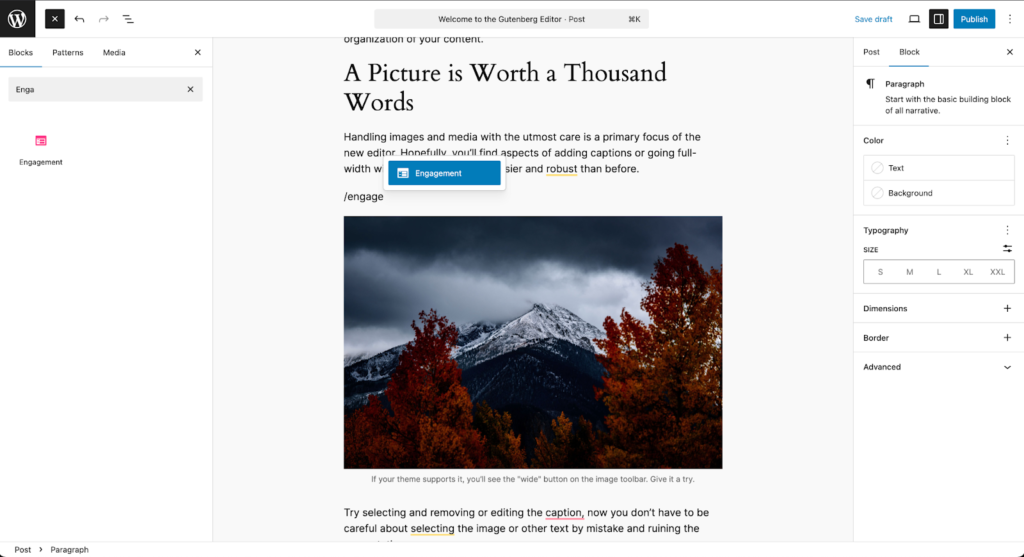
- Click +, search for Engagement and add the block.
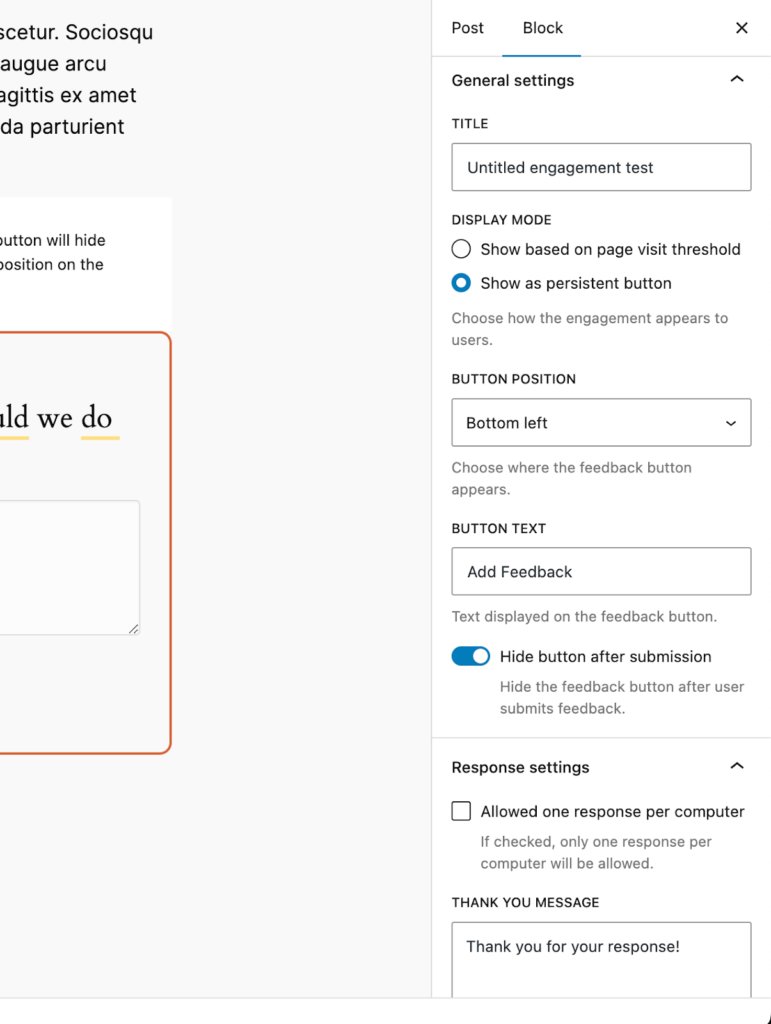
- In General settings, give it a Title such as “Pricing page feedback”.
- Choose a Display mode: Threshold popup (appears on a set visit) or Persistent button (a floating Feedback button visitors can open anytime).
- For the popup, set the View threshold. It shows when the visit count matches exactly, so 3 means the third visit. Pick how it animates in.
- For the button, pick the corner and the button text, and choose whether to hide it after someone submits.
- In Response settings, turn on Allow one response per computer and write your Thank-you message.
- Type your question in the canvas and click Update.
What Visitors See
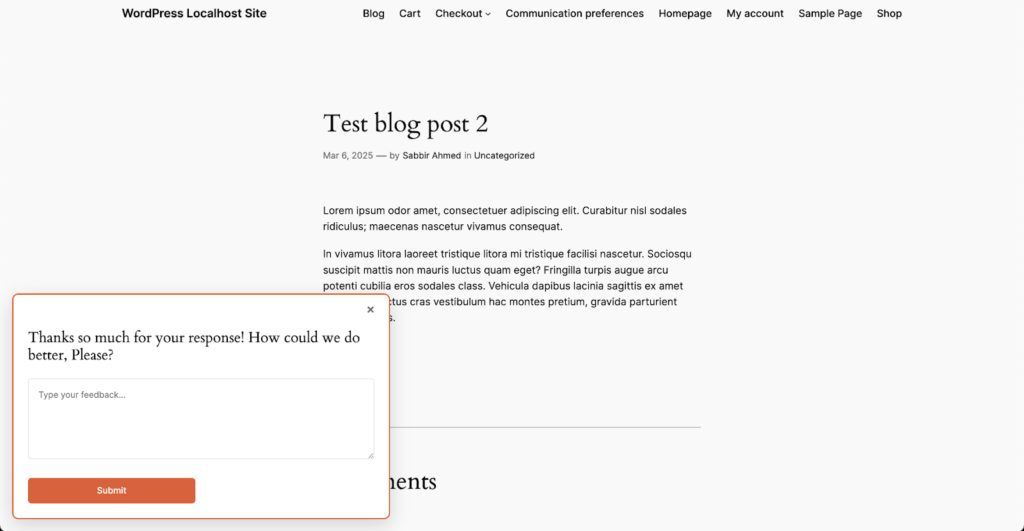
In popup mode, the question appears on the visit you chose. In button mode, a small Feedback button sits in the corner, and clicking it opens the question. After answering, visitors see your thank-you message.
Reading the Answers
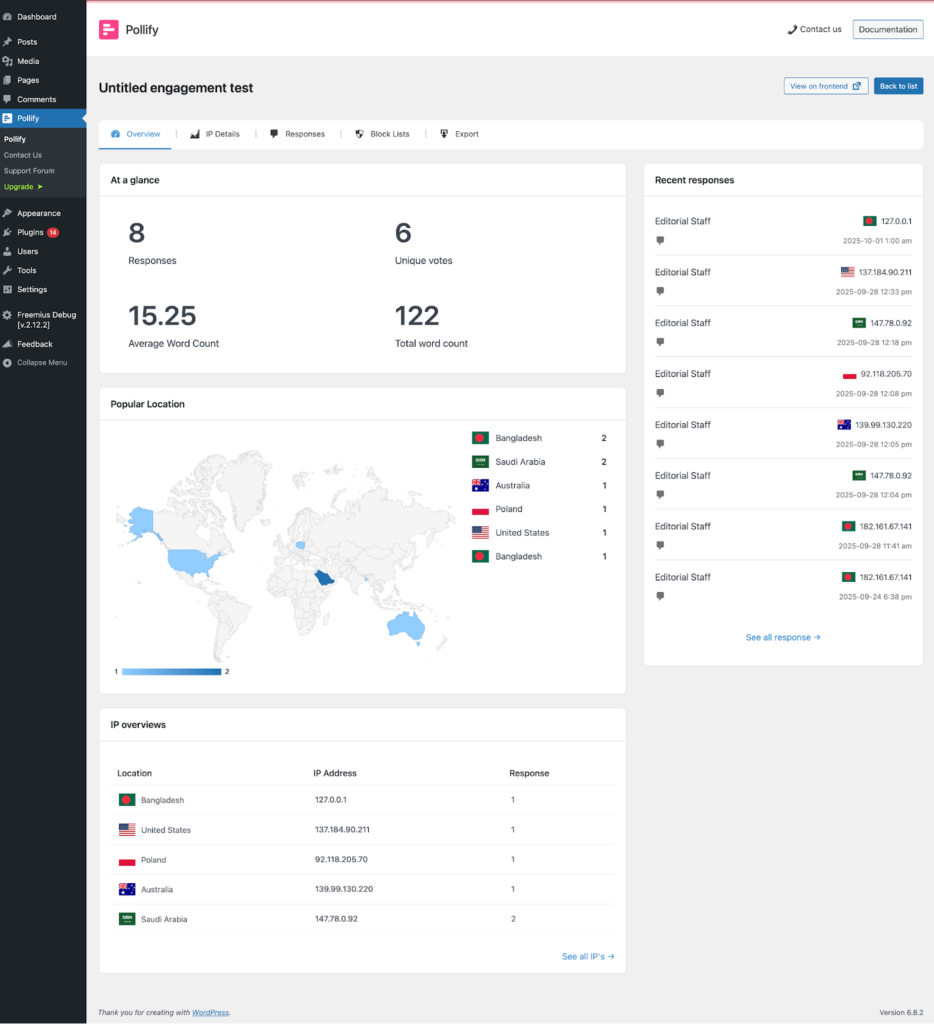
All responses are collected in your Pollify dashboard, with the full text of each answer. Pollify Pro can also export them to a spreadsheet for sorting.
Turning answers into actions
- Read every answer once, without judging.
- Give each one a short tag, such as “price”, “shipping” or “confusing setup”.
- Count the tags. The biggest group is your first fix.
- Save one or two exact quotes per tag. Real words convince a team faster than a summary.
Writing Good Open Questions
- Ask one thing. “What would you improve?” beats “What do you like and dislike about our pricing and features?”
- Be specific. “What almost stopped you from signing up?” gets better answers than “Any feedback?”
- Keep it neutral. “How was checkout?” rather than “How easy was our simple checkout?”
- Ask at the right moment. On the page the question is about, after the visitor has had time to form an opinion.
Combine Open Questions With a Rating
The strongest setup pairs a number with a reason. An NPS survey does exactly that: a 0 to 10 score followed by an optional comment. See how to run an NPS survey in WordPress.
On a Budget?
Without Pro, you can still collect written feedback with a simple contact form on a “Feedback” page, or by asking a question at the end of your posts and reading the comments. You lose the popup timing and the central dashboard, but it is a fine way to start.
Frequently Asked Questions
Is the Engagement block in Pollify Free?
No. It is part of Pollify Pro. The free version covers multiple-choice polls.
Will the popup annoy visitors?
It only appears on the visit number you choose, not on every page view, and the button mode waits for visitors to open it.
Can I export the answers?
Yes, with Pollify Pro. See how to export poll results.
Next Steps
Pick the page where people hesitate most, often pricing or checkout, and ask one specific question there. Read the answers weekly for a month before you change anything.