



How to Add a Poll to Your WordPress Sidebar, Footer or Template

To add a poll to your WordPress sidebar or footer, insert a poll block into that area with the block editor, just as you would in a post. Sidebars use the widget editor under Appearance > Widgets. Footers and templates in block themes use the Site Editor under Appearance > Editor.
A poll inside one post only reaches people who read that post. A poll in the sidebar or footer reaches every visitor on every page, which is ideal for ongoing questions.
Method 1: Add a Poll to the Sidebar (Widgets)
Since WordPress 5.8, widget areas use blocks, so any block, including a poll, can go in a sidebar.
- Go to Appearance > Widgets.
- Open your sidebar area (often called Sidebar or Blog Sidebar).
- Click +, search for Poll and add the Pollify Poll block.
- Type your question and options, and set what voters see after voting in the block settings.
- Click Update.
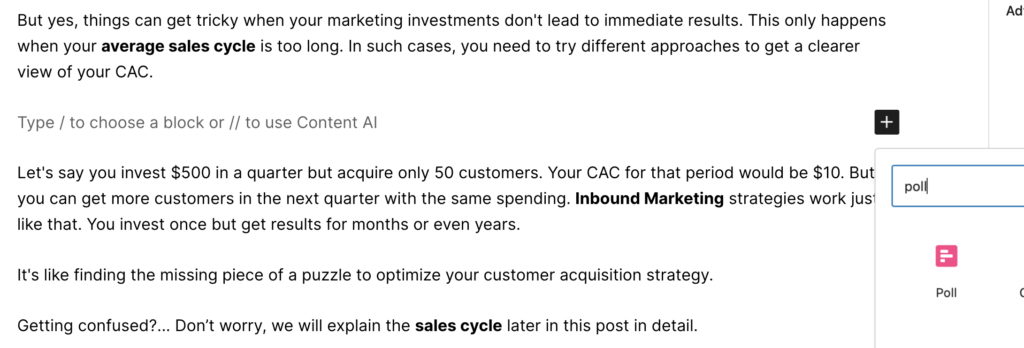
Tip: sidebars are narrow, so keep the question short and use three or four brief answers. Put the poll near the top, where people actually see it.
What if my theme only has classic widgets?
Some sites use the Classic Widgets plugin, or an older theme that does not support block widgets. In that case the poll block will not appear in the widget screen. Switching off Classic Widgets, or moving to a block-ready theme, brings the block widget editor back.
Method 2: Add a Poll to the Footer (Block Themes)
- Go to Appearance > Editor to open the Site Editor.
- Open the Footer template part (in recent WordPress versions it is under Patterns, then Template Parts).
- Click + where you want the poll, search for Poll, and add the block.
- Set up the question and options, then click Save.
The poll now appears on every page that uses that footer.
Method 3: Add a Poll After Every Post (Templates)
Want a feedback poll at the end of every article, without adding it by hand each time? Put it in the template.
- In the Site Editor, open Templates and choose Single Posts (or the template your posts use).
- Click just below the post content block.
- Add the Poll block and set it up, for example “Was this article helpful?”
- Click Save.
Every post now ends with the same poll, so all answers collect in one place.
Method 4: The Same Poll in Several Places (Synced Patterns)
To show one poll in, say, the sidebar and a landing page, save it as a synced pattern:
- Add and set up a Poll block anywhere.
- Select it, open the three-dot menu and choose Create pattern.
- Name it, make sure Synced is on, and click Create.
- Insert that pattern wherever else you want the poll.
Because every copy is the same block, edits apply everywhere. Before you rely on combined results, check in Pollify > All Polls that votes from each location land on the same poll.
Good Questions for Site-Wide Polls
- “What should we write about next?” in a blog sidebar.
- “How did you find us?” in the footer.
- “Was this article helpful?” after every post.
- “Which feature should we build next?” in a product site’s sidebar.
Site-wide polls run for a long time, so give them an end date and rotate the question every month. Our guide to scheduling a poll to close shows how.
Frequently Asked Questions
Do I need shortcodes?
No. The poll is a block, so it goes into widget areas and templates the same way it goes into a post.
Can I show different polls on different sidebars?
Yes, if your theme has several widget areas. Add a separate poll block to each.
Can I control which pages show the sidebar poll?
That depends on your theme. Visibility plugins such as Widget Options add per-page rules for widget blocks.
Next Steps
Start with one question in the sidebar, set it to show results after voting, and change it monthly.