



How to Show Poll Results in WordPress (Instantly or After Closing)

To show poll results in WordPress, set the poll to reveal results as soon as someone votes. In Pollify, that is one setting: Confirmation message set to View results. Voters then see the percentage for each answer right away.
You can also hide results until the poll closes, or show only a thank-you message. Which one you pick changes both how many people vote and how honest the answers are.
Why Showing Results Matters
Seeing results is the reward for voting. Many readers vote just to find out whether others agree with them.
The catch is influence. When people see that one answer is winning, some follow the crowd. For opinion polls that is fine. For research you rely on, it can skew the outcome.
Option 1: Show Results Right After Voting
- Open the post or page with your poll (no poll yet? See how to create a poll in WordPress).
- Click the poll block to select it.
- In the right-hand sidebar, open General settings.
- Under Confirmation message, choose View results.
- Optionally edit the short message shown above the results.
- Click Update.
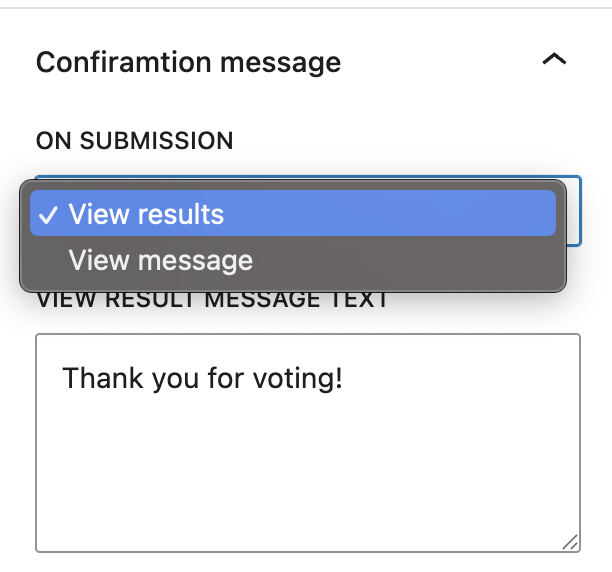
Best for engagement polls, fun questions and anything where the result is part of the content.
Option 2: Show a Thank-You Message Instead
Choose View message in the same setting and write your own text, such as “Thanks! Results go out in Friday’s newsletter.”
Best for research polls, product decisions and contests, where you do not want early votes to steer later ones.
Option 3: Reveal Results When the Poll Closes
Combine a thank-you message with an end date. Set Status to Close after, pick the date, and under When poll is closed choose Show poll result. Everyone sees the final tally once voting has ended.
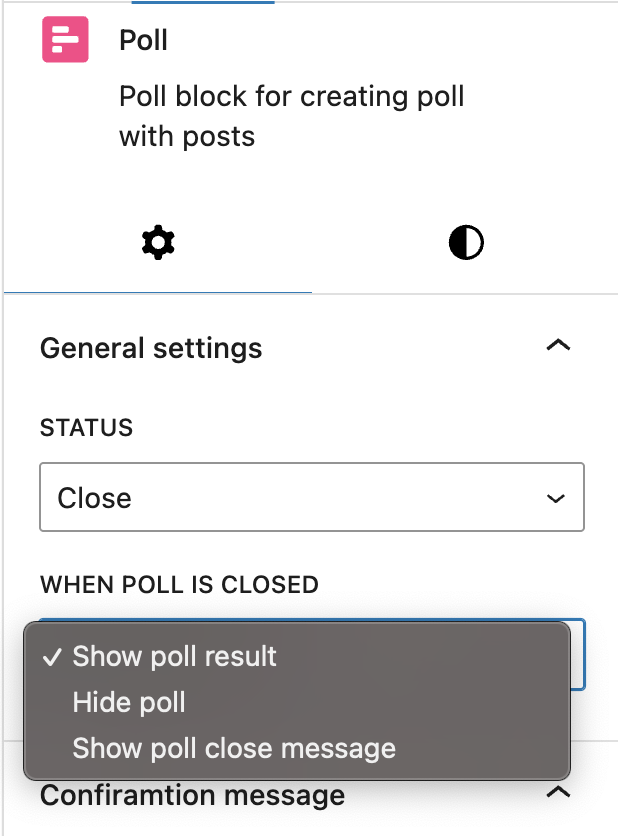
The full setup is in our guide to scheduling a poll to close automatically.
Which Option Should You Use?
| Your goal | Setting |
|---|---|
| Maximum participation | View results |
| Unbiased answers | View message, then show results after closing |
| Sensitive topics | View message, with anonymous voting |
| A reveal moment (contests, predictions) | View message + Close after + Show poll result |
Examples by Type of Site
- Blogs: “Which tip will you try first?” with View results. Readers see how they compare, which keeps them on the page.
- Online stores: “Which colour should we stock next?” with View message. You want real preferences, not a bandwagon.
- Courses: “Did this lesson make sense?” with View message and anonymous voting, so students answer honestly.
- Communities: a weekly prediction poll with a closing date that reveals the result when it ends.
Common Mistakes to Avoid
- Showing results on a research poll. Early votes steer later ones. Hide results until the poll closes.
- Hiding results on a fun poll. People vote to see where they stand. Take that away and fewer people vote.
- Leaving a poll open forever. Results from last year and this week get mixed together. Add an end date.
- Forgetting duplicate protection. Visible results tempt people to vote again for their side. Limit votes per IP or per account.
Seeing the Results Yourself
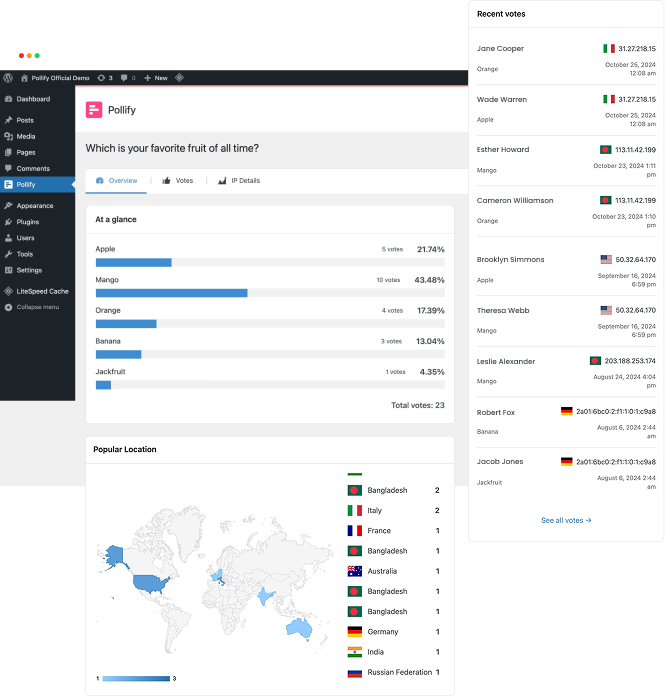
Whatever visitors see, you always have the full picture. Go to Pollify > All Polls to see every poll with its status and total responses, then open one for vote counts and percentages per answer, recent votes and where votes came from.
Frequently Asked Questions
Can visitors see results without voting?
Results appear after a visitor votes, or for everyone once the poll closes if you choose Show poll result. To share results earlier, post them in the article yourself.
Is this available in the free version?
Yes. The Confirmation message options, the closing date and the after-close options are all free.
Can I keep results private forever?
Yes. Use View message, and when the poll closes choose Hide poll or Show poll close message. Only you see the numbers in your dashboard.
Next Steps
Decide what voters should see before you publish, not after. If the poll matters, add duplicate vote protection too.