



How to Export WordPress Poll Results to CSV, Excel, PDF and Word

To export WordPress poll results, open the poll in your poll plugin’s dashboard and download the data as a file. In Pollify Pro, each poll has an Export tab with four formats: CSV, Excel, PDF and Word.
This guide shows the steps, which format to pick for which job, and what you can do with the free version if you only need the totals.
Why Export Poll Results
- Deeper analysis: filter and chart the data in Excel or Google Sheets.
- Sharing: send a clean report to a client or manager who never logs in to WordPress.
- Records: keep a dated copy of each poll for later comparison or compliance.
How to Export Poll Results in Pollify Pro
- In your dashboard, go to Pollify and open the poll you want.
- On the poll’s detail screen, click the Export tab.
- Choose a format: CSV, Excel, PDF or Word.
- Generate the export and download it when it is ready.
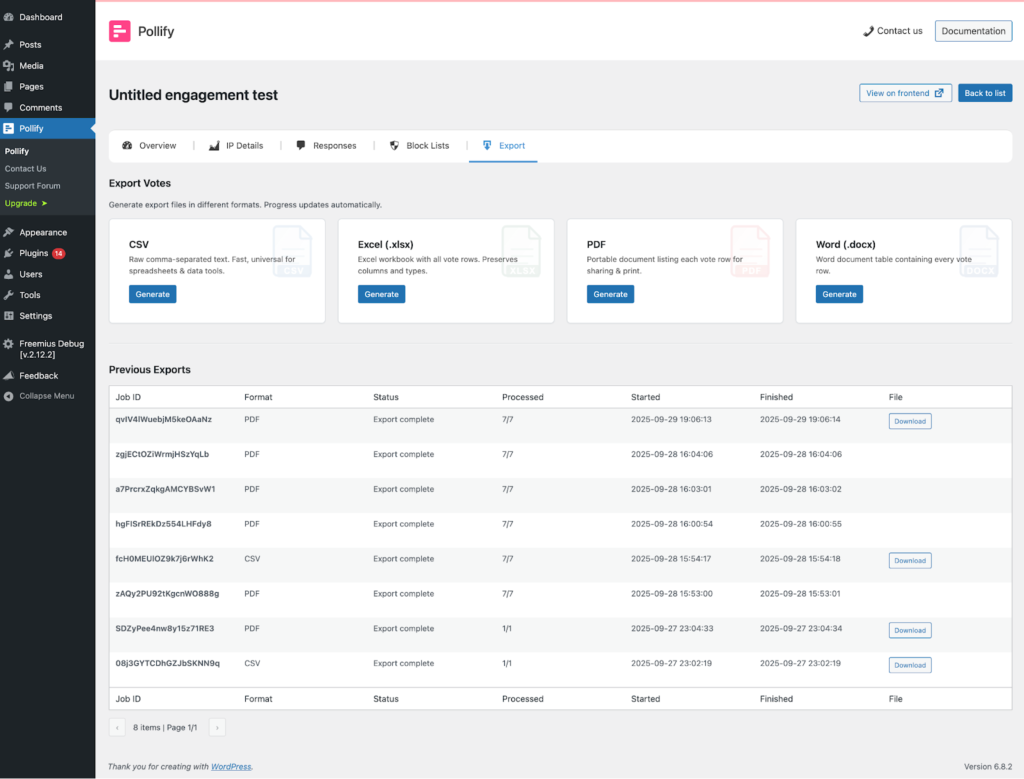
Every export is logged, so you can see past exports with their format, status and download link, and delete the ones you no longer need.
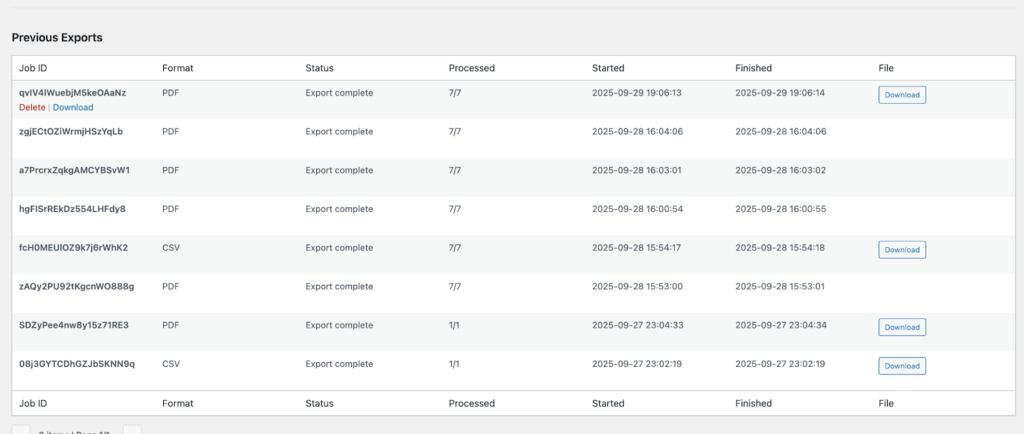
Export works for every Pollify Pro poll type, including NPS scores and open-text feedback, not just standard polls.
Which Format Should You Choose?
| Format | Best for |
|---|---|
| CSV | Large datasets, importing into Google Sheets, BI tools or a CRM |
| Excel (.xlsx) | Filtering, sorting and charts for a non-technical team |
| A fixed report to send to a client or manager | |
| Word (.docx) | A report people will edit or add comments to |
What You Can Do With the Exported Data
- Compare polls over time: export the same question every quarter and put the results side by side.
- Combine with other data: match poll answers with sales, signups or support tickets.
- Group open-text answers: sort written feedback by theme to find recurring problems.
- Report to clients: a PDF with the question, totals and dates says more than a screenshot.
A Simple Quarterly Reporting Routine
Exports are most useful when they follow a routine. Here is one that works for a client or a team:
- Run the same poll question every quarter, with a closing date at the end of the quarter.
- The day after it closes, export the results as Excel.
- Paste the totals into one sheet with a column per quarter.
- Add a simple line or bar chart so the trend is visible at a glance.
- Export a PDF of the latest poll for anyone who just wants the headline.
After a year you have four comparable snapshots instead of one long poll where old and new answers are mixed together.
Mistakes That Make Exports Less Useful
- No end date: an export from a poll that never closes has no clear time window, so it is hard to compare.
- Test votes left in: delete your own test votes before exporting. In the dashboard, open the poll’s votes and remove them one by one.
- Unclear poll names: give each poll a clear title so files are easy to find later.
On the Free Version?
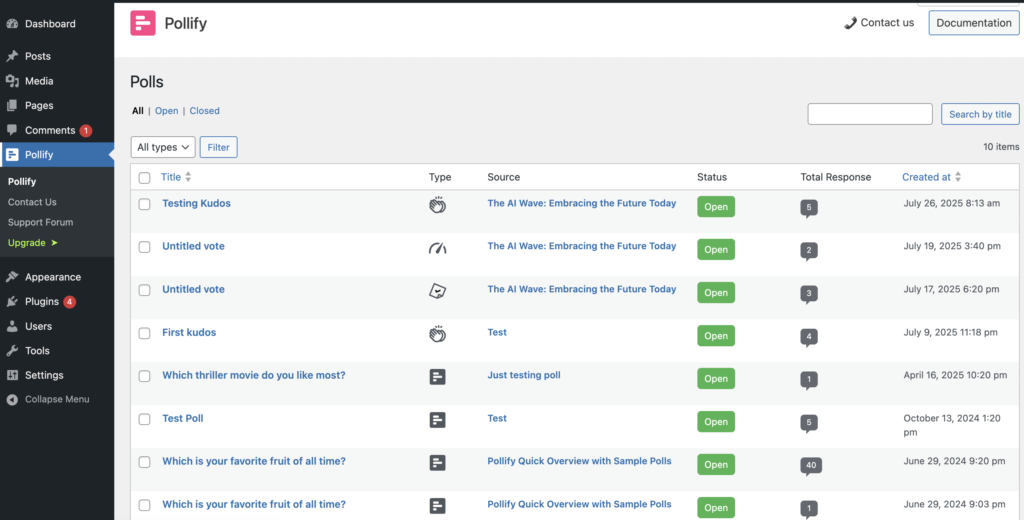
Pollify Free has no export button, but every vote stays in your dashboard. Open a poll from Pollify > All Polls to see totals, percentages, recent votes and locations. For a one-off report, copying the totals into a spreadsheet takes a minute.
Frequently Asked Questions
Is export included in Pollify Free?
No. Export is a Pollify Pro feature. The free version shows all results in your dashboard.
Can I export NPS and feedback responses?
Yes. Pro exports work for standard polls, NPS, Kudos, Up/Down votes and Engagement (open-text) responses.
Can I export the same poll more than once?
Yes. Each export is a fresh snapshot, and the export history keeps a list of them.
Next Steps
If you plan to report on a poll, give it an end date first so each export covers a clean window. See how to schedule a poll to close and how to control what voters see.