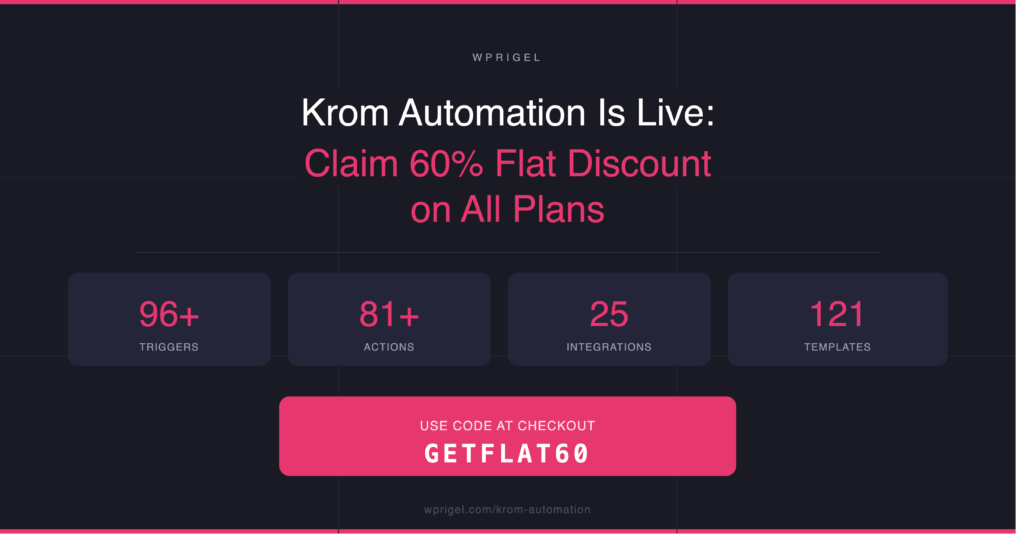


Discount applied both on annual and lifetime deals
CouponAuto-applied at checkout
Valid until December 5, 2025
These wpRigel BFCM deals give you access to smarter, faster, and more native WordPress tools; built for creators who love performance, not plugins that slow them down.
wpRigel builds block-native plugins that keep you working right inside WordPress- no shortcodes, no SaaS lock-ins, no clutter.
The mission is simple: empower creators, agencies, and store owners with tools that feel like a natural part of WordPress, not an add-on.
Pollify: The WordPress Poll Plugin That Actually Fits The Block Editor
Pollify is wpRigel’s popular engagement plugin that turns ordinary feedback into real insights.
You can create polls, reactions, or surveys directly inside Gutenberg, no extra dashboards or iframe embeds needed.
Whether it’s a voting poll for your blog readers, a quick NPS survey for your customers, or emoji feedback on product pages- Pollify keeps it simple, fast, and beautifully native.
Pollify stands out as a block-first alternative to legacy tools like Crowdsignal- faster to use, lighter to load, and easier to customize. Check Pollify Pricing table below, both for yearly and lifetime plans-
Commandify is now live! Get full feature details and grab up to 50% discount right away at its BFCM early bird price. Check the pricing plan below, both for yearly and lifetime plans-
Unlike typical WordPress BFCM offers that bundle features you’ll never use, wpRigel keeps it lean; focused only on performance, usability, and real value.
You get two premium plugins that feel native, save time, and boost engagement without relying on external tools.
Pollify helps you understand your audience, while Commandify helps you control your workflow. Both built with the same philosophy: Do more inside WordPress, not around it.
FAQ: wpRigel BFCM Sales & Support on Pollify and Commandify
1. How long will the wpRigel BFCM deals last? All BFCM offers are valid until December 5, 2025, including discounts on both annual and lifetime licenses for Pollify and Commandify.
2. Do I need a coupon to claim the discount? No. The coupon is automatically applied at checkout, just head to wpRigel.com and choose your plan.
3. Will there be future discounts after BFCM? No major price drops like now are planned for 2026. This is the largest wpRigel sale of the year and also the launch price- combining early-bird pricing with Black Friday rates.
4. Is Commandify included even though it’s new? Yes. Commandify’s Free Plan, Pro Plan, and Lifetime Deal are all included in the same BFCM pricing tier.
5. What kind of support is included? All wpRigel Pro users get priority email support from the in-house team. Free users have access to detailed documentation and community updates. and support timeline matches licenses. That means yearly users will get 1 year support and lifetime users will get lifetime support.
6. Can I upgrade from free to pro later? Absolutely. If you start with the free version during the BFCM week, you can upgrade anytime and still benefit from the discounted upgrade rate before the offer ends.
7. Do lifetime plans include updates? Yes. Lifetime licenses include lifetime updates and security releases, not just access to the current version.
Why BFCM Is The Most Anticipated Season For WordPress & Tech Buyers
Every November, Black Friday and Cyber Monday (BFCM) turn the internet into a marketplace of opportunity, not just for retail shoppers, but for developers, marketers, and website owners too.
In the tech and WordPress world, this week has become the prime time to invest in software and tools that shape the year ahead.
Plugin developers, hosting companies, and SaaS platforms roll out their deepest discounts, giving creators a short window to grab premium features at a fraction of their regular cost.
For WordPress professionals, these WordPress BFCM offers often mean lifetime deals on plugins, hosting, and productivity tools- purchases that pay off for years.
That’s why wpRigel times its biggest launch and discounts during this period- combining early access to Commandify with special pricing for Pollify, helping users start the new year with a faster, smarter setup.
Grab Your wpRigel BFCM Deal Before December 5
Ready to power up your WordPress workflow?
The wpRigel BFCM deals are live now.
Visit wpRigel.com, discounts are auto-applied at checkout.
Offer Ends: December 5, 2025 Includes: Pollify (Pro yearly and LTD) and Commandify (Pro yearly and LTD) Savings: Flat 60% off on Pollify and up to 50% on Commandify both on annual plans and lifetime licenses
Adding a poll in WordPress shouldn’t feel like coding a form.
If you’ve ever copied a shortcode or embedded a third-party tool just to collect a few votes, you know how messy it can get.
If you’ve ever wondered how to create a poll in WordPress without shortcodes or extra tools, Pollify makes it visual and code-free.
Let’s walk through the full process of creating your first WordPress poll, customizing its design, and setting up voting behavior step-by-step.
If you’ve ever tried adding a poll in WordPress, you’ve probably dealt with shortcodes, third-party embeds, or clunky form builders. They work — but not in a modern, block-editor world.
Today, you can create and publish interactive polls in WordPress directly from the Gutenberg editor, without a single shortcode. And the best way to do that is with Pollify, a lightweight, block-native plugin designed exactly for this.
This guide walks you through everything from the basics of WordPress polls to preparing your first live, no-code poll setup.
The Problem With Shortcode-Based Poll Plugins
If you’ve used plugins like Crowdsignal, Poll Maker, or YOP Poll, you know the drill: Create your poll in an external interface, copy a shortcode, paste it into your post, and hope it looks right.
Shortcodes were fine years ago, but they break the live editing experience WordPress now prioritizes. You can’t preview your poll in the editor, you can’t tweak spacing visually, and updates mean juggling back and forth.
Plus, shortcode-based plugins often come with:
External dashboards and login dependencies
Heavy scripts that slow down your site
Poor Gutenberg integration (or none at all)
Limited layout control inside the editor
That’s where Pollify takes a completely different path.
Meet Pollify: The Block-Native Poll Plugin For WordPress
Pollify is a modern poll plugin built entirely for the Gutenberg editor.
It doesn’t use shortcodes, iframes, or extra dashboards. Everything happens right where you already work, inside WordPress.
You just add the Pollify block, write your question, and choose how the options appear. It’s as natural as adding an image or paragraph.
Key highlights of Pollify (lite version):
100% block-based, no code or embeds
Unlimited polls and votes
Multiple layouts (vertical, horizontal, stacked)
Optional vote limits per user
Custom confirmation messages
Live results view inside editor
Individual vote deletion and IP-level control
And the Pro version adds even more, like:
Open-text feedback and reactions
Like/Dislike and NPS-style polls
Exporting results to CSV, Excel, or PDF
Detailed engagement tracking
In short, Pollify replaces every “poll plugin workaround” with a clean, native workflow.
How to Create a Poll in WordPress Using the Block Editor
After activation, a new Pollify tab appears in the sidebar. This is your hub for managing all polls. The free version works out of the box — no registration or license key needed.
If you visit the Pollify screen, you’ll see it’s empty for now. Don’t worry; we’ll create your first poll directly inside a page.
Open any page or post in the Gutenberg editor.
Click the + Add Block button and search for “Pollify”.
Select Pollify Poll Block.
The poll interface appears instantly inside the editor.
You’ll see a question field, two default options, and a preview area that updates as you type.
This block behaves like any other Gutenberg element- you can move it, duplicate it, or place it inside columns to match your layout.
Writing The Question
Click the placeholder text that says Type your question here and enter your question.
Keep it short and clear, something people can answer instantly:
Which feature should we build next? Do you prefer light or dark mode?
Simple questions drive higher engagement. You’ll see the live preview adjust as you type, showing the actual front-end appearance.
Adding And Managing Options
Below the question, add your possible answers.
Click Add Option for each new choice- there’s no limit. To reorder, drag the handle on the left; to remove, click the small trash icon.
Pollify’s free version supports unlimited polls and options, so you can run a single poll with many answers or several smaller ones across posts.
Choosing A Layout
Pollify includes three layout styles:
Vertical list – traditional stacked options; ideal for text-heavy answers
Horizontal buttons – compact, perfect for yes/no or emoji-style votes
Stacked compact – fits neatly into sidebars or narrow sections
Select the poll block and open the Block Settings panel on the right. Under Layout, click through the available styles until one fits your design.
Each layout automatically inherits your theme’s typography and color scheme, so you rarely need custom CSS.
Customizing Your WordPress Poll Design
Still in the sidebar, scroll to Style Settings. Here you can fine-tune visual details:
Button color and hover color: match your brand palette
Border radius: choose rounded or square buttons
Vote counter visibility: show total votes below each option
Because Pollify is a Gutenberg block, you can wrap it in Group or Column blocks, adjust padding, or align it like any other content.
Configuring Voting Behavior
Now decide how people will interact with your poll.
Open the Settings section in the right sidebar.
Vote limits: Turn on Limit one vote per user to prevent duplicate votes. Pollify uses browser sessions and optional IP tracking for fairness.
Results visibility: You can reveal results immediately after someone votes or keep them hidden until the poll closes. For quick feedback loops, “show after vote” works best; for competitions or quizzes, hide results until later.
Start and end time: Set an automatic schedule if your poll relates to an event or campaign. The poll will open and close on its own — no manual work.
Confirmation message: Add a short success note like Thanks for voting! It appears right after submission and keeps the interaction smooth.
These few settings give you control over how people engage without ever leaving the editor.
Previewing and Publishing Your Poll in WordPress
Click Preview in the top-right corner. The page opens exactly as visitors will see it, including live poll styling and buttons.
If everything looks good, hit Publish.
Your WordPress poll is now live, responsive on all devices and completely embedded in your content.
Visitors can vote instantly, and Pollify stores all data safely in your site’s database.
Viewing And Managing Results
Back in the dashboard, open Pollify → All Polls.
Here you’ll see every poll with its total votes, status, and quick actions.
View Results: shows each answer with exact vote counts and percentages.
Reset Votes: clears all responses, handy when you reuse a poll.
Delete Vote: removes a single entry (for test or duplicate votes).
You don’t need an external analytics dashboard, everything’s inside WordPress.
Advanced Ways to Create a Poll in WordPress with Pollify Pro
When you need more than simple multiple-choice polls, Pollify Pro unlocks advanced features while keeping the same editor interface.
Up/Down Poll: Easily add up/down or like/dislike poll to get quick feedback on any post, page, feature, course pr product.
Engagement block: Adds open-text fields and emoji reactions so users can write feedback or send kudos.
NPS polls: Switch the question type to a 0-to-10 satisfaction scale- ideal for post-purchase surveys or content ratings.
Exporting results: Download responses as CSV, Excel, or PDF files. Teams often use this for reporting or presentations.
Advanced control: Set stricter IP limits, restrict voting to logged-in users, or disable results display completely.
Everything sits in the same familiar sidebar — you just gain more toggles and data options.
Quick Troubleshooting
If you don’t see votes registering, check any caching plugin and exclude Pollify endpoints from page cache. If styling looks off, wrap the poll in a Group block and use theme spacing controls.
Pollify’s clean, native code rarely conflicts with themes, but caching can block vote requests if left unexcluded.
You’re Done
You’ve just built and published an interactive poll in WordPress without touching a shortcode or external script. In a few clicks, you created a fully branded, responsive poll, previewed it live, and made it collect data right from your site.
That’s the power of working natively in the block editor.
Advanced Poll Setup And Design Tips For WordPress with Pollify
Now that you’ve created your first poll in WordPress, it’s time to make it shine.
The next steps cover advanced customization, poll management, and design techniques to make your polls look great and collect more meaningful feedback- all still inside WordPress, no shortcodes or third-party tools.
Adjusting Poll Design With Global Styles
One of Pollify’s biggest strengths is how smoothly it integrates with the block editor’s Global Styles. If your theme uses WordPress’s Site Editor (as most block themes do), you can control fonts, button colors, and border radius globally — and your polls will follow automatically.
To tweak:
Go to Appearance → Editor → Styles.
Adjust typography, color palette, and spacing.
Return to your post — your poll instantly matches the new theme style.
This consistency helps your poll blend into your site’s design, especially when you use it across multiple pages or categories.
Using Polls Across Post Types
Pollify isn’t limited to blog posts. You can add a poll block to any content type that supports the Gutenberg editor.
Common examples:
WooCommerce product pages: ask visitors what color or feature they prefer.
Course or LMS lessons: collect student opinions at the end of a module.
Landing pages: measure interest in an upcoming feature or event.
Membership dashboards: poll users about new community ideas.
Each poll works independently — votes on one product or course don’t mix with others.
If your site uses reusable templates (e.g., product or course templates), you can insert the Pollify block once, and every new post of that type inherits it automatically.
Scheduling And Managing Multiple Polls
Running several polls at once? Pollify’s management dashboard keeps things organized.
Go to Pollify → All Polls in your admin panel. Each entry lists:
Poll title and page it’s embedded in
Start and end date
Total votes so far
Status (active, scheduled, closed)
You can filter or search polls by name, making it easy to track engagement over time.
To schedule automatically, open any poll in the editor, click Poll Settings → Schedule, and set your start and end times. When the end time passes, Pollify automatically disables voting and freezes the results.
If you’re using Pollify Pro, you can export votes for deeper analysis. From the poll’s dashboard, click Export Results and choose between CSV, Excel, or PDF.
CSV and Excel are perfect for importing into Google Sheets or Data Studio. You can create charts, segment results, or compare responses from multiple polls — ideal for agencies, marketers, and educators.
Even without exports, Pollify’s built-in analytics show live counts and percentages for every option, updated in real time.
Adding Feedback And Reactions (Pollify Pro Feature)
Polls often spark engagement, but sometimes you want more context than a single click. That’s where Pollify Pro’s Engagement Block helps.
You can add:
A text box for short comments or suggestions.
Emoji or “kudos” reactions that let people cheer, clap, or applaud content.
This extra feedback turns your poll into a mini survey without any external form plugin. It’s especially useful for blog posts, portfolios, or podcasts where users can respond emotionally rather than just vote.
Embedding Polls In Sidebars Or Templates
Want a site-wide poll in your sidebar or footer? You can add Pollify through a Widget Area or Template Part:
Go to Appearance → Editor → Template Parts.
Choose “Sidebar” or any area you want the poll to appear.
Insert a Pollify – Poll Block directly there.
Now the poll shows up on every page using that template. It’s a great way to collect ongoing votes, such as “Which article topic should we cover next?”
Accessibility And Performance
Because Pollify is 100% block-native, it inherits all of WordPress’s accessibility and performance best practices automatically.
That means:
Clean HTML output (no embedded iframes)
Full keyboard navigation support
Lightweight scripts that load only when a poll is present
This makes Pollify suitable even for large, performance-optimized sites using caching or static generation plugins.
Common Use Cases For WordPress Polls
If you’re wondering how far you can take this, here are real-world examples of where Pollify fits perfectly:
Blogs & Magazines: Ask for reader opinions or story preferences.
eCommerce Sites: Run quick “Which product should we restock next?” polls.
Educational Platforms: Gather student satisfaction data after each course.
Nonprofits & Communities: Vote on campaign themes or volunteer ideas.
Agencies & Designers: Use polls to collect client preferences during project phases.
These lightweight polls often perform better than full surveys because they require no form filling — just one click.
Maintaining Polls Over Time
You can reuse existing polls by cloning them from the dashboard. Click Duplicate, update the question, and insert it into another post.
Old polls can be archived or exported. Keeping them organized ensures your site’s performance and database remain clean over time.
Pollify already gives you the tools, but design choices determine how many people actually vote. Here’s what works best across WordPress sites:
1. Keep questions simple. One clear question with 2–5 options performs best. Avoid long sentences or technical jargon.
2. Place polls where attention peaks. Middle of an article or just before a CTA works better than the sidebar alone. People engage when they’re already invested in your content.
3. Match your tone to the audience. Fun questions get higher response rates on blogs; direct ones perform better on business or course sites.
4. Use contrasting button colors. Make vote buttons pop but still fit your color palette. Pollify inherits theme colors, but a slightly bolder accent improves visibility.
5. Show results right after voting. Instant results create satisfaction and encourage sharing. You can also disable this if you prefer suspense for time-limited polls.
Why Polls Matter In WordPress During AI Era
Engagement is a huge ranking and retention factor. Readers who interact with your content (even with a simple vote) stay longer, share more, and give you insights you can actually use.
A quick poll can help you:
Collect audience opinions in seconds
Get feedback on new posts or designs
Run small surveys without setting up external tools
Keep your readers clicking, not just scrolling
That’s why every serious site (from blogs to stores to LMS platforms) uses polls somewhere. The problem is, most plugins that do it are still built for the Classic Editor days.
How WordPress Polls Work (Quick Overview)
A poll in WordPress is a small form element that lets users pick an answer from multiple options and instantly view results. Unlike surveys or long forms, polls are fast, visual, and low-friction.
Technically, a poll plugin handles three jobs:
Rendering the poll question and choices on the front end.
Recording each vote (and preventing duplicates).
Showing live results (either publicly or to admins only).
Traditional plugins did this using a shortcode [poll id="123"] — which WordPress interprets when displaying your post. Pollify skips that system entirely, because Gutenberg blocks already handle dynamic rendering.
That’s why Pollify’s poll block is lighter, faster, and more secure than shortcode-based systems.
Pollify vs Other WordPress Poll Plugins
If you have used other poll plugins before, you already know how most of tools still rely on shortcodes or external dashboards. Pollify takes a simpler route. It works directly inside the block editor, so you build and preview polls the same way you create a page or post.
Feature / Plugin
Pollify
Crowdsignal
Poll Maker
YOP Poll
WP Polls
Block editor support
Fully native to Gutenberg
Limited, classic editor only
Partial integration
Not supported
Not supported
Shortcodes required
No
Yes
Yes
Yes
Yes
Free version available
Yes
Yes
Yes
Yes
Yes
Layout options
Vertical, horizontal, stacked
Few basic styles
Several layouts
Basic only
Minimal
Live preview inside editor
Yes
No
No
No
No
Data export (Pro)
CSV, Excel, PDF
CSV only
CSV only
Not available
Not available
Pricing (1 site license)
79 USD per year
180 USD per year
39 USD per year
Free
Free
Best suited for
Block-based modern sites
Surveys and form users
Small personal sites
Legacy WordPress installs
Basic voting needs
Pollify keeps the workflow native and visual. The others still depend on shortcodes or external forms that interrupt editing.
If your goal is to create a poll in WordPress quickly and manage it without extra tools, Pollify is the most efficient option.
Q1: Can I create multiple polls on the same page? Yes, Pollify supports multiple poll blocks per page. Each poll tracks votes separately.
Q2: Do I need to use shortcodes to display a poll? No. Pollify is block-native, so you insert it visually like any other block — no shortcode required.
Q3: Can users change their vote? By default, no. Once a user votes, that response is stored. You can reset or reopen polls manually if you want to allow re-voting later.
Q4: Will caching affect poll results? If you’re using aggressive caching (like LiteSpeed or WP Rocket), exclude /wp-json/pollify/ endpoints from cache. This ensures votes register in real time.
Q5: Does Pollify work with all WordPress themes? Yes, it’s compatible with both classic and block themes. It automatically adjusts fonts and colors to match your design.
Q6: Is there a way to export results in the free version? Exporting is a Pro feature, but you can still view results in the admin panel without upgrading.
Wrapping Up on How to Create a Poll in WordPress with Pollify
That’s it!
Now you know exactly how to create a poll in WordPress, from setup to live results, all without a single shortcode.
Pollify turns polling into a native editing experience: clean, fast, and easy for anyone managing a WordPress site.
Whether you’re gathering feedback, testing ideas, or simply increasing engagement, having an interactive WordPress poll right inside your post can make a big difference.
Start with the free version, explore its Pro tools as you grow, and watch how your visitors begin to interact- not just read.
Black Friday and Cyber Monday are just around the corner- the busiest, noisiest, and most profitable weekend of the year for every WordPress business.
That’s exactly why engagement matters more than ever this BFCM.
If visitors interact with your site, answer a quick question, or leave a small opinion before they go- you’ve already started a relationship!
And this year, that connection is easier to build than ever with Pollify, our favorite Gutenberg-native poll plugin for WordPress.
Whether you run a WooCommerce store, an online course, a membership site, or even a non-profit, Pollify helps you turn passive visitors into active voices. Right inside your content, without shortcodes or external forms.
In this guide, we’ll show how different WordPress niches can use Pollify to engage audience in BFCM season to collect meaningful feedback, and boost conversions this Black Friday & Cyber Monday 2025.
Why Engagement Beats Discounts This BFCM
Every brand will shout “50 % OFF!” starting this week.
Few will actually listen to their visitors.
If you’ve been through previous BFCMs, you already know: discounts attract traffic, but conversations build customers.
According to HubSpot’s 2024 benchmark, sites that added even one interactive element (such as a poll or rating) saw 35 % higher dwell time and 20 % more returning visitors during sale campaigns.
Engagement acts as your silent conversion assistant: it makes users feel involved.
That’s where Pollify fits perfectly- a visual, no-code feedback block that helps any WordPress site stay personal in a crowded sale season.
How Pollify Helps Every WordPress Niche During BFCM
Pollify isn’t just another survey plugin.
It’s a block-based engagement system that lets you drop polls anywhere (on product pages, course lessons, blog posts, or community dashboards) and watch real opinions roll in.
This matters during BFCM because your visitors are making fast buying decisions. A one-click emoji or NPS response can:
Help you understand intent
Reduce cart abandonment
Collect social proof for ads
Or even trigger upsells automatically
Let’s see how you can use Pollify across the WordPress ecosystem this season.
WooCommerce Stores: Turn Flash Sales into Customer Insights
WooCommerce owners live for BFCM, but it’s also chaos.
You might double your orders in 72 hours and still have no idea why people bought — or why they didn’t.
That’s exactly the gap Pollify fills.
How to Use It
Post-Purchase NPS Poll: Add an NPS block to your Thank You page asking, “How likely are you to recommend us to a friend?”
Quick Checkout Poll: A simple “What made you choose this product?” text box gives priceless copy ideas for future ads.
Product Interest Poll: Before sale day, ask visitors, “Which product should go on discount?” to guide inventory focus.
Why It Works
People love being asked for input — even more when discounts are live. Brands that collect live purchase feedback convert 18 % more repeat buyers (Shopify 2024 data).
Real Example: A small Woo store selling digital planners used Pollify’s open-text poll on the order confirmation page during BFCM 2024. Out of 600 buyers, 220 left quick notes. The store turned those into testimonials for retargeting ads — leading to 28 % more December sales without new ads.
Pro Tip
Use Pollify Pro’s NPS + Engagement combo to pair rating and reasoning in one view: first number, then “why.” It gives context behind every score.
eLearning Sites: Improve Course Value Before the Next Enrollment Wave
If you run a learning platform with TutorLMS, LearnDash, or Sensei, you already know BFCM brings a new wave of enrollments. But retention starts the moment a student finishes a lesson.
Pollify helps you keep that loop open.
Where to Place It
After each module: “How helpful was this lesson?” (Emoji Poll)
End of course: “What topic would you like next?” (Open-Text Block)
Pricing page: “What stops you from joining today?” (Anonymous Quick Poll)
Why It Matters
During sales, many students buy impulsively. If you catch their thoughts early, you can adapt fast — and lower refund rates later.
Example from Real Practice: An independent design course using LearnDash added Pollify emoji ratings at the end of every module during its 2024 sale. Completion rates increased from 62 % to 79 % within 30 days because students felt their feedback was valued.
BFCM-Ready Idea
Run a “Tell us what to build next” campaign using Pollify’s Engagement Block. Then announce that new course idea in December — turning survey feedback into a marketing teaser.
Membership Sites: Strengthen Retention While Everyone’s Discounting
Membership businesses face a tricky BFCM: new signups come easy, but existing members can feel ignored. Pollify lets you reverse that.
Where to Add It
Member Dashboard: “What feature would make your membership more valuable?”
Cancellation Page: “What’s the main reason you’re leaving?”
Community Posts: “Should we host more live sessions next month?”
Why It Works
According to MemberPress data, sites that use post-interaction polls reduce churn by 23 % on average. Pollify’s inline placement makes feedback feel part of the experience, not an interruption.
Example: A marketing membership site offered existing members a mini poll during BFCM 2024 asking, “Which bonus should we add for you?” Over 300 responses led the team to add a live workshop bonus instead of e-books — and that single decision cut cancellations by 12 %.
Special BFCM Tip
Use Pollify’s vote-based polls to let members choose which Black Friday bonus or new course they get. Participation = retention.
Blogs & Content Sites: Turn Readers Into Repeat Visitors
Your blog might see record traffic this BFCM from deal roundups or tutorials, but most of that audience will bounce. A small poll can change that.
Ideas That Work
“Was this post helpful?” — simple Yes/No with emojis.
“What kind of content would you like next?” — open-text block below each article.
“Rate this tutorial (1–5)” — star rating inside the post footer.
Why It Matters
Reader engagement signals help your SEO and shape editorial direction. Sites that added micro-polls below posts reported 30–40 % higher average session duration (Orbit Media Survey 2024).
Example: A WordPress blog added Pollify emoji reactions under every BFCM plugin list last year. Readers clicked 25 % more than typical social shares, proving small feedback loops keep people involved.
Community & Forum Sites: Simplify Feedback Without Long Threads
If you run a WordPress community built on BuddyBoss, PeepSo, or bbPress, you know feedback discussions can sprawl endlessly. Pollify keeps things structured and quick.
Use Cases
Event Polls: “Should our next AMA be about Gutenberg or SEO?”
Feature Requests: “Vote for the next community challenge.”
Member Check-ins: “How’s your project going this week?”
Benefit
Fast interactions that don’t demand paragraphs of text. During high-traffic periods like BFCM, community managers can collect insights without moderating endless comment chains.
Case Snapshot: A BuddyBoss group used Pollify NPS Polls after each webinar. Average satisfaction stayed above 9.2/10, and post-event engagement in threads grew 38 %.
Nonprofits & NGOs: Let Supporters Shape Campaign Stories
BFCM isn’t just for sales. Many NGOs and social organizations use the season to launch Giving Tuesday campaigns or year-end donation drives. Pollify adds a direct human touch to those efforts.
Where to Use It
Donation Confirmation Page: “Which cause should we focus on next?”
Volunteer Signup Page: “What inspired you to join?”
Newsletter Landing Page: “How often would you like campaign updates?”
Why It Works
Supporters want to be heard, not marketed to. Pollify’s quick, visual polls give them that voice — and every response helps shape more personal stories later.
Example: A small education-focused NGO added a one-question poll asking donors which school program they cared about most. Within a week, 68 % chose STEM support, guiding their December campaign focus — which raised 40 % more funds than the previous year.
The Common Thread: Use Polls to Listen, Not Just Collect Data
Across WooCommerce stores, courses, memberships, blogs, and nonprofits, one truth holds: people love to be heard. Pollify gives your audience that outlet — right when engagement is highest.
During BFCM, when inboxes overflow with offers, a simple poll embedded in your site feels refreshingly human. It says, “We care what you think,” not just “Please buy now.”
How WordPress Sites Can Use Pollify to Engage Audience in BFCM Season (Action Plan)
In previous parts, we explored how Pollify helps WordPress sites across different niches like WooCommerce, eLearning, membership, blogs, communities, and nonprofits build real audience engagement during Black Friday and Cyber Monday (BFCM).
Now, let’s go deeper.
This parts focuse on advanced strategies, smart poll setups, and data-driven techniques that help you turn Pollify interactions into actionable business outcomes this season.
1. Combine Poll Types to Capture the Full Story
The beauty of Pollify is that it doesn’t limit you to one format.
You can combine multiple poll blocks (like NPS + open text, or emoji + multiple choice) to capture both sentiment and reasoning.
Why Combination Polls Work
During BFCM, visitors move fast. They’re comparing, scrolling, deciding. A single numeric score (like NPS) gives you surface feedback. But pairing it with an open-text question gives you context.
Example Setup for a WooCommerce Store
Poll 1 (NPS Block): “How likely are you to recommend our store to a friend?”
Poll 2 (Engagement Block): “What could make your shopping experience even better?”
When a user gives a 6, you instantly know why — maybe product images, shipping info, or support time.
Example Setup for an eLearning Platform
Poll 1 (Emoji Reaction): “How did you like this course?”
Poll 2 (Text Poll): “What topic would you love us to cover next?”
Together, these turn quick emotion into clear direction.
Data Insight
From our internal testing across multiple WordPress sites, polls that combined two question types saw 41% higher completion rates compared to standalone polls.
2. Time Your Polls Around the BFCM Funnel
Not every poll belongs on a homepage. Pollify lets you position polls at key customer touchpoints — when interest is high, or satisfaction can be measured best.
Here’s how to time them for the BFCM flow:
Stage
Ideal Poll Type
Placement
Example Question
Before BFCM
Multiple Choice / Interest Poll
Product or feature pages
“Which product should go on sale this year?”
During BFCM
NPS / Emoji Reaction
Checkout or Thank You page
“How was your checkout experience?”
After BFCM
Open-Text / Rating
Email follow-up or dashboard
“What made you choose us this season?”
Example Flow
If you’re a membership site, run a “What bonus would you like next?” poll two weeks before BFCM. Then during the sale, show a quick emoji reaction block on your pricing page. Post-sale, send an email linking to an embedded feedback poll (Pollify supports shortlinks for this).
This rhythm keeps your audience engaged even when the sale ends.
3. Use Poll Data to Shape Your Next Campaign
One of Pollify’s biggest advantages is that it stores every response locally — no third-party tools needed. That means you can use the results to directly shape content, offers, and copy.
For WooCommerce Stores
Analyze NPS scores per product to see which ones deserve front-page placement next year.
If your open-text poll shows repeated terms like “shipping” or “support,” those become next quarter’s focus.
For eLearning or Course Sites
Export Pollify responses (CSV or Excel) to find which modules get the highest “helpful” scores.
Use that data to promote best-performing lessons in your BFCM remarketing ads.
For Blogs and Publishers
Review engagement polls to spot topics readers request most.
Turn that feedback into December content or tutorials — it’s free keyword research from your own audience.
For Nonprofits
Identify top donor motivations from open-text responses (“education,” “health,” “community”).
Use those exact words in your year-end campaign copy for emotional resonance.
When you treat Pollify data as creative fuel, your next BFCM offer almost writes itself.
4. Add Polls That Trigger Follow-Up Automation
Engagement shouldn’t stop when someone answers a poll. With Pollify Pro, you can connect polls to automated actions — perfect for nurturing new visitors during and after BFCM.
Example Automations
WooCommerce Integration: Send a thank-you email when someone gives an NPS score above 8.
FluentCRM / MailerLite Integration: Add a tag “BFCM Feedback Positive” for users who rate high.
Loyalty Offers: If someone writes positive text feedback, trigger a one-time coupon email.
Even a small automation like this can multiply lifetime value. We saw one plugin brand run a simple Pollify + FluentCRM automation and record 12% higher renewal rates among users tagged through positive polls.
5. Use Pollify With Other Gutenberg Blocks for Conversion Boosts
Pollify plays well with native WordPress blocks, which makes it flexible for landing pages.
Combine It Smartly
Next to CTAs: Add a 1-click emoji poll beside your “Buy Now” or “Join Course” button — works as micro-validation.
Inside Comparison Tables: Let users rate which plan or feature they find most appealing.
In Announcement Blocks: Add a “What do you think?” text poll below your sale announcement.
This creates two-way engagement — your BFCM campaign page becomes a live conversation, not just a billboard.
Case Example
A WooCommerce theme developer added a Pollify “Feature Rating” block below its BFCM comparison table in 2024. Users spent 27% longer on-page and clicked CTAs more consistently than previous years.
6. Leverage Pollify’s Analytics to Improve Future Sales
Pollify’s built-in analytics dashboard gives you a quick, visual snapshot of responses. This helps you monitor engagement in real-time throughout BFCM week.
Metrics That Matter
Response rate: How many visitors actually interacted.
NPS trend: Overall sentiment shift before, during, and after sale.
Keyword themes: Most common words in open-text responses.
Location or device data: Identify your most active audience segment.
Once BFCM ends, export all this data (CSV, Excel, or PDF) and share it with your team for review. What you learn in these 10 days can shape your 2026 offers and marketing tone.
7. Creative Campaign Ideas Using Pollify This BFCM
Need inspiration? Here are some real-world Pollify setups we’ve seen work brilliantly during sale weeks:
a. WooCommerce: “Vote for Tomorrow’s Deal”
Run a multiple-choice poll before BFCM asking users which category should get the biggest discount. Share results live on your store banner the next day — builds FOMO and interaction.
b. eLearning: “Help Us Build the 2026 Curriculum”
Add an open-text poll for students to suggest future courses. Publish their top ideas post-BFCM as a “Community Picks” list — great for content and trust.
c. Membership: “Pick Your Member Bonus”
Let members vote on which extra feature or bonus content they’ll receive after Cyber Monday. This drives re-engagement during sale fatigue.
d. Blogs or Publishers: “Rate Our BFCM Coverage”
Add an emoji reaction below every BFCM listicle. It’s a subtle engagement cue that helps you track which content type readers love most.
e. Nonprofits: “Choose the December Focus”
Use a poll to ask supporters what campaign they want next — education, health, or local aid. Then follow through with the most-voted cause.
Each of these examples fits directly inside Gutenberg, no forms or embed codes needed.
8. Using Polls to Humanize Your Brand During a Sale
BFCM can make every brand sound robotic, just discounts, timers, and scarcity.
Pollify helps you flip that script.
A quick “Did you find what you were looking for?” or “What made you buy today?” changes tone from transaction to conversation. That personal touch matters.
A recent survey by Edelman Trust Barometer (2024) found that 63% of buyers prefer brands that actively ask for feedback. Pollify lets you do exactly that, without friction, forms, or leaving your page.
Bonus Point: Turning BFCM Engagement Into Long-Term Retention
When the BFCM sale ends, traffic usually drops — but your insights shouldn’t. Every response collected through Pollify is a small piece of behavioral gold. If you treat those responses as more than one-time data, you can turn short-term buyers into brand advocates.
How to Use Poll Results After the Sale
Segment Your Audience: Group users who left positive NPS scores and tag them for upsells or loyalty offers.
Identify Friction: Look for low NPS or “checkout issues” mentions to fix UX problems before Q1.
Build Campaign Themes: Use open-text responses to guide your next email or product launch.
Reward Feedback Givers: Send a thank-you email or bonus code to those who left detailed answers.
Example: A WooCommerce apparel store exported its Pollify data after BFCM 2024 and noticed most feedback mentioned “fit.” They launched a fit guide campaign in January and saw a 22 % reduction in returns the next quarter.
Polls aren’t just about interaction — they’re about insight that compounds.
Add “Post-Sale” Polls to Keep Visitors Engaged
The sale rush might end Monday night, but site activity remains high for days. Use that energy by embedding short follow-up polls in your confirmation emails, dashboards, or Thank You pages.
Effective Post-Sale Poll Ideas
WooCommerce: “What made you complete your order today?”
Membership Site: “What new topic would you like us to add next month?”
Blog or Publisher: “Which BFCM deal article helped you most?”
Nonprofit: “What cause should we focus on next quarter?”
Even one question can help you refine strategy while keeping buyers in the loop. Pollify makes this simple — you can create a post-sale feedback block and place it in any Gutenberg template in seconds.
Use Pollify Data for Smarter 2026 Campaigns
As we move past this BFCM, data will become your planning foundation for the next. Pollify’s local analytics and export options let you review performance easily.
Key Metrics to Track
Metric
What It Tells You
How to Use It
Response Rate
How interactive your content was
Compare pre-sale vs during-sale
Average NPS
Overall satisfaction
Measure brand health trend
Top Keywords
Frequent phrases from open-text answers
Use for next year’s ad messaging
Poll Placement CTR
Which polls converted best
Identify optimal block positions
Tip
Save your CSV exports from this year as your “2025 insight base.”
Next BFCM, you’ll know exactly where to place polls and what language resonates best.
Build a Feedback Calendar (Not Just a Campaign)
Instead of collecting opinions once a year, make polling part of your site’s culture.
Here’s a simple Feedback Calendar Framework you can replicate:
Quarter
Feedback Type
Example Poll
Q1
Satisfaction
“How was your post-holiday experience?”
Q2
Feature / Course Ideas
“What should we add next?”
Q3
Pre-BFCM Research
“Which product do you want discounted?”
Q4
NPS Review
“How likely are you to stay with us next year?”
This rhythm keeps your community feeling involved year-round. By the time BFCM 2026 arrives, you won’t be guessing what users want — you’ll already know.
Advanced Use Case: Pollify for Teams, Agencies & Schools
Beyond typical site owners, agencies and institutions can use Pollify internally to measure satisfaction or gather insights.
For WordPress Agencies
Add a private NPS poll after each client project delivery.
Measure satisfaction by project type (SEO, design, hosting).
Use Pollify exports as part of quarterly review meetings.
For Universities & eLearning Teams
Gather teacher or student feedback on new modules.
Track which lesson types (video, quiz, project) perform best.
Visualize the feedback in Pollify Pro’s analytics to share across departments.
For Nonprofits & Schools
Measure donor sentiment post-campaign.
Ask volunteers what made their experience rewarding.
Combine results with CRM records for donor retention planning.
Pollify’s simplicity and data privacy make it ideal for organizations with mixed technical skills.
Collecting Testimonials the Easy Way
Most founders struggle to collect testimonials right after a sale. Pollify simplifies that too.
Add a Text Poll like “Would you mind sharing a short line about your experience?” Visitors can type their feedback instantly — and you can filter positive ones later for testimonial pages.
Real example: A WordPress plugin used this method in its post-sale follow-up. Out of 1,200 buyers, 78 left usable testimonials — more than in the entire year before.
Encourage Community Sharing
Once your users have engaged, give them a way to share that energy. Use your polls as conversation starters on social platforms:
Turn “Top voted features” into a public post (“Our users asked — we listened!”).
Announce “BFCM feedback results” in your newsletter to show transparency.
Create a thank-you graphic summarizing key insights collected with Pollify.
This transforms engagement data into community marketing assets — showing that you don’t just sell, you listen.
Real Case Snapshot: Kadence WP’s Engagement Playbook
Kadence WP didn’t just run a BFCM sale — they built conversation loops. They used on-page polls and post-purchase surveys to guide feature releases in 2024. Result:
NPS rose from 7.8 to 9.1 in 60 days.
Repeat buyers increased by 27 %.
“Feature Request” submissions quadrupled.
Their strategy aligns perfectly with what Pollify enables: feedback-led growth.
FAQs: Using Pollify for Maximum Engagement This BFCM
Q1: What’s the best time to add polls during BFCM? Add them before and during the sale. Pre-sale polls spark curiosity; post-sale polls capture satisfaction.
Q2: Can I use Pollify with WooCommerce and LearnDash together? Yes, Pollify works with any Gutenberg-compatible page — WooCommerce product pages, LMS lessons, or membership dashboards.
Q3: How can I view all responses in one place? Go to your WordPress Dashboard → Pollify → Analytics. You’ll see polls grouped by type, page, and submission time.
Q4: What’s the best poll type for new users? Start with emoji or star ratings. They’re visual and frictionless, great for first interactions.
Q5: How do I use Pollify data for marketing? Export responses to CSV and filter by keywords. Use positive quotes as testimonials or repeat phrases in your ad headlines.
Q6: Is Pollify data GDPR-compliant? Yes. All data stays in your WordPress database — no external API or cloud storage.
Q7: Can I feature my site in wpRigel’s upcoming Pollify showcase? Yes! We’ll soon feature real WordPress sites using Pollify in our official BFCM Engagement Showcase. Fill out the submission form (link to be added) to get listed.
Closing: Engage Audience in BFCM 2025 — The Pollify Way
This BFCM season, everyone will compete for clicks.
The smarter brands will compete for connections.
Pollify helps you build those.
It’s not just a poll tool- it’s a customer conversation system that lives right inside your Gutenberg editor.
Whether you’re selling, teaching, fundraising, or publishing, Pollify keeps your site human.
And that’s what converts better, during BFCM and long after.
Ready to start?
Try Pollify Free or explore Pollify Pro features to turn your WordPress audience into an active, engaged community this holiday season.
A practical look at how CommandUI changes daily WordPress workflows.
If you’ve ever wished WordPress worked more like Spotlight on macOS or Raycast on desktop, CommandUI is basically that idea dropped straight inside your admin panel. No hunting through menus. No waiting for page loads just to tweak something small. You hit a shortcut, a clean command bar appears, and you jump wherever you need to go.
While WP Spotlight sits in the same “admin productivity” category, CommandUI goes deeper. It’s not just a search bar. It’s more like a workflow engine hidden behind a keyboard shortcut.
Before diving into features, here’s a quick snapshot.
CommandUI At A Glance
Type: Premium WordPress command palette plugin Best for: Agencies, developers, content teams, a11y-focused workflows Pricing: Annual + lifetime options with site limits
Standout abilities:
Full admin navigation
Post/page/CPT search with instant actions
Plugin install/activate from the palette
Global shortcuts
Solid integrations with Elementor, Bricks, Beaver Builder, WS Form, wpDataTables, Yoast SEO, LS Cache
Keyboard-first and screen-reader friendly
Looking for a better alternative to CommandUI?… Try Commandify! Especially if you are running WooCommerce store or complex WordPress sites.
What Is CommandUI?
CommandUI brings a real command palette to WordPress. The idea is simple: instead of clicking around the admin, you press Cmd/Ctrl + K or Shift + Shift, type what you need, and jump straight there. It feels modern. Fast. Clean. And honestly, quite addictive once you get used to it.
The plugin works almost everywhere:
WordPress admin
Gutenberg editor
Frontend (handy for editing or jumping to templates)
Builders like Elementor, Bricks, Beaver Builder
Plugin settings from dozens of third-party tools
CommandUI started as a personal tool built by Calvin Alkan because he was “tired of click-hell in WP admin.” The early prototype took just a couple of hours, but the idea was too good to leave as a personal script. Today, it runs a full engine that understands posts, pages, CPTs, media, users, plugins, templates, forms, and more.
Looking for a better alternative to CommandUI?… Try Commandify! Especially if you are running WooCommerce store or complex WordPress sites.
CommandUI Review: Main Features That Actually Matter
Global Navigation Without Touching Menus
This is the feature you feel instantly.
In WordPress, even simple things take too many clicks. Need to tweak LS Cache? Different submenu. Want Pollify settings? Depends on your site’s layout, but again — more clicks.
With CommandUI, you type “Woo status,” “LS Cache,” or “Pollify settings,” hit Enter, and you’re in.
A few real examples:
Opening Elementor → Tools, which is normally buried under several screens.
Accessing custom CPT settings added by plugins (events, quizzes, polls).
Moving from WordPress Dashboard → Reading Settings → Permalinks in seconds.
On large client sites with long admin menus, this difference is huge. No scrolling. No remembering where something lives. You tell the palette what you want, and it takes you there.
Fast Content Search With Instant Actions
CommandUI doesn’t just find content — it lets you act on it immediately. Every search result includes contextual actions that pop right beside it.
Some actions include:
Edit
View
Open in builder
Copy permalink
Copy post ID
Quick duplicate (for some CPTs)
Open related templates (Bricks)
This matters more than it sounds.
Say you’re editing a blog post and need to update a related page, category, or Pollify poll. Instead of navigating away:
Hit Cmd/Ctrl+K
Type the title
Press Enter
You’re already editing it
No loading screens. No switching menus. And because CommandUI supports drafts, private posts, scheduled posts, and custom post types, you can pull up almost anything without shifting context.
You don’t have to open “Products → Add New” or “Pages → Add New.” You tell the palette “create product” or “create page,” and you’re already in the editor.
It’s not flashy, but when you write and manage content every day, this feels like the workflow WordPress should’ve had all along.
Looking for a better alternative to CommandUI?… Try Commandify! Especially if you are running WooCommerce store or complex WordPress sites.
Plugin Management Straight From the Palette
This is the moment most users realize CommandUI is more than “search.”
You can:
Search WordPress.org for plugins
Install plugins
Activate or deactivate
Jump to plugin settings pages
Jump to plugin modules (like LS Cache → Cache → Object)
CommandUI Review: Integrations With Popular Plugins
CommandUI becomes really valuable when you work inside page builders and plugin-heavy sites.
Elementor
You can jump straight into Elementor for any supported post type. And because it respects Elementor’s Role Manager, you won’t accidentally give a client too much access.
Examples:
“Edit with Elementor” on any page
Opening Elementor tools/settings
Jumping to templates or theme builder parts
Bricks Builder
This integration goes deeper than Elementor’s.
If you’re on the frontend of a page built with Bricks, CommandUI can:
Detect all templates rendering that page
Let you open the correct template immediately
Reduce the guesswork in template-heavy setups
Bricks users especially appreciate this because Bricks sites often use layered template structures. CommandUI basically becomes the router.
Beaver Builder
You can:
Open the current page in Beaver
Jump directly to Beaver settings
Quickly find Beaver-enabled CPTs
This keeps Beaver editing much smoother, especially on large sites.
On plugin-heavy sites, this saves a surprising amount of time.
Accessibility Built Into The Core
Unlike many admin tools, CommandUI is built with accessibility in mind.
ARIA-compliant combobox
Proper focus handling
Clean keyboard navigation
Screen-reader friendly action logs
Works entirely without a mouse
For a tool that sits inside wp-admin, this is rare. Teams with accessibility needs won’t hit roadblocks here.
ZeroLatency Navigation (Upcoming)
This feature aims to reduce waiting time between admin pages by cutting unnecessary reloads. You get a smoother experience that feels closer to a modern single-page app.
So instead of:
Dashboard → Posts → Edit → Template → Render
…you’ll move through these transitions almost instantly.
Even if your hosting is slow, the experience should stay snappy. If it launches as promised, this becomes one of the plugin’s biggest selling points.
Looking for a better alternative to CommandUI?… Try Commandify! Especially if you are running WooCommerce store or complex WordPress sites.
How CommandUI Actually Improves Daily Workflow
Massively Fewer Page Loads
WordPress is still very page-load heavy. CommandUI removes most of those transitions.
Instead of:
Menu → Submenu → Wait → Click → Wait → Edit
You just:
Cmd/Ctrl+K → type → Enter.
On slower hosting (shared, cheap VPS, client sites), this feels like a different CMS.
Better Flow in Page Builders
If you build sites with Bricks, Elementor, or Beaver, the palette helps you:
Jump between templates
Switch between editing modes
Find components or settings
Move from frontend → builder → template with zero friction
This reduces mental load and speeds up creative work.
More Predictable Support Workflows
Support teams move between:
Users
Orders
Products
Settings
Cache tools
SEO panels
CommandUI puts all of this behind a single shortcut.
It makes switching tasks less painful and reduces the number of steps to reproduce customer issues.
Content Teams Stay Focused
Opening drafts, editing pages, attaching media, or finding related content becomes simple. You don’t lose your flow because you aren’t digging through menus anymore.
Real-World Use Cases
Agencies Managing Many Sites
When you manage 20, 50, or even 200 client sites, shaving off 30–60 seconds per task adds up quickly. CommandUI makes admin navigation, plugin updates, form editing, and builder template switching far more manageable.
Developers Working With Bricks, Elementor, Beaver
Switching templates is painless. Diagnosing where a page’s layout comes from is faster. Finding buried settings becomes instant.
Large Content Sites
If you publish often — news, blogs, communities — searching, editing, and creating content becomes a smoother loop.
Accessibility-Focused Workflows
CommandUI is one of the few admin tools where screen-reader and keyboard-only users don’t feel left out
Pricing & Licensing Explained Clearly
CommandUI is a premium plugin only. There’s no free version, and honestly, it doesn’t feel like a plugin that would fit the free model anyway. It’s geared toward people who live inside WordPress every day — devs, support teams, agencies, content teams — folks who are willing to pay for saved time.
Pricing Tiers (Annual + Lifetime Options)
CommandUI offers three tiers:
Site Owner – for personal or small business sites
Freelancer – for people handling multiple client builds
Agency – for teams running many production sites
Each tier comes in both annual and lifetime versions. Lifetime licenses are more expensive upfront but pay off quickly if you plan to keep CommandUI in your toolset long-term. For agencies or power users, the LTD option makes the most sense.
Here’s the pricing table for CommandUI (both yearly and lifetime) to include in Part 2:
Plan
Yearly Price
Sites Included
Lifetime Price
Sites Included
Site Owner
US $5.99/month (billed annually) → approx US $71.88/year
5 sites
US $299 one-time
5 sites
Freelancer
US $11.99/month (billed annually) → approx US $143.88/year
50 sites
US $499 one-time
50 sites
Agency
US $19.99/month (billed annually) → approx US $239.88/year
150 sites
US $899 one-time
150 sites
CommandUI doesn’t limit users or devices, only registered sites. So if you have multiple team members, everyone gets full access on the same site.
Looking for a better alternative to CommandUI?… Try Commandify! Especially if you are running WooCommerce store or complex WordPress sites.
How Site Limits Actually Work
This is something people often misunderstand. Each license allows activation on a certain number of sites. But “site” means any environment where the plugin runs, including:
Production
Staging
Development
Local environments (depending on setup)
The dev has mentioned that staging/local environments usually count in some form. So if you’re an agency juggling 50+ sites with staging mirrors, the Agency tier is the safest pick.
A good habit is to only activate CommandUI on sites where it actually improves your workflow. For example, for internal testing or quick edits on experimental sites, you can skip activation entirely.
Refund Policy & Trial Comfort
CommandUI offers a 14-day refund window. Their own description is relaxed- essentially a “try it and see if it sticks” approach.
Given the nature of CommandUI, two weeks is enough to know if it fits your muscle memory. You’ll either find yourself opening it constantly, or you’ll know it isn’t for you.
Not everything is perfect and that’s okay. The critiques tend to be consistent and fair.
Slight learning curve
If someone isn’t comfortable with keyboard shortcuts, CommandUI takes a bit of getting used to. Most folks adapt quickly, but it’s worth mentioning.
Shortcuts can clash
If you use other keyboard-driven tools, some shortcuts may overlap. Thankfully, CommandUI lets you disable or adjust shortcuts, but it still causes friction for a few users.
Not a “search everything” engine
Some reviewers expected CommandUI to index everything — options tables, plugin-specific data structures. It doesn’t. It focuses on navigation, actions, CPTs, users, templates, and plugin settings.
WooCommerce order table limitation
CommandUI doesn’t fully search Woo’s new “custom orders table” yet. If you rely heavily on Woo order management, this is something to know.
Not customizable enough (yet)
A few users wish they could:
Add their own custom commands
Add macros or workflows
Reorder or rename commands
Some of this is on the roadmap, but at the moment, customization is limited.
Looking for a better alternative to CommandUI?… Try Commandify! Especially if you are running WooCommerce store or complex WordPress sites.
Common Questions About CommandUI
A good review should answer questions users actually ask. Here are the big ones — answered in simple language.
Is there a free version of CommandUI?
No. CommandUI is premium-only. It’s positioned as a professional workflow tool, not a consumer plugin.
Will CommandUI slow down my WordPress site?
No — it helps you avoid page loads. In most cases, it makes slow hosting feel faster because you spend less time waiting for screens to reload.
And once ZeroLatency Navigation ships, the speed gap should grow even more.
Does CommandUI work with Elementor, Bricks, Beaver Builder?
Yes, those are some of its strongest integrations.
You can:
Jump into templates
Edit pages directly in the builder
Switch builder contexts without navigating menus
Is CommandUI safe?
Yes. It had one false-positive scan result with Wordfence, which was quickly clarified and resolved. The codebase is clean, and updates are frequent.
Can I customize keyboard shortcuts?
You can:
Disable global shortcuts
Use only Cmd/Ctrl+K
Adjust behavior in settings
You can’t yet build custom macro commands, but that’s something users have asked for.
Does CommandUI support non-Latin languages and IME input?
Yes. The command palette supports IME languages like Japanese, which many tools struggle with.
How often is CommandUI updated?
Very often. Its release changelog shows frequent improvements, bug fixes, and new integrations.
CommandUI is clearly an active project — not a “set it and forget it” plugin.
Is CommandUI better than the native WordPress command palette?
Yes — in every way except price.
The native WordPress palette:
Only works inside the Site Editor
Handles a small set of commands
Doesn’t integrate with plugins
Doesn’t have deep actions
Doesn’t improve general wp-admin navigation
CommandUI works across the entire admin and inside builders.
It’s not even a fair comparison.
Will CommandUI help non-technical users?
Yes — if they’re willing to learn the command bar habit.
Writers, editors, and store managers pick it up quickly because the palette removes the biggest frustration: navigating complex wp-admin menus.
Can teams control who sees what commands?
CommandUI respects WordPress roles and plugin-level role managers (like Elementor’s). So users only see commands they’re allowed to use.
For example:
Editors won’t see plugin settings
Subscribers won’t see admin screens
This is important for agency sites, membership sites, or LMS platforms where different people share backend access.
CommandUI vs WP Spotlight: Which WordPress Command Palette Plugin Fits Better?
Only two plugins sit in this space right now: CommandUI and WP Spotlight. Both aim to fix WordPress navigation. But the way they approach the problem is very different.
CommandUI behaves more like a workflow engine — deep actions, shortcuts, plugin integrations, builder awareness. WP Spotlight leans toward being a universal admin search tool, with a stronger focus on updates and multisite utilities.
Here’s a clearer breakdown.
CommandUI
Best for users who want:
Fast movement across wp-admin
Deep plugin integrations
Builder-friendly workflows
Command-based actions
Keyboard-first navigation
Accessibility-focused design
Plugin install/activation from the palette
Power shortcuts (E, P→D, C, U→U)
It’s built for people who work inside WordPress all day, developers, agencies, content teams.
WP Spotlight
Best for users who want:
A simple global search bar
Multisite-focused tools
Quick updates (plugins, themes, translations)
Light, predictable search
Lower learning curve
WP Spotlight doesn’t dig as deep into builders or plugin structures, but it’s solid for multisite owners and admins who want a central search box.
Feature Comparison Table
Here’s a simplified table readers can scan quickly:
Feature
CommandUI
WP Spotlight
Global admin search
Yes
Yes
Instant actions (edit/view/copy ID/etc.)
Yes
(basic)
Plugin install/activate/deactivate
(deep)
(limited)
Multisite site switching
(not main focus)
strong
Page builder integrations
strong (Elementor, Bricks, Beaver)
minimal
Settings search for third-party plugins
deep
limited
Global shortcuts (E, C, P→D, etc.)
Yes
customizable
Accessibility-first design
Yes
Yes
“Command palette” feel
fully
more like search engine
The biggest difference is that CommandUI feels like Raycast for WordPress, while WP Spotlight feels closer to a central search bar with update utilities.
Looking for a better alternative to CommandUI and WP Spotlight?… Try Commandify! Especially if you are running WooCommerce store or complex WordPress sites.
When CommandUI Is The Better Choice
Choose CommandUI if you:
Work in Elementor, Bricks, or Beaver Builder
Run agency workflows with 20–200 client sites
Prefer a keyboard-driven admin
Want plugin and settings navigation without effort
Building a strong membership community on WordPress isn’t just about adding people- it’s about keeping them involved. Members might join for exclusive content or perks, but they stay when they feel heard, valued, and connected.
The problem? Engagement usually fades after the first few weeks. Discussion boards go quiet, comment threads stall, and even loyal members start drifting away.
That’s where polls can make all the difference.
Polls turn your WordPress membership site into a living, breathing community space. They encourage opinions, spark debates, and help you understand what your members want next. And with Pollify, you can create these polls right inside WordPress, no forms, no shortcodes, no external tools.
In this guide, you’ll find 50+ poll ideas designed specifically for membership or private communities; plus examples for each Pollify poll type, from classic multiple-choice to applause reactions and open-text feedback.
Create engagement right inside your WordPress community with Pollify, block-native, clean, and effortless.
Why Polls Work So Well For Membership Communities
When someone joins your community, they’re looking for value — not just content, but connection. Polls help deliver that by making every member part of the conversation.
Here’s why they’re powerful:
Instant engagement. A quick vote takes seconds but keeps members interacting.
Social proof. Seeing how others voted encourages more participation.
Useful insights. You can easily spot trends, preferences, or pain points.
Retention boost. Members who engage regularly are less likely to churn.
Better moderation. Polls help admins understand what’s working or missing.
For example, instead of guessing which feature your premium users love most, you can ask:
“Which new feature should we build next?”
A. Private chat rooms
B. Member leaderboard
C. Resource library
D. Event calendar
Pollify lets you post questions like these inside member dashboards or community updates- instantly visible, clickable, and fun.
Your community probably includes a mix of learners, creators, business owners, or hobbyists. Not all of them respond to the same kind of poll. That’s why variety matters.
Pollify supports multiple formats to keep things dynamic:
Multiple Choice Polls – Ideal for preferences, topic votes, and community planning.
Two-Option Polls – Quick either/or decisions to drive immediate engagement.
NPS (Rating) Polls – To measure satisfaction and member loyalty.
Kudos / Applause Polls – For recognition and motivation.
Open-Text Polls – To collect qualitative feedback or ideas.
Like/Dislike Polls – For one-tap reactions to posts or content.
Anonymous Polls – For honest, judgment-free feedback.
Each type serves a purpose. Some build connection, others collect insights. When used together across your WordPress site, they create a self-sustaining engagement loop.
Multiple Choice Polls — Discover What Your Members Want
Multiple choice polls are your go-to for understanding preferences or planning future updates. They let members feel like part of the decision-making process; which boosts trust and loyalty.
Use them in your member feed, dashboard, or newsletter area. Keep the questions clear, with options that cover all main angles.
Here are some community-ready examples:
What type of content do you enjoy most?
Tutorials
Live discussions
Case studies
Behind-the-scenes updates
Which new member perk excites you most?
Discounts on partner tools
Monthly Q&A with experts
Priority feature requests
Private resource vault
What kind of events should we host next?
Virtual workshops
Office hours
Networking calls
Chill hangout sessions
Where do you mostly access our community?
Desktop site
Mobile app
Email updates
All of the above
What motivates you to stay active here?
Learning new skills
Meeting peers
Gaining visibility
Getting client leads
Which WordPress plugins do you use most?
WooCommerce
Elementor
Rank Math
Pollify (of course!)
What day works best for community calls?
Monday
Wednesday
Friday
Weekend
Which membership feature do you use most often?
Dashboard
Forums
Resource library
Events page
Each poll gives you real feedback and a conversation starter. You can post one every week using a Pollify reusable block, track the results, and plan updates based on what members actually want.
Two-Option Polls — Drive Instant Participation
Sometimes the best polls are the simplest ones. Two-option polls are quick, low-pressure, and perfect for sparking daily engagement inside your WordPress community.
They work especially well in private groups, dashboards, or activity feeds where users want to vote fast.
Examples of two-option polls your members will love:
Should we host next week’s meetup on Zoom or Discord?
Zoom
Discord
Do you prefer video tutorials or step-by-step blog guides?
Videos
Guides
Are you more of a lurker or an active commenter?
Lurker
Active member
Would you rather get one long post or several short updates?
Long form
Short bursts
Do you want weekly polls to continue?
Yes
Definitely yes
Should we highlight a member success story every week?
Yes, please
Maybe once a month
Do you use Pollify on your own website?
Not yet
Planning to soon!
Would you join an in-person meetup if we hosted one?
Absolutely
Not this time
Which do you prefer for community chats?
Threads
Real-time discussion
Is our resource library easy to navigate?
Yes, smooth
Needs improvement
These polls are great for boosting participation rates. Members love clicking because it takes one second — and they instantly see others’ opinions.
You can drop a “Yes/No” or “This/That” poll into any post using the Pollify block, customize it to match your brand, and display live results automatically.
Pro Tip: Create a “Daily Pulse” poll section in your community homepage- a small area that rotates two-option questions weekly. It keeps your dashboard fresh and continuously interactive.
NPS Polls — Measure Member Satisfaction & Loyalty
You might already track your member count, but that number alone doesn’t tell you how happy people are to be part of your community. That’s where NPS (Net Promoter Score) polls step in.
NPS polls ask one key question: “How likely are you to recommend this community to others?” It’s a single score that reveals who your biggest advocates are and who’s quietly losing interest.
In Pollify, you can add a 1–10 scale, stars, or even emojis to collect this feedback in seconds.
Examples to try:
How likely are you to renew your membership next year? (1–10 scale)
How helpful do you find our weekly resources? (1–5 stars)
How supported do you feel by other members? (Neutral, Happy)
How satisfied are you with our moderator responses?
Would you recommend this community to a friend? (Yes / No)
Rate the overall value of your membership. (Poor / Average / Excellent)
How much have you improved since joining? (Not much / A little / A lot)
How likely are you to join another program from us?
Did this month’s events meet your expectations?
How satisfied are you with the platform experience?
Unlike long surveys, these quick rating polls take under 5 seconds to answer.
You can display results privately (admin view only) or let members see how others rated the experience — depending on your community culture.
Pollify Pro Tip: Add a short optional text box under the NPS question — e.g., “Tell us what made you rate it that way.” This gives you both a number and a story.
Kudos/Applause Polls — Build Positivity And Recognition
In communities, positivity is the fuel that keeps engagement alive. When members celebrate each other, participation rises naturally.
Pollify’s Kudos Polls (part of its Engagement Block) make this easy. Instead of choosing between answers, members can tap a button to applaud, cheer, or react.
It’s not about right or wrong- it’s about energy.
Great ways to use Kudos or Applause polls:
Clap for our Featured Member of the Month!
Cheer if you completed this week’s challenge!
Give a thumbs-up to today’s workshop host.
React if you learned something useful this week.
Applaud if you shared your first post in the community!
Show support for our newest members.
Give kudos if you achieved a personal milestone today.
Send some love to the team maintaining this platform.
Celebrate small wins — did you finish your goals this week?
React if this community helped you grow.
These polls require no voting logic- they’re purely emotional signals that strengthen belonging.
You can place them under announcements, event recaps, or success stories. Pollify records engagement data in real time, so admins can even spotlight the “most celebrated” members later.
It’s a fun, low-friction way to turn your community into a place where encouragement is visible and contagious.
Open-Text Polls — Gather Real Member Feedback
When you want deep insights instead of surface-level answers, go open-text.
Pollify Pro allows open-text fields where members can type anything — no limits to options or formats. It’s perfect for reflection, feedback, or brainstorming.
Here’s where it shines: end-of-month check-ins, post-event reviews, or planning future improvements.
Try these open-ended poll prompts:
What would make your membership experience better?
What’s one feature you’d love to see added next?
How has this community helped your career or goals?
What’s been your favorite part of being a member so far?
What topic or challenge would you like us to tackle next month?
If you could change one thing about the platform, what would it be?
What keeps you motivated to stay active here?
What’s one tip you’d share with new members?
Which recent post or event stood out most to you?
How can our team make this space more inclusive?
Unlike social comment threads, these responses stay organized and private to admins (if you choose).
Pollify also supports exporting open-text results to CSV or PDF for analysis — ideal for quarterly reviews or board presentations.
A single open-text question per month can reveal more about your members’ mindset than any number of analytics dashboards.
Like/Dislike Polls — Quick Reactions To Content
Sometimes you just need a thumbs-up or thumbs-down. Simple reaction polls are powerful for measuring how your content lands without asking people to write anything.
They’re best used under posts, newsletters, tutorials, or resource updates — anywhere you want fast, low-effort feedback.
Examples:
Did you find today’s guide helpful?
Was this webinar worth your time?
Should we continue this topic next week?
Did this tip save you time?
Do you like the new dashboard layout?
Was this challenge too difficult?
Is this type of content useful to you?
With Pollify, you can add these as mini reaction blocks under any post- fully customizable to your color scheme and style.
The results appear instantly, giving you a pulse on what’s resonating with members.
If 90% like a post, you know you’re on track. If not, you’ve learned something valuable in seconds.
Pro Use Case: Combine a Like/Dislike poll with a quick follow-up open-text question (“Why did you choose that?”) for deeper context.
Anonymous Polls — Honest Community Pulse
Even the most engaged communities need moments for open honesty. Anonymous polls help you collect genuine opinions without pressure or fear of judgment.
When members can respond privately, they’re more likely to share what they truly think and that’s pure gold for improving trust and retention.
Example polls for honest community feedback:
Do you feel your ideas are valued here? (Yes / No)
Are community discussions respectful and inclusive? (Always / Sometimes / Rarely)
Do you feel comfortable sharing your projects publicly?
Are moderators fair and responsive?
Is the platform easy to navigate?
Do you think new members feel welcome?
Are you getting enough value from your membership?
How would you rate our community culture? (Positive / Neutral / Needs work)
Have you ever considered leaving the group? (Yes / No)
What’s one thing we could do better? (Optional text field)
Anonymous polls uncover blind spots that analytics can’t show. They help community managers act early- before members disengage silently.
Pollify feature tip: You can toggle “Hide voter identity” in settings so no usernames or profiles appear, while still gathering vote totals or written responses.
How To Add Polls To Your Membership Site Using Pollify
One of Pollify’s biggest strengths is how naturally it fits into any WordPress membership or community plugin. Whether you use MemberPress, Paid Memberships Pro, BuddyBoss, or Restrict Content Pro, the process is identical and friction-free.
Here’s how to add your first poll:
Open your community page (like a member dashboard, discussion post, or course lesson) in the Gutenberg Block Editor.
Pollify’s real-time results update dynamically, and you can easily duplicate the same poll using reusable blocks. For example, “Weekly Member Pulse” or “Event Feedback.”
Want to analyze participation? Export results to CSV or Excel from Pollify Pro for tracking engagement across weeks or topics.
It’s designed for WordPress creators who want advanced functionality without technical clutter.
Best Practices For Community Polls
Polls only work when they feel natural, not forced. A few small habits can turn occasional voting into a daily ritual your members actually look forward to.
Keep these best practices in mind:
Keep it short. One focused question performs better than multi-part surveys.
Post consistently. Make polls a weekly or biweekly habit (like “Monday Poll”).
Mix formats. Alternate between choice polls, NPS, and applause polls.
Encourage fun. Throw in a light question now and then — “Cats or coffee?” breaks monotony.
Highlight results. Share poll outcomes in your newsletter or dashboard: “80% voted for more live sessions!”
Reward interaction. Offer badges or shoutouts to members who participate often.
Track feedback trends. Use Pollify exports to notice recurring suggestions or satisfaction dips.
These small practices keep your community pulse steady and give members something new to engage with — even when they’re short on time.
Why You Should Use Pollify If You’re On WordPress
There are plenty of poll tools out there, but none built as natively for WordPress as Pollify. It’s crafted for creators, educators, and community builders who want speed, flexibility, and zero friction.
Here’s what makes it ideal for membership sites:
100% Gutenberg-native. No clunky embeds, no shortcodes. Add polls the same way you add a paragraph or image block.
Unlimited polls and votes. The free version already lets you engage endlessly- no limits, no hidden costs.
Real-time results. Members see live responses instantly without page reloads.
Multiple layouts. Choose stacked, horizontal, or minimal, whatever fits your community’s vibe.
Engagement Block (Pro). Add applause, claps, or reactions instead of classic votes.
Open-text & NPS support. Perfect for collecting deeper insights or satisfaction scores.
Data export. Save responses in CSV or PDF for reporting or content planning.
Lightweight and fast. No external scripts or bloat slowing down your site.
For membership communities, Pollify isn’t just a poll plugin; it’s a conversation engine. It turns quiet dashboards into interactive spaces where members feel connected daily.
If you manage a private network, mastermind group, or learning hub, this is the engagement tool that keeps your space active without pushing people to social media.
Wrapping Up on Poll Questions for Membership Community
A healthy membership community isn’t built on content alone, it thrives on connection. And nothing creates micro-connections faster than polls.
From simple yes/no questions to applause-based reactions, every Pollify poll adds a tiny spark of interaction that keeps members coming back.
Start small: post a weekly poll asking what they want next. Watch how responses multiply, discussions follow, and your retention quietly improves.
Pollify makes all of this simple — right inside WordPress. No friction, no complexity, just easy engagement where your members already are.
Start your own member polls today with Pollify, the WordPress-native poll plugin designed for communities that care about real interaction.
Every WooCommerce store works hard to attract visitors- but keeping them engaged after the first click is where real success happens.
Most shoppers leave without saying why. They browse a few products, maybe add something to the cart, then disappear.
That’s where polls can completely change your store’s dynamic.
A single question can tell you why customers didn’t buy, what products they prefer, or how they found your brand. And when done right, it doesn’t feel like a survey; it feels like a conversation.
With Pollify, the native WordPress poll plugin, you can add short, visual polls right inside your WooCommerce product pages, checkout screens, or even thank-you pages- no forms, popups, or code.
In this guide, you’ll find 50+ ready-to-use poll questions tailored for eCommerce stores. Each one is written with options you can apply instantly using Pollify.
Turn shoppers into repeat buyers, add interactive polls to your WooCommerce store with Pollify.
Your customers have opinions- they just rarely share them.
Polls invite them to speak up, helping you understand and improve everything from pricing and design to delivery experience.
Here’s what polls can do for your WooCommerce store:
Collect real insights instead of guessing what’s wrong with conversion.
Increase time on site– polls make users pause and interact.
Spot buying intent by learning what features or offers attract customers.
Build trust by showing you care about feedback.
Boost repeat sales with ongoing engagement after purchase.
Even a simple question like this can reveal something valuable:
“How did you hear about us?”
Instagram
Google
Friend referral
Blog or YouTube review
That data helps you know which channels actually drive traffic- without installing extra tracking plugins.
Pollify makes it easy: add this poll block right under your hero section or product grid, and you’ll start collecting feedback the same day.
Poll Types You Can Use With Pollify
Pollify isn’t a one-format plugin- it’s a complete engagement toolkit for WooCommerce.
Different pages serve different goals, so varying your poll types keeps things fresh and data-rich.
Here’s a quick overview of what you can do:
Product Page Polls – Understand what customers think before purchase.
Two-Option Polls – Quick decisions or A/B preferences.
NPS Polls – Measure satisfaction post-purchase.
Kudos / Applause Polls – Let customers celebrate great experiences.
Open-Text Polls – Collect suggestions or product ideas.
Like/Dislike Polls – Capture fast reactions to items or designs.
Anonymous Polls – Gather honest thoughts about service or support.
Because Pollify is Gutenberg-native, you can insert any of these poll types anywhere on your WooCommerce site — from a product template to your “Order Received” page — without breaking your layout or using popups.
Product Page Polls — Learn What Shoppers Want
Your product pages are where most decisions are made and lost. Adding a small, well-placed poll helps you discover what’s working (and what’s missing) before checkout.
These polls belong near product descriptions, below image galleries, or even inside tabbed content. Keep them short, visual, and answerable with one click.
Here are examples you can apply instantly on your WooCommerce product pages:
1. What made you visit this product today?
A. Recommendation from a friend
B. Saw it on social media
C. Found it while searching
D. Just browsing
Why it works: Identifies discovery channels and marketing ROI.
2. What feature matters most to you before buying?
A. Price
B. Quality
C. Reviews
D. Brand reputation
Why it works: Tells you what to highlight in product copy and visuals.
3. Would you prefer this product in another color or size?
A. Yes, please add more options
B. No, it’s perfect as is
Why it works: Helps plan inventory and variants based on real demand.
4. What’s missing from this product page?
A. More photos
B. Size or fit guide
C. Shipping info
D. Video demo
Why it works: Reveals UX gaps that could be hurting conversions.
5. How confident are you about buying this product?
A. Very confident
B. Somewhat confident
C. Still unsure
Why it works: Helps measure buyer hesitation — great for adjusting CTAs or guarantees.
6. Which image helped you decide the most?
A. Main product image
B. Lifestyle photo
C. Close-up detail
D. User-generated photo
Why it works: Informs future media strategy — which visuals drive confidence.
7. Would you like a product bundle option?
A. Yes, bundle and save!
B. I prefer single items
Why it works: Great for upselling and designing combo packs.
8. What stops you from buying right now?(optional open-text field)
A. Shipping cost
B. Unsure about quality
C. Not ready to purchase
D. Other
Why it works: Gives qualitative insights into cart abandonment reasons.
9. What’s the main reason you’re considering this product?
A. Looks great
B. Fits my need
C. Discounted price
D. Recommendation
Why it works: Helps you identify top-performing motivators for ads and product copy.
10. Would you like to see customer photos in the gallery?
A. Yes, that would help
B. Not necessary
Why it works: Increases social proof planning- perfect for post-purchase UGC campaigns.
These poll questions for WooCommerce store users serve a dual purpose: they make shoppers feel involved and give you genuine feedback for optimization.
Pollify Tip: Save a “Product Feedback Poll” layout as a reusable block. You can apply it to multiple products and automatically collect feedback across your catalog.
Two-option polls are perfect for the eCommerce environment; fast, visual, and mobile-friendly. They turn browsing into quick micro-interactions that keep shoppers engaged even if they’re not ready to buy yet.
Use them in your homepage banners, product highlights, or email popups to collect instant shopper sentiment.
Here are ready-to-embed examples for WooCommerce:
1. What kind of offer do you prefer?
10% off discount
Free shipping
Use this in: Header bar or promotional popup to test what motivates buyers more.
2. Was finding this product easy?
Yes, simple
Not really
Use this on: Product pages or category grids — helps you evaluate navigation and search.
3. Do you prefer shopping by brand or by price?
Brand
Price
Use this in: Category or filter sections to guide sorting design.
4. Was checkout smooth?
Yes
Needs improvement
Use this right after checkout or on the Thank You page.
5. Would you like us to restock this item?
Yes, please notify me
Not interested
Use this for out-of-stock pages to measure real demand.
6. Do you prefer detailed product info or short descriptions?
Detailed info
Quick summary
Perfect for product layout testing.
7. Should we introduce a loyalty program?
Yes, I’d love that
Not needed
Use this in blog posts or email campaigns to test new ideas.
8. Would you rather see trending products or personalized picks?
Trending
Personalized
Great on homepage or dashboard sections to guide design direction.
Each of these poll questions for WooCommerce store users can run in seconds and feed back useful trends.
With Pollify, you can even rotate them weekly using reusable blocks and track click rates to see what matters most to your audience.
NPS Polls — Measure Customer Satisfaction
After checkout, customer satisfaction defines whether someone returns.
An NPS (Net Promoter Score) poll helps you measure how happy customers really are, right on your WordPress dashboard.
You can add NPS polls to your Thank You page, confirmation email, or customer dashboard to collect emotional data without friction.
Here are high-impact NPS-style poll examples:
1. How likely are you to recommend our store to others?
Not at all
Neutral
Absolutely
Classic NPS question that identifies promoters vs detractors.
2. How satisfied are you with your order experience?
Not satisfied
It was okay
Loved it
Simple emoji-based scale that gets more clicks than numbers.
3. How easy was our checkout process?
Difficult
Average
Smooth and fast
4. How likely are you to buy again from us?
Not sure yet
Probably
Definitely
5. Rate our product quality.
Poor
Average
Excellent
6. Did our shipping time meet your expectations?
Late
On time
Faster than expected
7. How confident do you feel about your purchase decision?
Still unsure
Satisfied
Very confident
Pollify Pro Tip: Add a small text field below NPS questions- Tell us why you gave this score. You’ll get quantifiable data and the story behind it, all from the same poll.
Kudos/Applause Polls — Celebrate Customers
Positive reinforcement builds emotional connection. Kudos or applause polls let shoppers react joyfully after purchase, without requiring feedback.
These polls are lightweight and fun. Perfect for:
Thank You pages
Post-purchase emails
Loyalty program dashboards
Examples:
1. Clap if your order arrived safely! 2. Give a cheer if our packaging impressed you! 3. React if this product made your day! 4. Applaud if you used our coupon successfully! 5. Show love if you’ll shop again soon! 6. React if our team resolved your query quickly! 7. Cheer if you found what you were looking for today! 8. Give a thumbs-up if our store feels easy to navigate!
Pollify’s Engagement Block (available in Pro) enables applause, claps, or reaction buttons with no voting logic- just visible enthusiasm.
The data helps store owners identify which experiences customers are celebrating most.
Open-Text Polls — Gather Suggestions And Feedback
Numbers tell you what happened. Open-text polls tell you why.
Pollify lets you embed single-line or paragraph-style text fields directly into your WooCommerce pages; ideal for collecting short feedback or product ideas.
Use them after NPS polls, product reviews, or order completion pages.
Examples:
1. What would make your next shopping experience even better? (Example response: “Add same-day delivery in my area.”)
2. What product should we launch next? (Example response: “Eco-friendly packaging accessories.”)
3. What nearly stopped you from completing your order? (Example response: “Shipping cost felt high.”)
4. How could we make our website easier to use? (Example response: “Add filters by size and price.”)
5. Any feature you’d love to see in your account dashboard? (Example response: “Wishlist and restock alerts.”)
6. How did you first hear about our brand? (Example response: “Instagram influencer post.”)
7. Any other feedback you’d like to share? (Example response: “You guys are doing great — love the packaging!”)
These polls give store owners human context, not just metrics.
Pollify Tip: Create a “Monthly Store Feedback” page that rotates between one open-text poll and one NPS poll. It keeps feedback ongoing without overwhelming customers.
Like/Dislike Polls — Fast Product Feedback
Sometimes, you don’t need long answers. A simple “yes” or “no,” “like” or “dislike” is enough to tell you what’s working.
Like/Dislike polls are ideal for product pages, blogs, and post-purchase content. They collect sentiment fast, and with Pollify, results appear instantly without page reload.
Examples you can apply directly:
Did this product meet your expectations?
Yes
No
Was this product description helpful?
Yes
Not really
Did you find this tutorial or buying guide useful?
Yes
No
Was the checkout process smooth?
Yes
Needs work
Would you buy this product again?
Yes
Maybe not
Was delivery time acceptable?
Yes
No
Would you recommend this product to others?
Yes
No
These short polls work especially well right under reviews or FAQs, where users can react without extra effort. They help you measure satisfaction and catch usability issues early.
Pollify Tip: Pair a Like/Dislike poll with a follow-up open-text field- “What would you improve?” — for richer insights without overloading users.
Anonymous Polls — Honest Customer Sentiment
Sometimes customers hesitate to give honest feedback, especially if it’s negative. Anonymous polls help you collect those thoughts safely.
They’re great for post-delivery feedback, customer satisfaction checks, or issue resolution follow-ups.
Examples that work well for stores:
Was your order delivered on time?
Yes
No
Did you face any issues during checkout?
Yes
No
Were our support responses helpful?
Yes
Somewhat
How fair do you find our pricing?
Very fair
Could be improved
Would you shop again with us?
Definitely
Not sure yet
Did we meet your product quality expectations?
Yes
No
What’s one thing we could do better?
(Optional text field)
Anonymous polls like these uncover weak points that analytics never show. With Pollify, you can enable “Hide voter identity,” which removes any user-linked data while still logging votes for analysis.
This makes customers feel safe giving honest opinions, which in turn helps you refine your store experience.
How To Add Polls To WooCommerce Pages With Pollify
Pollify by wpRisel is designed to work seamlessly across WordPress and WooCommerce. You can add polls to almost any location- from product pages and thank-you screens to blog content or the footer area.
Here’s how simple it is:
Open the page or template you want to edit in the WordPress block editor (for example, a product description or order confirmation).
Because Pollify is block-native, you don’t need shortcodes or external dashboards. You can even save polls as reusable blocks — for example, a “Post-Purchase Feedback” poll you reuse after every order.
It’s the most natural way to collect feedback directly within WooCommerce without adding another app or script.
Why You Should Use Pollify If You’re On WooCommerce
WooCommerce already powers your store- but it doesn’t include a built-in way to keep customers talking. Pollify fills that gap with a modern, lightweight solution that works entirely within WordPress.
Here’s why it’s the best fit for store owners:
Built for Gutenberg. Add polls inside any WooCommerce page using familiar WordPress blocks.
No external dashboards. Everything happens right inside your editor.
Instant results. See live votes as soon as customers respond.
Multiple poll types. Choice, NPS, open-text, kudos, or anonymous — all in one plugin.
Unlimited polls. Even the free version lets you post and collect votes endlessly.
Fast and lightweight. No bloat or conflicts with your theme.
Flexible layouts. Use horizontal, vertical, or minimal poll styles that match your store design.
Data ownership. You keep full control of your poll data — no third-party storage.
For WooCommerce stores, Pollify isn’t just a feedback tool- it’s a way to keep your site alive with micro-interactions that build trust and loyalty.
Whether it’s asking “Did this help?” on a product guide or “Would you buy again?” on a thank-you page, Pollify turns small questions into valuable engagement moments.
Polls can boost engagement only when used thoughtfully. Here’s how to get the most from them:
Keep polls short and visible. One question per poll works best.
Place polls where context makes sense. Don’t interrupt shopping; guide it.
Rotate topics weekly. Mix product, checkout, and customer experience polls.
Use clear options. Avoid too many choices — aim for two to four max.
Highlight results. Share outcomes on your blog or social feed (“85% of you loved our new design”).
Reward participation. Offer a small discount code for completing feedback.
Track trends. Export results monthly from Pollify to compare satisfaction and engagement rates.
Combine formats. Use a quick Yes/No poll after purchase and a longer open-text poll monthly.
Following these steps helps you build a steady rhythm of customer interaction that improves retention and repeat sales over time.
Wrapping Up on poll questions for WooCommerce store users
Polls might look simple, but for WooCommerce store owners, they’re one of the most effective tools for learning from and connecting with your customers.
From product feedback and satisfaction checks to quick “Would you buy again?” questions, polls create a dialogue that keeps people engaged and returning.
With Pollify, you can add any type of poll right inside your store, product pages, checkout, or thank-you screens without leaving WordPress. No code, no clunky setup, just clean, actionable engagement.
Start small. Add one “How was your checkout experience?” poll today, track responses, and use that insight to refine your store.
Start creating your own WooCommerce polls with Pollify, the simplest, fastest way to engage and understand your customers in WordPress.
Running an online course is one thing. Keeping learners active from the first lesson to the final quiz is another.
Even well-structured courses on platforms like LearnDash, TutorLMS, or LifterLMS often face a common issue- silent students.
Students enroll, start strong, then gradually fade out. Forums go quiet. Lesson feedback is rare. Completion rates drop.
That’s where Pollify changes the game.
Pollify lets teachers, course creators, and LMS admins add micro-polls directly into WordPress lessons.
A simple question like “How confident do you feel about this topic?” can reignite focus, collect useful data, and make learning interactive again- without disrupting flow.
In this guide, you’ll find 50+ ready-to-use poll questions for online courses that help you:
Check understanding in real time.
Keep learners emotionally connected.
Improve your lessons through instant feedback.
Build community interaction inside LMS dashboards.
Add instant polls to your WordPress course with Pollify– the easiest way to keep students engaged and instructors informed.
Why Polls Matter For Online Learning Engagement
Online learning tools already include quizzes and certificates. But those test knowledge, not engagement. Polls measure connection- the emotional, behavioral, and motivational cues behind learning.
When added strategically inside your LMS, polls help you:
Keep attention high: short polls refresh focus after long videos.
Collect honest feedback: quick votes feel less formal than survey forms.
Spot learning gaps early: before students disengage.
Build a community voice: especially when tied with BuddyBoss or forum features.
Continuously improve courses: using student sentiment as a live metric.
Example:
“Was this video lesson clear enough for you?”
Yes, perfectly clear
Somewhat clear
I need a simpler version
Placed at the end of a video, it takes five seconds to answer but can transform how you refine your next update.
Poll Types You Can Use Inside WordPress LMS
Pollify supports multiple poll styles that fit naturally into online courses; from private, reflective check-ins to collective discussions.
Here are the most effective types for LMS instructors:
Lesson Feedback Polls: Gauge lesson clarity, pacing, and difficulty.
Knowledge Check Polls: Informal comprehension checks after key sections.
Motivation & Confidence Polls: Identify student mindset throughout the course.
Community Discussion Polls: Drive conversation around shared topics.
Instructor Feedback Polls: Collect opinions on teaching quality.
Course Rating (NPS) Polls: Measure satisfaction at the end.
Lesson Feedback Polls — Know If Your Content Works
Adding short, targeted polls after each module helps you see whether your content is connecting with learners. Unlike quizzes, these aren’t graded- they’re about perception and clarity.
Examples for LearnDash or TutorLMS lessons:
How easy was this lesson to understand?
Very clear
Somewhat clear
Hard to follow
Was the pace of this topic comfortable?
Too fast
Just right
Too slow
Did this module match your expectations?
Yes
Not fully
No
Would you recommend this lesson to another learner?
Definitely
Maybe
No
Which part of this lesson needs improvement?
Examples
Explanation
Resources
Visuals
Was the lesson length appropriate?
Too long
Just right
Too short
These polls help instructors detect confusion immediately, without waiting for completion rates or emails.
Pollify Tip: Create a “Lesson Feedback” block and add it to every module template in your LMS. You’ll automatically collect consistent feedback across all topics.
Knowledge Check Polls — Measure Retention Without Testing
Learners often fear quizzes because they feel high-stakes. Polls, however, let you check understanding in a low-pressure format.
Examples:
Which WordPress role has full access to settings?
Editor
Author
Administrator
Contributor
What’s the main purpose of caching plugins?
Backup
Speed optimization
SEO ranking
Spam control
Which of these is a Gutenberg container block?
Group
Paragraph
Quote
Button
What’s the safest way to edit theme files?
Using a child theme
Editing directly
Customizer only
With FTP
What’s one benefit of using a staging site?
Faster live site
Safer updates
SEO improvement
Plugin testing
These questions work best mid-lesson or right before a summary video. Keep students thinking and provide instructors a quick snapshot of comprehension.
Instructors often rely on completion rates or quiz scores to judge success. But that doesn’t show how students felt about the teaching itself.
Polls give teachers direct, actionable insight, without waiting for formal course evaluations.
Examples for instructor performance feedback:
How clear were the instructor’s explanations?
Very clear
Somewhat clear
Hard to follow
Was the instructor’s pace comfortable?
Too fast
Just right
Too slow
Did the instructor respond quickly to questions or comments?
Always
Sometimes
Rarely
How approachable did you find the instructor?
Very approachable
Neutral
Hard to reach
Was the instructor’s feedback on assignments helpful?
Very helpful
Average
Not much
Would you take another course from this instructor?
Yes
Maybe
No
How confident do you feel learning from this instructor?
Highly confident
Somewhat confident
Not confident yet
Pollify Tip: Embed instructor feedback polls in post-module pages or “End of Term” surveys. You can export responses later to evaluate teaching effectiveness across your team.
A course rating or NPS-style poll is the clearest signal of overall satisfaction.
It helps you see how likely students are to recommend your course- which directly predicts future enrollments and word-of-mouth referrals.
Examples for LMS admins or course creators:
How likely are you to recommend this course to a friend?
1 = Not at all
5 = Neutral
10 = Definitely
How satisfied are you with the overall course quality?
Very satisfied
Neutral
Unsatisfied
Rate the structure of this course.
Excellent
Good
Fair
Poor
How engaging did you find the lessons overall?
Very engaging
Somewhat engaging
Needs improvement
Would you purchase another course from our academy?
Yes
Maybe
No
How would you rate the balance between theory and practice?
Perfect balance
More examples needed
Too theoretical
How effective was course communication and support?
Excellent
Average
Poor
These polls give you measurable indicators to improve both content and delivery.
Pollify Tip: Save a “Course Rating Poll” layout in Pollify and add it at the end of every course- you’ll quickly build a consistent satisfaction dataset across your LMS.
Open-text polls help instructors hear directly from learners in their own voice; a crucial insight for refining lessons and collecting testimonials.
Examples:
What did you like most about this course?
What was the hardest topic for you and why?
How could we make lessons easier to follow?
What new topic should we add next?
What one thing would improve your overall learning experience?
If you could change one thing about the course, what would it be?
Would you like to share a testimonial about your learning experience?
For course creators running paid programs, these comments often double as social proof — you can quote positive feedback directly on landing pages or course sales sections.
Pollify Tip: Enable optional anonymity for open-text polls in Pollify. Students tend to be more honest when their names aren’t displayed, especially for sensitive feedback.
Because Pollify stores all data locally inside WordPress, you can view or export results directly from your dashboard- no third-party platforms needed.
Example placement ideas:
After a lesson video → “How confident do you feel after this lesson?”
Inside quizzes → “Which topic do you want more examples for?”
At the end of a course → “Would you recommend this program to others?”
In BuddyBoss community feed → “Which topic should our next workshop cover?”
Pollify Tip: Save common poll layouts (Lesson Feedback, Course Rating, Instructor Evaluation) as reusable blocks. It saves time and ensures consistent engagement across your entire LMS.
Why Use Pollify If You Run A WordPress LMS
If your online learning site runs on WordPress, you already have the foundation.
What you need is a native, lightweight way to make courses more interactive and that’s exactly what Pollify does.
Here’s why it’s ideal for LearnDash, TutorLMS, or any WordPress-based course platform:
Native LMS integration. Polls work inside any Gutenberg block area within lessons, dashboards, or community spaces.
Zero friction. Students vote without leaving the page or logging into another app.
Multiple poll types. Use Pollify for feedback, confidence checks, quizzes, or ratings.
Instant results. See live engagement numbers inside your admin panel.
Lightweight and fast. Built to match WordPress performance standards.
Theme-compatible. Polls automatically match your design and typography.
Data ownership. All votes are stored securely in your own database.
Scalable for multiple courses. Reuse the same poll templates across dozens of lessons.
For LMS creators and coaches, this means you can combine teaching and analytics- learning from your learners without extra forms or surveys.
Pollify keeps your courses alive with micro-interactions that motivate students, validate lessons, and strengthen your learning community.
Best Practices For Using Polls In WordPress LMS
Polls work best when they feel natural and purposeful. Here’s how to make them genuinely effective inside your LMS:
Place polls strategically. Add them after key lessons or milestones- not randomly.
Ask one question per poll. Simplicity increases response rates.
Mix poll formats. Use quick polls for pace checks, open-text for insights.
Keep questions short. 8–12 words maximum works best for learners.
Make it recurring. Reuse similar polls each week to track student progress.
Highlight poll results. Sharing outcomes like “85% of students found this module helpful” builds motivation.
Encourage honesty. Use anonymous polls for instructor or course feedback.
Track improvements. Compare poll data over time to see engagement trends.
Example: At the start of a course: “How confident are you with WordPress basics?” At the end: “How confident are you now after completing all modules?” The comparison reveals not just learning outcomes- but teaching effectiveness.
Polls may seem small, but in an LMS environment, they’re one of the most powerful engagement tools you can add.
Polls break long lessons into interactions, gather valuable feedback, and help students feel seen.
If you’re teaching with LearnDash, TutorLMS, LifterLMS, or BuddyBoss, Pollify gives you an effortless way to bring your lessons to life — one question at a time.
Whether you want to check comprehension, track motivation, or rate overall satisfaction, Pollify helps you collect insights while keeping learners connected.
Start creating your own course polls today with Pollify– the easiest, WordPress-native poll plugin built for online learning engagement.
Running a WordPress-focused blog isn’t easy. Whether you publish plugin reviews, development tutorials, or client case studies, the biggest challenge isn’t traffic- it’s engagement.
Readers land on your post, skim through, maybe scroll to the end… and leave. Comments are rare, feedback is vague, and affiliate conversions feel random.
That’s exactly where polls make a difference.
With a one-click question in the middle or end of your post, you can:
Find out if the article actually helped.
Learn what your readers want next.
Identify which plugins, tools, or topics get them excited.
And the best part? You can do all this without leaving WordPress.
Pollify, a native Gutenberg poll plugin, lets you add interactive polls right inside your content- no forms, shortcodes, or external widgets.
In this guide, we’ll go through 50+ poll ideas crafted specifically for WordPress product blogs, affiliate marketers, and digital agencies.
Create your first interactive poll with Pollify– built for WordPress blogs that want real reader engagement.
Why Polls Are A Game Changer For WordPress Product & Service Blogs
WordPress blogs are highly competitive. Everyone writes “Top 10 Plugins” or “Best Hosting for 2025,” but few blogs actually engage readers.
Polls break that pattern. They turn static posts into conversations — helping you:
Understand what readers value most. (Are they here for tutorials or reviews?)
Boost engagement metrics. Polls increase time on page and return visits.
Drive affiliate conversions. Learn which tools people trust or plan to buy.
Build authority. Interactive content positions your brand as community-driven.
Example: Which SEO plugin are you currently using?
Rank Math
Yoast SEO
SEOPress
All in One SEO
That’s not just engagement- it’s audience research. The results tell you what to feature next or which affiliate links to prioritize.
Different WordPress blog types (tutorial sites, agencies, plugin reviewers, marketers) benefit from different poll formats. Pollify supports all of them directly in the Gutenberg editor.
Here’s what works best:
Content Feedback Polls: Ask if your tutorial or guide was helpful.
Topic Preference Polls: Let readers choose your next content.
Reader Opinion Polls: Get thoughts on tools, updates, or trends.
NPS / Rating Polls: Measure how valuable your content feels.
Quick Yes/No Polls: For instant audience pulse checks.
Applause Polls: Simple engagement at the end of a post.
Open-Text Polls: Collect ideas or improvement feedback.
Used together, these keep your blog interactive and guide your strategy with real insights- not assumptions.
Content Feedback Polls- Know What Readers Think Instantly
When you publish plugin tutorials or in-depth product reviews, you need to know if they hit the mark.
These polls work best at the end of an article or under the “Pros & Cons” section.
Examples for WordPress-focused blogs:
Was this tutorial easy to follow?
Yes
A bit advanced
Not clear enough
Did this post help you fix your issue?
Yes
Partly
Not really
How would you rate this plugin review?
Excellent
Helpful
Average
Not useful
Did the screenshots and steps make sense?
Yes
Somewhat
Needs more detail
Would you recommend this guide to a client or teammate?
Definitely
Maybe
No
What was missing from this post?
Pricing comparison
Real-world examples
Setup guide
Performance test
Was the affiliate disclosure clear and transparent?
Yes
Didn’t notice it
Needs improvement
These polls don’t just help with UX; they show transparency and professionalism; crucial for blogs monetizing through affiliate partnerships.
Pollify Tip: Add a reusable “Was this post helpful?” poll block to every tutorial or review. It creates consistent interaction across your content library and collects valuable analytics over time.
Topic Preference Polls- Let Readers Choose Your Next Post
If you’re publishing regularly about WordPress products or services, your next idea shouldn’t be a guess. Ask your readers directly what they want.
Examples:
Which plugin comparison should we write next?
Rank Math vs Yoast
Elementor vs Gutenberg
WooCommerce vs Easy Digital Downloads
WPForms vs Formidable
What kind of post do you want more of?
Plugin tutorials
Theme reviews
Agency growth tips
WordPress marketing case studies
What’s your biggest WordPress struggle right now?
Site speed
SEO optimization
Design consistency
Security management
Would you like more content on WordPress design or marketing?
Design
Marketing
How often do you prefer new articles?
Weekly
Twice a month
Monthly
What type of content format do you prefer?
Written guides
Video walkthroughs
Downloadable checklists
Podcast episodes
By letting readers steer your content roadmap, you build a blog that feels personal and reader-driven- which keeps them coming back.
Pollify Tip: Add these polls inside your newsletter opt-in box or at the end of roundup posts like “Top WordPress Tools.” Readers love sharing opinions when it shapes future posts.
Reader Opinion Polls- Turn Blog Readers Into A WordPress Community
Reader opinion polls go beyond feedback; they turn your audience into a sounding board for industry insights.
If you review plugins, share design workflows, or write about marketing trends, this is how you get real-time opinions from people who actually use WordPress.
They’re also great for affiliate or agency blogs that want to spark conversations under list posts or comparisons.
Examples of strong opinion poll questions:
Which page builder do you prefer using?
Gutenberg
Elementor
Bricks Builder
Beaver Builder
What’s your go-to SEO plugin right now?
Rank Math
Yoast SEO
SEOPress
None
How do you usually find new WordPress tools?
YouTube tutorials
Blog reviews
Twitter/X recommendations
WordPress.org
Do you think AI tools will replace manual WordPress content writing?
Yes, soon
Not fully
Never
What do you value most when buying a plugin?
Price
Support
Performance
Features
Should WordPress stay open-source forever?
Yes
Not sure
No opinion
Would you pay for a faster, ad-free version of WordPress.com?
Yes
No
Do you build client sites from scratch or use starter themes?
Scratch
Starter themes
Page builders
Each question naturally invites discussion and comments- the kind of healthy debate that keeps readers returning.
Pollify Tip: Place these polls mid-article, right after a strong section header. It breaks the scroll pattern and pulls readers back into interaction.
NPS / Rating Polls- Measure How Valuable Your Content Feels
If you’re serious about improving your blog performance, you need more than traffic numbers- you need to know if readers actually find value in your content.
For blogs covering WordPress tools, tutorials, or agency advice, these polls provide continuous feedback on clarity, trust, and usefulness.
Examples:
How useful was this post for your WordPress project?
1 = Not useful
5 = Very helpful
How would you rate this plugin comparison?
Excellent
Good
Okay
Needs more details
How confident are you to apply this tutorial on your site now?
Not confident
Somewhat
Very confident
How well do we explain technical steps in our guides?
Too brief
Just right
A bit long
Rate the quality of insights in this post.
Poor
Average
Great
Excellent
Would you share this post with a client or friend?
Definitely
Maybe
No
Did you discover something new today?
Yes
Somewhat
No
With Pollify, you can collect these votes in real time and track which types of content score highest. Over time, that data helps you decide which categories or writing styles deserve more focus or which topics underperform.
Pro Tip: Add an optional text box under your NPS question– “Tell us what made you rate it that way.”
It turns surface data into actionable insight without sending readers to a long form.
Quick Yes/No Polls- Get Fast Insights Without Slowing Readers Down
Sometimes, your readers don’t have time for four options; they just want to click and move on.
Yes/No polls are ideal for this. They blend well inside long articles, tutorials, or even affiliate reviews.
Use them as micro check-ins, and you’ll keep readers involved throughout the scroll.
Examples for WordPress product or service blogs:
Would you try this plugin after reading the review?
Yes
No
Do you already use the tool we covered today?
Yes
No
Would you like to see a setup video for this guide?
Yes
No
Do you prefer paid plugins or free alternatives?
Paid
Free
Should we include real client examples in future posts?
Yes
No
Was this article better than similar guides you’ve read?
Yes
No
Do you want a downloadable checklist version of this post?
Yes
No
These quick polls keep bounce rates low and offer small, measurable engagement signals. For affiliate blogs, they can even hint at buying intent.
Pollify Tip: Add a Yes/No poll after each major section in long tutorials (e.g., setup, configuration, performance) — it keeps readers active through the entire scroll.
Applause Polls- Simple Engagement At The End Of Posts
Not every interaction has to be analytical. Sometimes, you just want to let readers show appreciation without commenting. Applause or reaction-style polls give that lightweight option; a fast, emotional signal of approval.
These are perfect for:
Long tutorials
Case studies
Opinion or trend pieces
Examples you can use directly:
Enjoyed this article? Give it a quick clap.
Yes
Not really
Did this post inspire your next project idea?
Yes
No
Would you like more content like this?
Yes
No
Was this worth bookmarking for later?
Yes
No
Did this comparison save you time choosing a plugin?
Yes
No
You can use applause polls as your “thank you” at the end of every post. Instead of a cold footer or related post widget, readers see an invitation to participate.
With Pollify, you can even reuse a standard applause poll layout at the bottom of every blog post- a subtle but consistent engagement signal across your content.
Sometimes, your readers have more to say than a click can express.
That’s where open-text polls shine- they invite short written answers that reveal why someone liked (or didn’t like) your post.
For WordPress product blogs, affiliate publishers, and agencies, these insights are gold. You’ll discover what topics to expand, which tools to review next, and how your tutorials compare to others.
Examples you can use:
What’s one WordPress tool you’d like us to review next?
What confused you most in this guide?
What’s your biggest challenge in managing WordPress sites?
What kind of plugins would you like compared next?
What’s one topic you’d like us to simplify in a future post?
Any feature requests for our next tutorial series?
What’s your favorite WordPress plugin right now and why?
How can we make our blog more useful to you?
For affiliate or agency blogs, this is a direct channel for qualitative feedback that even analytics can’t uncover.
Pollify Tip: Use a single open-text poll per month. For example, “What do you want us to cover in November?” Then export all answers via Pollify Pro and sort them by topic demand. It’s effortless audience research built into your content flow.
How To Add Polls To Blog Posts With Pollify
Pollify is built for WordPress creators, so adding polls to your blog is as simple as adding a heading or image block.
Here’s how to do it:
Open any blog post in the WordPress block editor (Gutenberg).
You can also save your favorite poll layouts as reusable blocks– for instance,
“Was this tutorial helpful?” (for all guides)
“Which plugin should we review next?” (for comparison posts)
“Want more content like this?” (for agency case studies)
Each reusable block gathers engagement data independently, giving you a clear picture of what type of content readers connect with most.
Bonus:Pollify polls work perfectly with caching plugins and popular page builders, so performance never suffers.
Why Use Pollify If You Run A WordPress Blog
If you manage a WordPress blog- whether you’re reviewing products, running an affiliate site, or offering design and marketing services- Pollify should be part of your engagement toolkit.
Here’s why it fits your workflow better than any external poll tool:
Native Gutenberg integration. Add polls directly within posts; no shortcodes, no third-party scripts.
Unlimited polls and votes. Even the free version lets you add polls to every article without limits.
Instant results. See votes appear live under your content.
Multiple poll formats. Collect both quick reactions and in-depth feedback in one plugin.
Data stays yours. Everything is stored securely within WordPress.
No layout disruption. Polls inherit your theme style automatically.
Lightweight and fast. No extra scripts or dependencies; built for modern WordPress performance.
Pollify helps your blog do more than inform- it helps it listen.
If you’re serious about growing reader loyalty and understanding your audience, Pollify turns every article into a feedback loop.
Best Practices For Blog Polls
Polls work best when they feel natural, not forced. Here are some proven strategies to make them effective on your WordPress blog:
Keep questions short and clear- under 12 words works best.
Use one poll per section or post for clarity.
Match poll type with content intent: feedback for tutorials, opinions for reviews, open-text for research.
Share poll results in newsletters or roundups (“65% of readers use Rank Math”).
Reuse proven poll layouts to build engagement habits.
Update polls monthly to keep your data relevant.
Add polls before CTAs- it’s a soft interaction that increases conversion readiness.
These small, consistent habits make your blog feel alive- not just another information feed.
Wrapping Up on Poll Questions For WordPress Blogs
Most WordPress blogs focus on publishing more- not engaging better. But real growth comes from connection, not volume.
Adding polls through Pollify helps you close the feedback loop and build a community around your content.
Whether you write about plugins, design workflows, or marketing strategies, a single question can turn readers into contributors.
Start small: Add one poll under your next post asking, “Was this tutorial useful?” Then watch how your blog’s engagement metrics and audience insight- begin to change.
Start using Pollify today– the WordPress-native poll plugin that turns readers into an active part of your content.
Every nonprofit or social campaign relies on community trust.
But how often do you really hear what your donors, members, or supporters care about most?
Many organizations publish newsletters, updates, and donation drives; yet feedback loops are rare. That’s where quick, one-question polls can make a real impact.
With Pollify, you can ask meaningful questions directly on your WordPress website, donation pages, or campaign posts- no separate tools or forms needed.
A simple question like: “Which cause should we support next quarter?” helps you make data-backed decisions, boosts participation, and lets supporters feel truly involved.
In this guide, you’ll find poll ideas tailored for charities, NGOs, and fundraising teams that helps you build transparency, trust, and ongoing engagement.
Add instant polls to your nonprofit site with Pollify– the simplest WordPress plugin for meaningful engagement.
Why Polls Matter For Nonprofits
Supporters love feeling included in the mission, not just asked for donations. Polls turn your audience into decision-makers — and help you:
Discover donor priorities. Find out what causes or projects resonate most.
Increase transparency. Let people vote on how funds should be used.
Boost participation. Give passive readers an easy way to get involved.
Collect quick feedback. Learn what events, campaigns, or updates work best.
Strengthen community trust. Voters see their opinions being acted on.
Example:
“What’s the most important issue in your community right now?”
Clean water
Education access
Food security
Healthcare support
Even a question this simple creates emotional connection — people want to be part of the solution.
Poll Types You Can Use in WordPress With Pollify
Pollify gives nonprofits flexible ways to engage- from cause-driven polls to feedback on donor experience.
Here are the most impactful poll types for nonprofit websites:
Cause Awareness Polls – Learn what issues supporters care most about.
Donor Feedback Polls – Understand giving motivation and satisfaction.
Volunteer & Team Polls – Gather feedback from your internal teams.
Event Participation Polls – Improve turnout and event planning.
Open-Text Polls – Collect testimonials, stories, or new ideas.
These polls can live inside donation pages, landing pages, blog updates, or even newsletters — and work perfectly with GiveWP or Charitable plugin layouts.
Cause Awareness Polls- Understand What Inspires Your Supporters
Before launching a campaign, you need to know what matters most to your audience. Cause awareness polls help you choose priorities that align with community sentiment — increasing trust and donations.
Examples:
Which cause should we focus on next quarter?
Clean water
Hunger relief
Education access
Disaster recovery
What local issue should we support this month?
Shelter improvement
School supplies
Healthcare assistance
Youth training
Which global issue concerns you the most?
Climate change
Poverty
Gender equality
Refugee care
Would you support a recurring monthly donation campaign?
Yes
Maybe later
No
Which type of initiative do you feel has the biggest impact?
Direct aid
Training and education
Infrastructure projects
Policy advocacy
Would you prefer your donation to help locally or internationally?
Local projects
Global causes
What inspires you most to donate?
Real impact stories
Transparent results
Personal connection
Urgent appeals
Cause awareness polls can appear right on your homepage or donation forms that helps you align every campaign with real community priorities.
Pollify Tip: Create a reusable “Supporter Voice Poll” block with Pollify and place it under blog posts or updates. It keeps your mission community-centered and interactive year-round.
Donor Feedback Polls- Learn Why People Give (And Keep Them Giving)
Donors are more than numbers — they’re your most valuable advocates. But to build long-term trust, you need to know why they give, how they feel about your process,* and what could make them contribute again.
That’s where quick donor feedback polls work wonders.
Examples:
What motivates you to donate?
Personal connection to cause
Trust in organization
Community recommendation
Transparent reporting
How did you first hear about our campaign?
Social media
Friend or colleague
Local event
Newsletter
How easy was the donation process?
Very easy
Somewhat easy
Complicated
Would you consider becoming a monthly supporter?
Yes
Maybe later
Not right now
How confident are you that donations are used effectively?
Very confident
Mostly confident
Not sure
What kind of updates do you prefer after donating?
Email newsletters
Social media posts
Video stories
Impact reports
Would you recommend our organization to a friend?
Definitely
Maybe
No
Was our donation form or checkout easy to complete?
Yes
Somewhat
No
Each of these questions reveals insights you can act on immediately- from simplifying your donation flow to improving communication.
Pollify Tip: Add these polls directly to your thank-you page after donations. Pollify’s instant results show donor sentiment right away, without sending them to a third-party form.
Every fundraising campaign has two goals: raising funds and increasing awareness. Polls help you measure the second one — understanding how your campaign connects emotionally and how clearly its purpose resonates.
Examples:
Did you understand what this campaign supports?
Yes, it was clear
Somewhat
Not really
What encouraged you most to donate to this campaign?
The story behind it
Urgency of need
Transparency
Peer influence
Did you find campaign updates easy to follow?
Yes
Sometimes
No
How would you rate this fundraising campaign overall?
Excellent
Good
Average
Needs improvement
Would you like us to run a similar campaign next year?
Yes
Maybe
No
Would visuals (photos/videos) make the campaign more engaging?
Yes
Maybe
No
Which communication channel helped you learn about this fundraiser?
Email
Social media
Word of mouth
Local news
Would you like to see live progress updates during campaigns?
Yes
Not necessary
These polls help nonprofits fine-tune future campaigns and discover which storytelling or outreach channels perform best.
Pollify Tip: Insert Pollify blocks at the end of each campaign blog update- quick, visual polls maintain engagement even after the donation goal is reached.
Volunteer & Team Polls- Strengthen Internal Communication
Volunteers are often the backbone of nonprofit work. Keeping them motivated and heard is critical. Internal polls help you evaluate satisfaction, communication clarity, and event organization — without formal HR systems.
Examples:
How well did today’s event go from your perspective?
Excellent
Good
Needs improvement
Was the team communication clear before the event?
Yes
Somewhat
No
Did you feel supported in your volunteer role?
Always
Sometimes
Not enough
Would you volunteer with us again?
Yes
Maybe
No
What motivated you to join this campaign?
Cause connection
Skill development
Team environment
Community involvement
Which area would you like to contribute more in?
Fundraising
Operations
Social media
Field activities
What was the biggest challenge you faced today?
Time constraints
Communication gaps
Resources
Coordination
Do you prefer in-person or remote volunteering opportunities?
In-person
Remote
Pollify Tip: Add volunteer polls to internal portals or post-event pages. Pollify results can help you refine training and volunteer experiences while showing appreciation for their input.
Community events — from awareness walks to donation drives — thrive on participation. Polls help you understand how to increase attendance, improve scheduling, and choose the right event formats.
Examples:
Would you attend our next fundraising walk?
Yes
Maybe
No
What event timing works best for you?
Weekdays
Weekends
Evenings
Which type of events do you prefer?
Workshops
Fundraising dinners
Outdoor challenges
Online webinars
How did you hear about our last event?
Email
Facebook
Community poster
Friend
Would you like hybrid (online + in-person) events?
Yes
Maybe
No
Was the event registration process simple?
Yes
Somewhat
Complicated
Did you find event communication timely and clear?
Yes
Could improve
Would you attend again next year?
Absolutely
Not sure yet
Pollify Tip: Place an event poll on your post-event thank-you or photo gallery page — it keeps attendees engaged and gives you actionable feedback while the experience is still fresh.
Open-Text Polls- Gather Stories, Testimonials, And New Ideas
Numbers help you track performance, but stories build emotion.
Open-text polls invite supporters, donors, and volunteers to share thoughts in their own words- giving your organization real, personal feedback.
They’re perfect for capturing testimonials, campaign suggestions, or emotional moments that keep your mission relatable and authentic.
Examples:
What inspired you to support this cause?
What impact story moved you most from our recent updates?
What would make donating easier or more meaningful for you?
What kind of campaigns would you like to see next year?
How has our organization made a difference in your community?
What could we do better in sharing our progress or results?
Would you like to share a quote about your experience with us?
What’s one thing that made you proud to be part of this project?
Open-text polls do more than gather feedback- create a library of authentic supporter voices you can reuse in newsletters, social media, and reports.
Pollify Tip: Enable optional anonymity for open-text polls. Donors and volunteers often open up more when they can share honest thoughts privately.
How To Add Polls To Nonprofit Or Fundraising Sites With Pollify
Pollify makes it effortless for nonprofit teams to engage supporters right inside WordPress.
You can add a poll to donation pages, impact blogs, or event announcements in under a minute- no extra plugins or integrations required.
Here’s how:
Open any page or post in your WordPress block editor (donation form page or campaign post).
Click “+ Add Block” and select the “Pollify” block.
Choose your poll type- Multiple Choice, Yes/No, NPS, or Open Text.
Under donation forms: “Was this donation process easy?”
On campaign pages: “Which cause should we support next?”
Inside newsletters: “What impact area matters most to you?”
In volunteer dashboards: “Would you like to help with next month’s drive?”
Pollify Tip: Save a “Supporter Feedback Poll” as a reusable block. You can drop it at the end of every campaign update or newsletter post to keep your community’s voice consistent across your site.
Why Pollify Is Perfect For Fundraising Campaigns
Many nonprofits rely on WordPress for websites and donation systems. Pollify fits naturally into that ecosystem, letting your team collect real-time supporter insights without juggling extra tools.
Here’s why Pollify works perfectly for nonprofit campaigns:
100% WordPress-native. Works directly inside Gutenberg and major donation plugins.
No external dashboards. Manage all polls and responses from within WordPress.
Instant feedback. View results live to measure supporter sentiment on campaigns or causes.
Lightweight and fast. No added load on donation pages.
Multiple poll formats. Use choice polls for cause voting, open-text for testimonials, NPS for satisfaction, and yes/no for quick actions.
Reusable blocks. Create poll templates for campaigns, events, or volunteer pages.
Data privacy. All votes stay in your WordPress database — compliant and secure.
Fully customizable. Match poll colors and fonts to your nonprofit’s brand design.
For fundraising sites using GiveWP, Charitable, or WP Fundraising, Pollify adds a simple but powerful engagement layer. It turns your campaigns from one-way donation requests into two-way conversations that build deeper loyalty.
Best Practices For Nonprofit Polls
Polls help you listen to your community — but they work best when they’re intentional and respectful. Here are a few proven best practices to follow:
Keep polls short and meaningful. One question per section works best.
Use emotionally clear language. Avoid jargon or technical terms.
Be transparent about purpose. Tell supporters why you’re asking.
Rotate poll topics. Mix cause, donor, and event polls to avoid fatigue.
Highlight poll outcomes. Share results publicly (“68% of our supporters voted for clean water projects”).
Use open-text polls for storytelling. These make annual reports and newsletters more authentic.
Track changes over time. Compare results quarterly to spot evolving donor sentiment.
With consistent use, polls help you align every project, message, and campaign around what your community truly cares about.
Wrapping Up on Poll Questions For Nonprofits
Every successful nonprofit thrives on connection- not just between the team and donors, but between people and purpose. Polls give you that connection in real time.
They let your audience help shape campaigns, share stories, and feel valued for more than just their contributions.
And with Pollify, you can make that happen inside WordPress- no surveys, no external tools, no friction.
Whether you’re choosing the next campaign, planning an event, or thanking your donors, one small question can spark a big conversation.
Start using Pollify today; the simplest WordPress poll plugin built for nonprofits, fundraisers, and community-driven organizations.